

Before you begin
Make sure you have the following ready before starting.- A LinkedIn Page (or profile) eligible to create LinkedIn Live events.
- An active Coresee room with access to the Streaming tab in the Side Panel, and host or co-host permissions to create an Outbound Feed.
- A plan license that includes Outbound Feeds
Create your LinkedIn Live event
These steps happen entirely on LinkedIn and produce the stream URL you’ll paste into the Coresee Outbound Feed.1
Start a new event on your LinkedIn Page
From your LinkedIn Page, select Create, then Create an event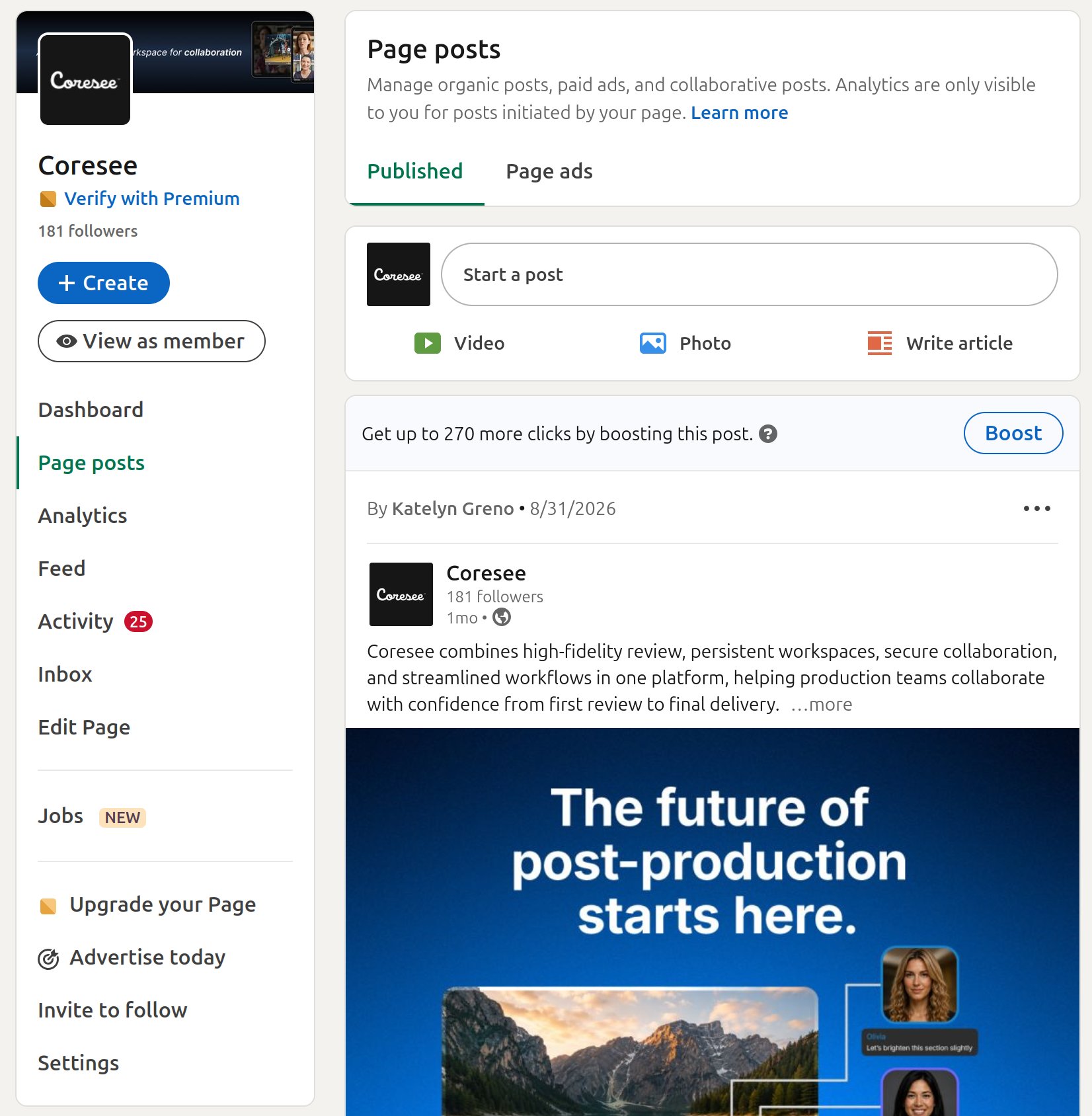
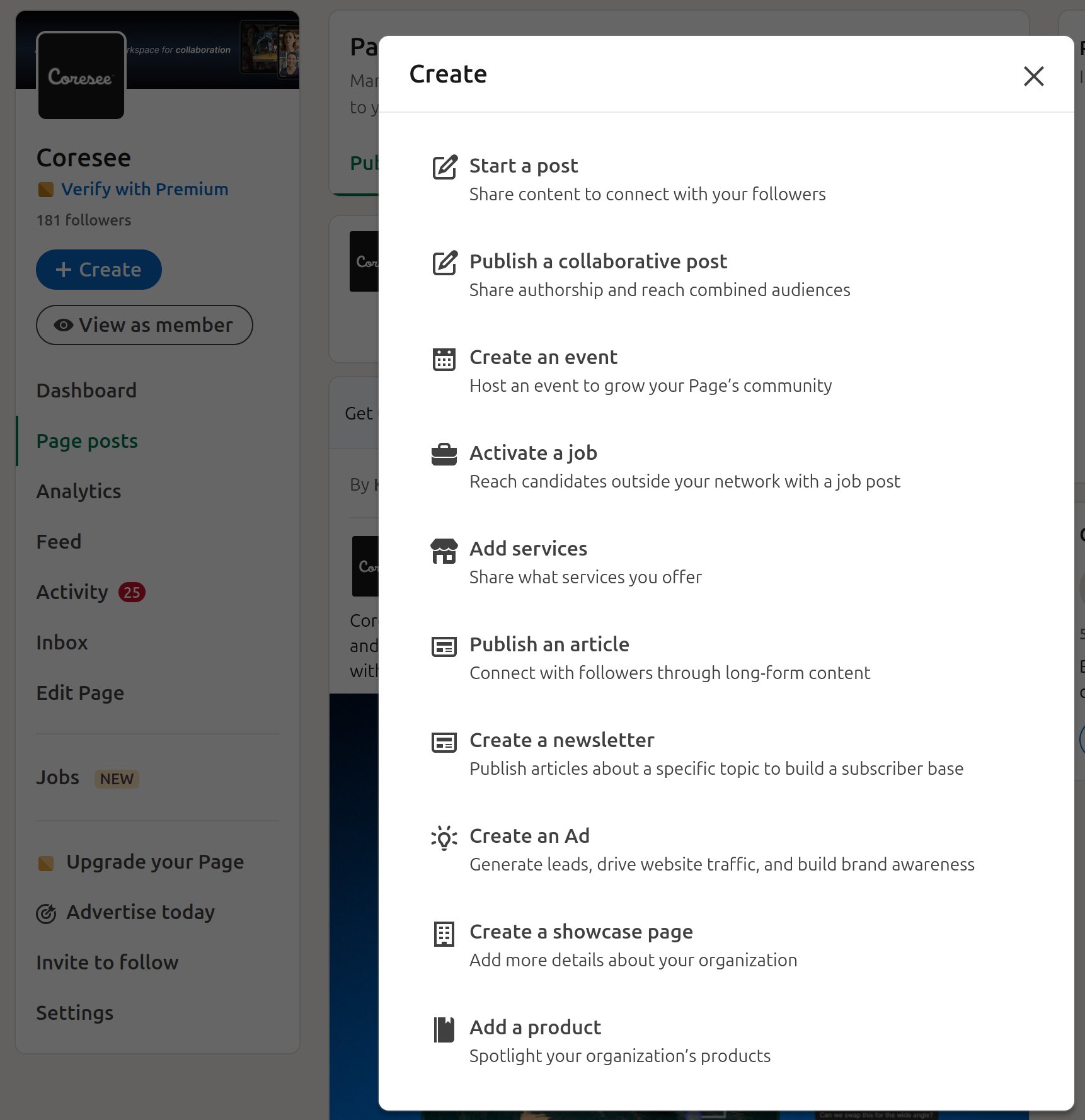
2
Choose LinkedIn Live as the event format
Under Event format, select LinkedIn Live, configure your event’s details, then select **Next **and Post.You can also configure the event as a test event before creating a real one.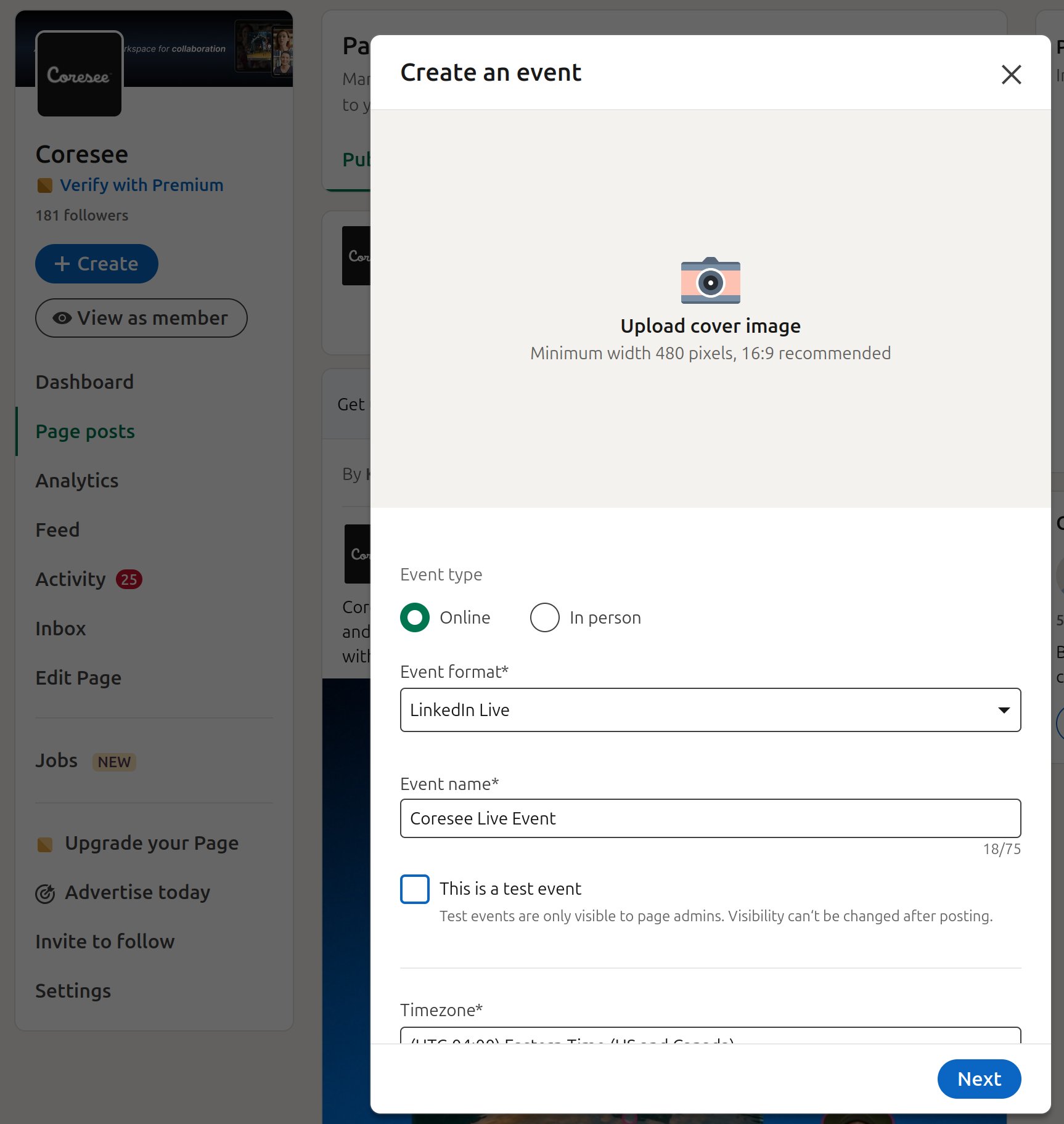
3
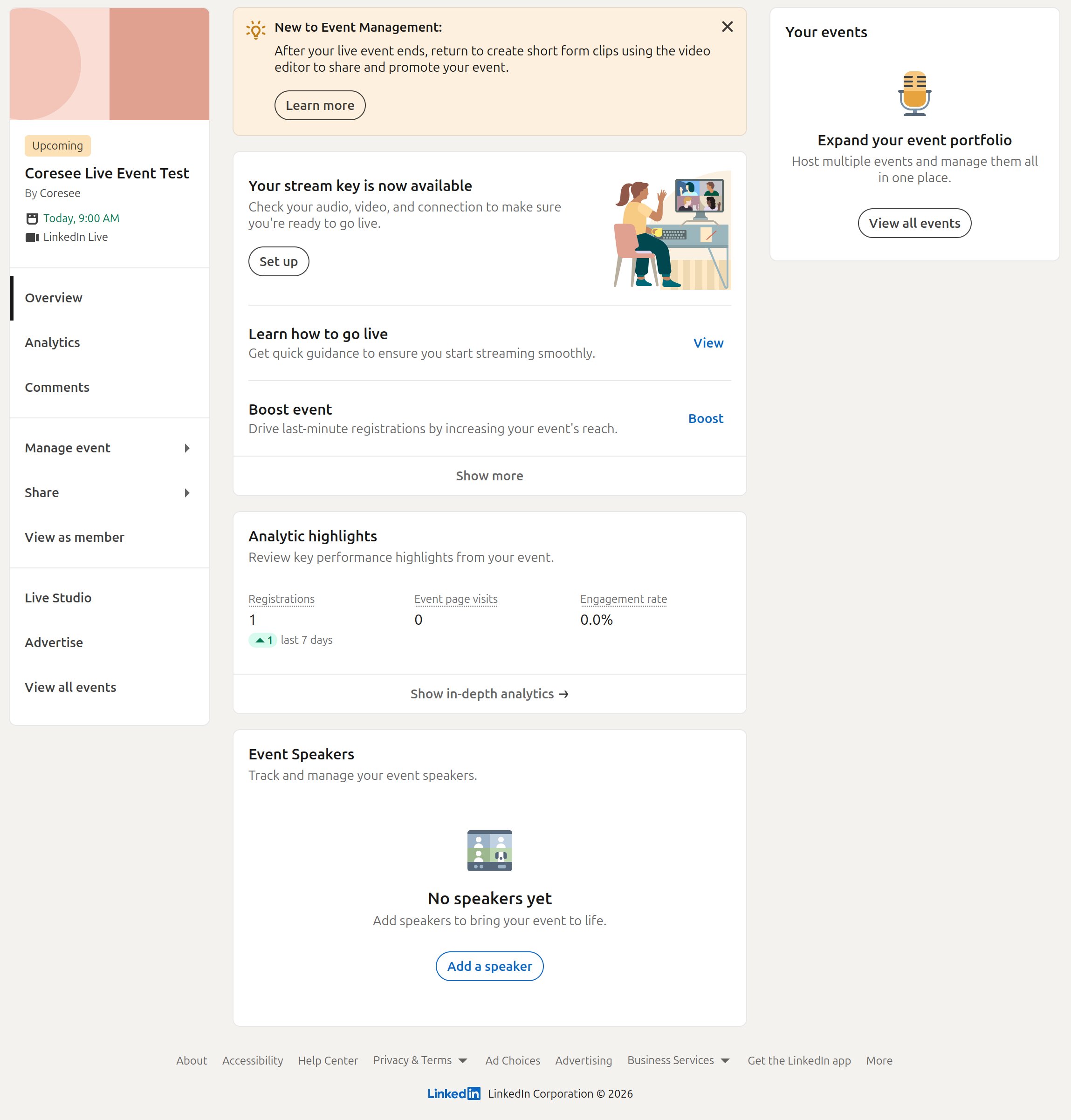
Open Live Studio
On the prompt that follows, select Set up event, then go to **Live Studio **on the left-hand side of your event.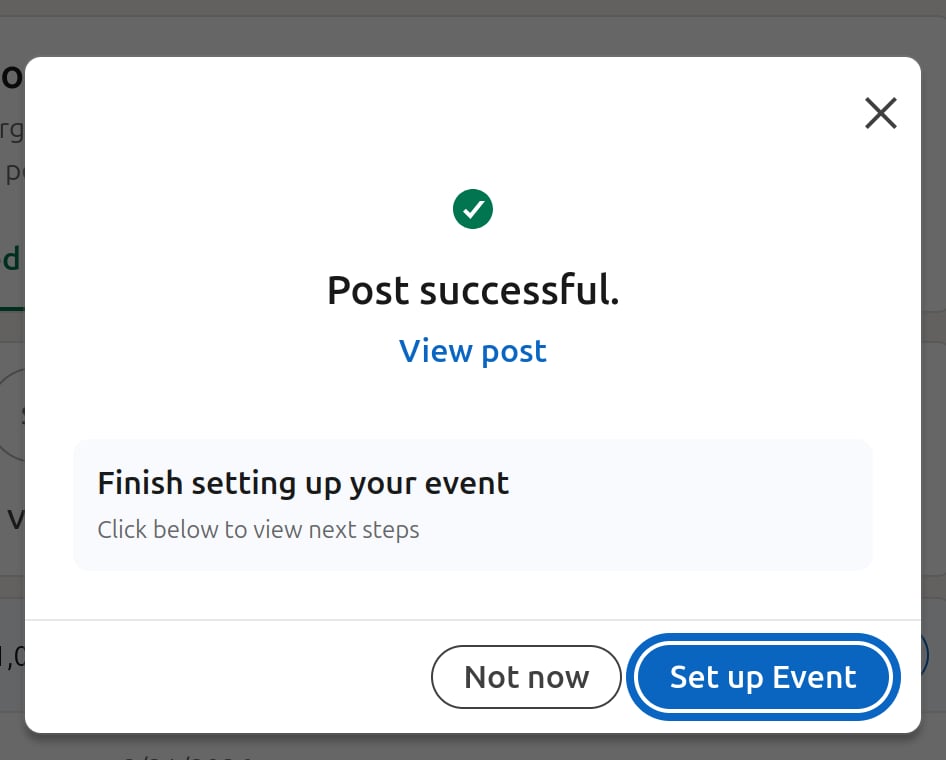
4
Open the stream preview
On the **Manage streams **page, select Prepare to go live.This opens your event’s stream preview.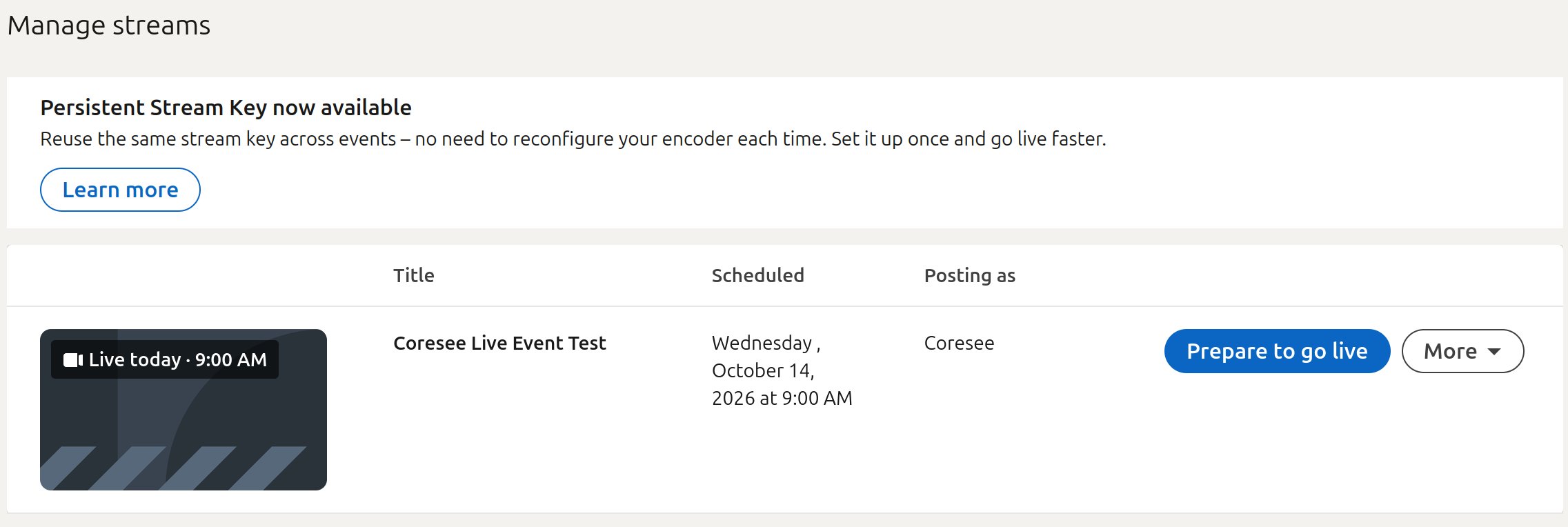
5
Generate the stream URL
Under Stream Settings, pick the region corresponding to your event, then select Get URL. This generates an RTMPS URL for the Coresee Outbound Feed.
Stream URL ready. Copy the stream URL up to the
/live/ part — you’ll split this into a server URL and a stream key for the Outbound Feed.Connect the Coresee Outbound Feed
These steps configure your Coresee room to push its output to the LinkedIn stream over RTMP.1
Inside a room, open the Streaming Tab
2
Create a new RTMP Outbound Feed
Select the**+**symbol next to the **RTMP **protocol to create a new Outbound Feed.
3
Enter the LinkedIn stream details
Paste the LinkedIn connection details into the Outbound Feed’s fields.
| Outbound Feed field | Enter |
|---|---|
| RTMP Server URL | Your LinkedIn Stream URL (up to the /live/ part) |
| Channel ID | Your LinkedIn Stream key |
4
Go Live
Once both fields are filled in, select **Go Live **on the Outbound Feed.
Room is streaming to LinkedIn. Your Coresee room is now the source for the LinkedIn stream. Return to your LinkedIn stream to finish setting up the event on LinkedIn’s side.
Troubleshooting
A few things to check if the stream isn’t showing up where you expect it to.LinkedIn never shows a live preview
LinkedIn never shows a live preview
Double-check that the RTMP Server URL and Channel ID entered in the Outbound Feed exactly match the Stream URL and Stream key generated on LinkedIn’s Manage streams page.