

Ending the broadcast
Ending your event moves it into the Post-Event stage, which attendees see once the broadcast closes.1
Go to the Configuration Page
Open your event and find Activation Controls in the left-hand Settings sidebar.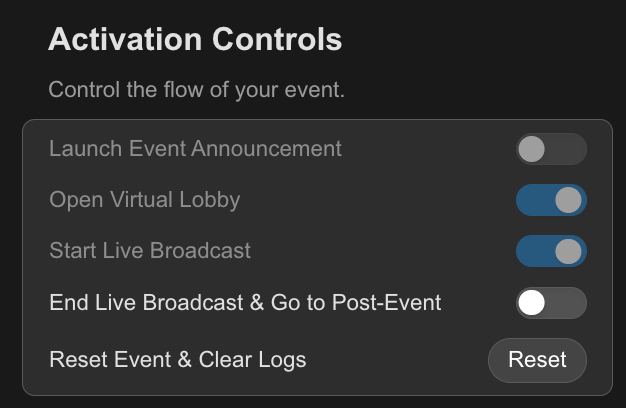
2
Toggle "End Live Broadcast & Go to Post-Event"
This closes the broadcast for all attendees and switches them over to the Post-Event screen.
Your event is now closed. Attendees see your Post-Event page — a thank-you message, and any follow-up content you’ve set up (see Customize Your Event for styling options).
Downloading the participant list
Once your event has ended, the attendee list becomes available to download from the Post-Event section of the Configuration Page.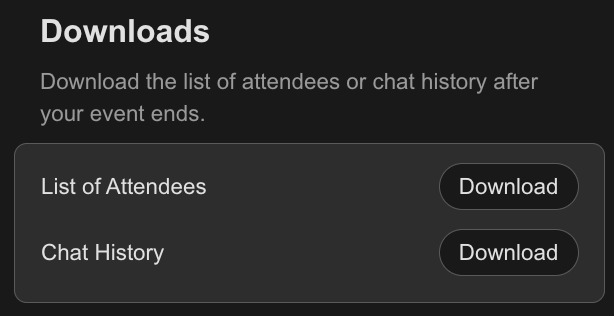
Downloading the chat history
Right next to the attendee list, the Chat History download gives you a full record of everything said in chat during the broadcast.- Useful for reviewing questions you didn’t get to answer live.
- Helpful if you need a record of what was moderated, blocked, or banned during the event — see Moderate Chat for more on those actions.
Resetting for next time
If you’re planning to run this event again, Reset Event & Clear Logs in Activation Controls gets it ready for the next session.This clears your data. Resetting removes the participant list and chat history — download them first if you need them.
Your branding, styling, and stage content are not affected by a reset — only participant and chat data is cleared.