Looking to change how chat looks instead — labels, colors, GIFs? See Customize Your Event.
Accessing Chat Moderation
Chat moderation lives in its own tab on the Configuration Page, separate from your event’s Settings.
Normal mode vs. Block mode
Two moderation modes control how much oversight you have before a message reaches the audience.Normal mode
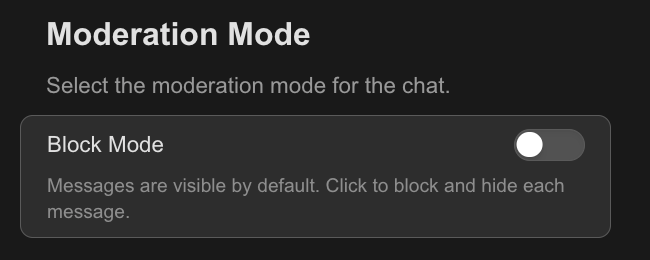
Messages post immediately and are visible to the full audience in real time. You can remove individual messages after the fact, and ban disruptive users, without interrupting the broadcast.
Block mode
Every message is held in a queue and reviewed before it appears to the audience, giving you full control over what reaches the chat.
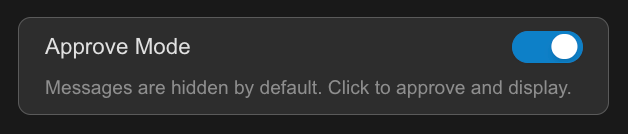
Choose Block mode for events where you want to screen every message before it’s visible — for example, sensitive Q&A sessions. Normal mode suits most day-to-day broadcasts.
Moderator identity
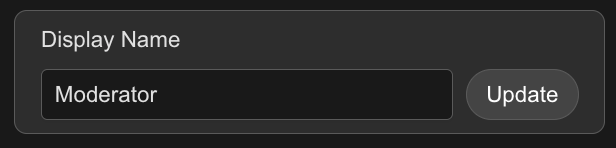
In both Normal and Block mode, you operate under a configurable display name.- Set a display name so attendees see a consistent identity for the moderator, rather than your personal account name.
- You can send messages to the audience from that identity — useful for answering questions or posting updates during the broadcast.
Blocking and banning
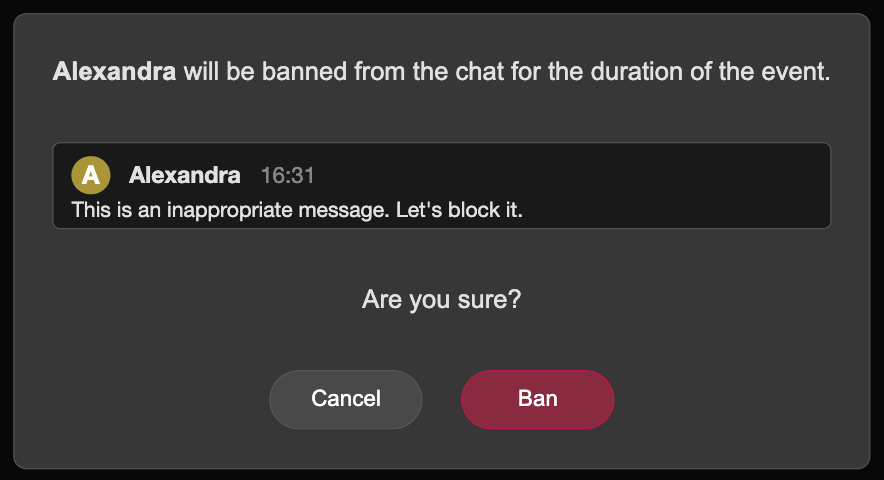
Two actions are available for handling individual messages and attendees.- Block a message — removes an individual message from the chat. You can always Unblock the message.

- Ban a user — prevents a disruptive attendee from posting further messages, without interrupting the broadcast for anyone else. You will need to confirm your decision. They will still be able to view the broadcast, but not participate in the chat.