

Inbound vs. Outbound. An Inbound Feed brings an external source into the room. An Outbound Feed sends the room’s video out to an external destination (like YouTube Live or a custom RTMP endpoint). They’re configured in the same place but do the opposite job.
Where to find Inbound Feeds
Inbound Feeds live in the Streaming tab of the Side Panel, under the Feeds section alongside Outbound Feeds.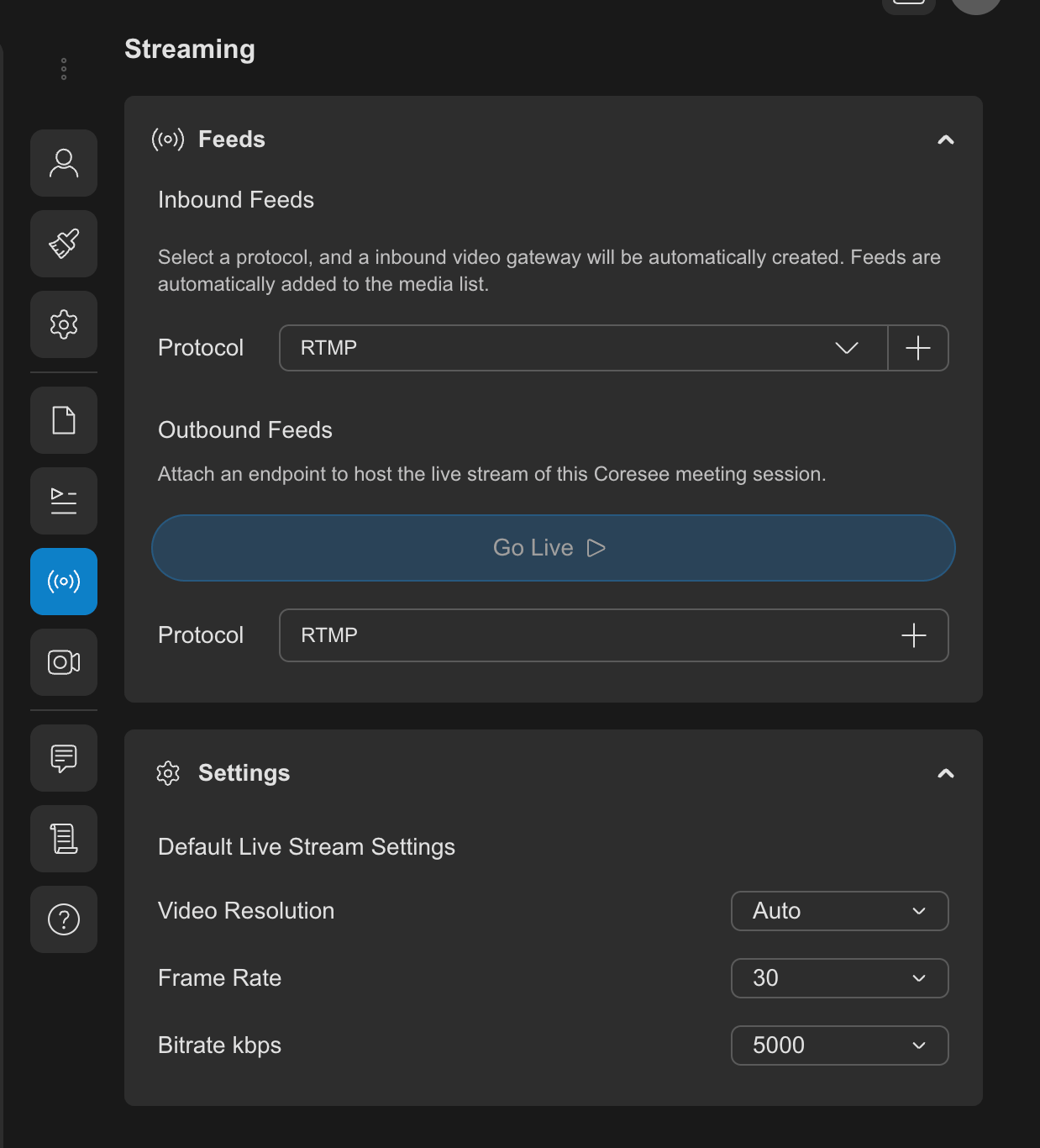
How an Inbound Feed works
Creating an Inbound Feed generates a unique ingest address for that feed — a Server URL and Channel ID. You enter these into your external device or encoder, which then pushes its video stream to Coresee. Once the stream is live, Coresee exposes it as a media source that can be brought into the room the same way you’d present a file.- The external source does the “pushing” — Coresee doesn’t reach out to the device, so the device needs network access to send its stream out.
- A feed can be created and configured before a session starts, so it’s ready to go the moment you need it.
- Multiple Inbound Feeds can exist on the same room at once, each with its own card in the Feeds list.
Creating an Inbound Feed
Set up a new Inbound Feed from the Streaming tab before connecting your external device.1
Open the dropdown to select your streaming protocol
RTMP, SRT or RTSP
2
Click +
3
Expand the card for the connection details

Exactly where these values go on your device varies by manufacturer — typically a Server URL (or similar) field and a Stream Key/Channel ID (or similar) field.