

Requirements
Before you can sign in or create rooms from Google Calendar, the add-on needs to be installed on your Google account.Coresee Add-on for Google Calendar
Sign In to Coresee
Sign in to your Coresee account through the Google Calendar Add-on to manage your room settings and start inviting others to your meeting room.From the Google Calendar Add-on sidebar, click the Coresee Add-on button. The Coresee Add-on panel opens.
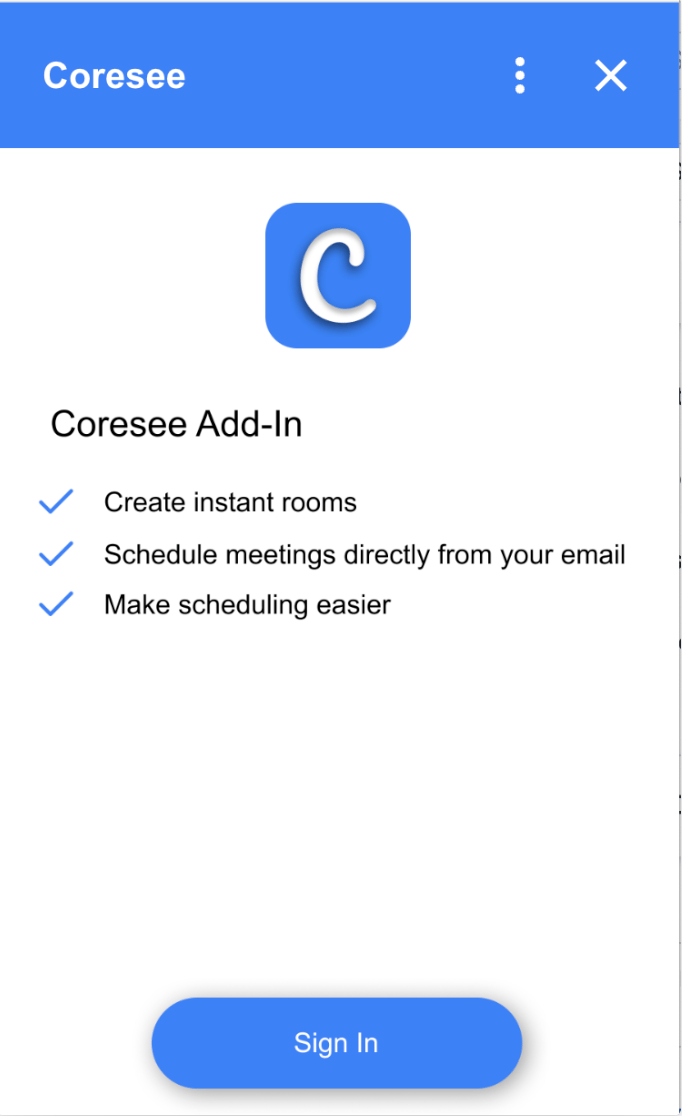
Click Sign In.
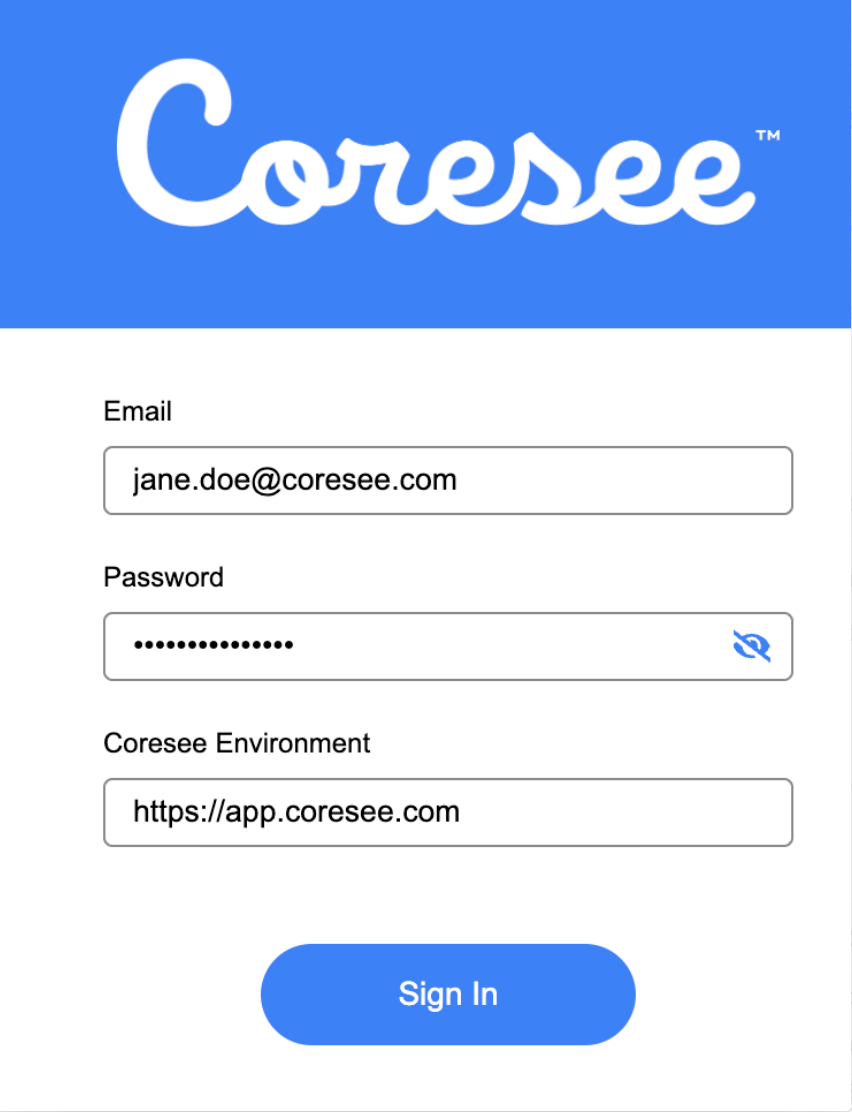
Enter your Coresee credentials and environment (optional), then click Sign In.
Create a Coresee Room
Create, schedule, and invite others to your next Coresee session while creating an event in Google Calendar — no need to set up the room separately.From Google Calendar, click Create to start a new event, or open an existing one to edit it. The event modal appears — enter your event details as usual.
Within the event, click the Add video conferencing dropdown.
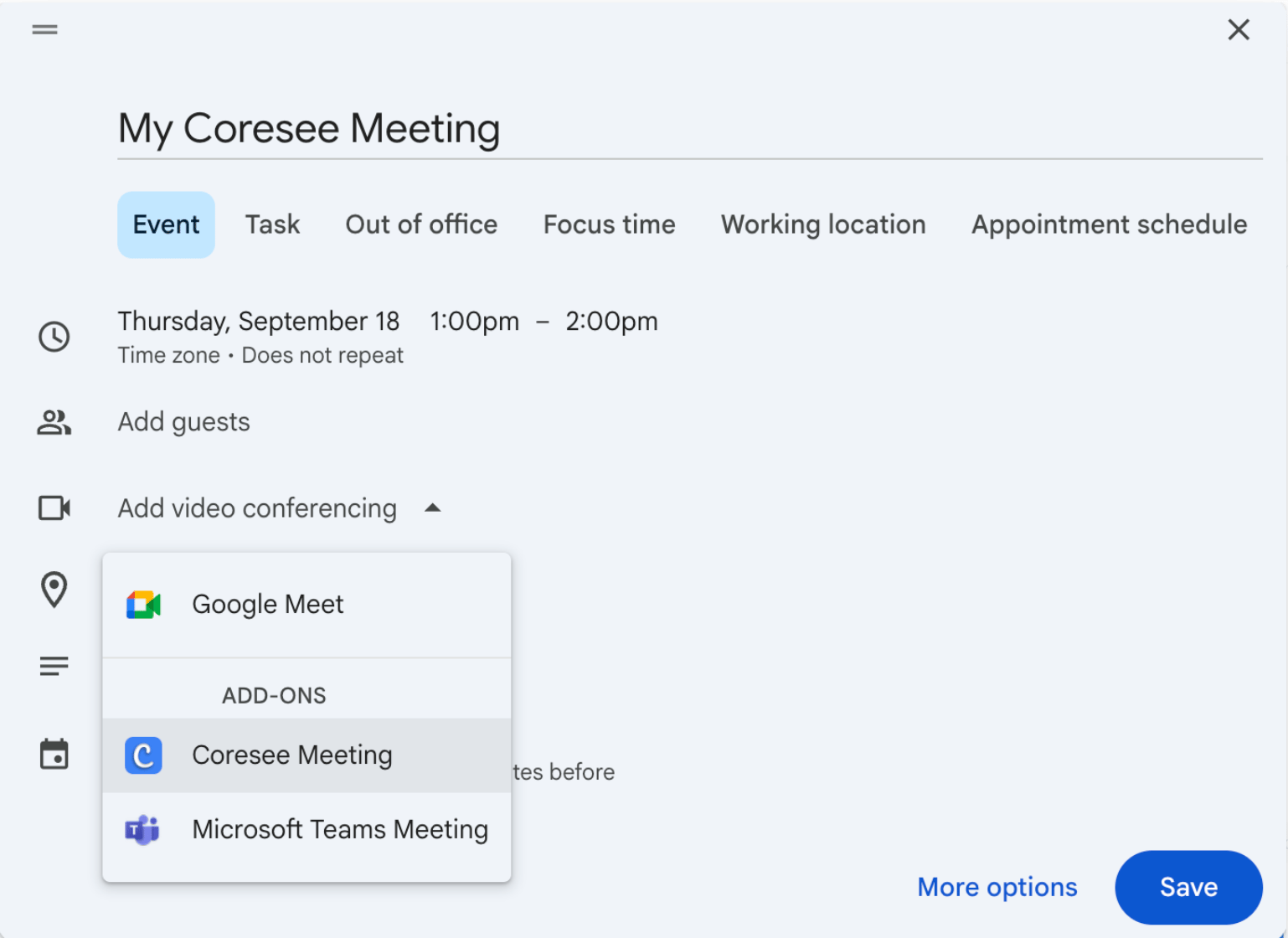
Select the Coresee Meeting option.
Meeting Room Settings
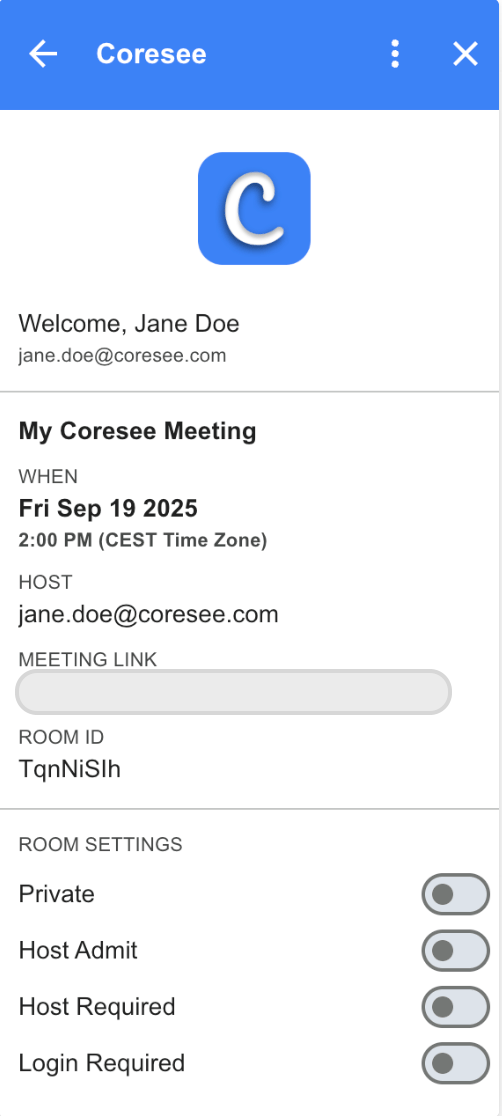
Coresee meeting room settings can be updated directly from Google Calendar, without opening Coresee separately. Coresee meeting room settings can be updated directly from Google Calendar.From the Add-on sidebar, click the Coresee Add-on button.
From Google Calendar, click on an event where Coresee has been selected as the video conferencing option.
Your meeting room details appear, along with additional room setting toggles.
Sign Out / Switch Accounts
Switch accounts easily by signing out of your current Coresee account and signing in to a new one.From the Google Calendar Add-on sidebar, click the Coresee Add-on button.
Click the three-dot menu, located on the top right-hand side of the panel.
From the menu, select Sign Out.