

System Requirements
Supported Operating Systems
- Mac OS 13.2 Ventura and above
- Windows OS 10 and above
Supported Avid Products
- Avid Version 2022.12.5 and above
Install the Coresee Avid Media Composer Plugin
Add the Coresee Transmitter Panel to Your Avid Media Composer Project
Open or create an Avid Media Composer project.
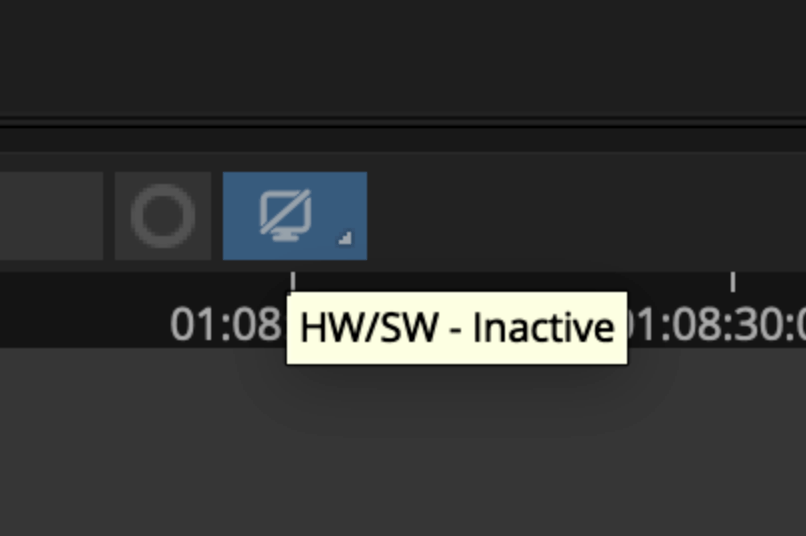
From your project timeline, right-click the HW/SW button. A dropdown menu appears.
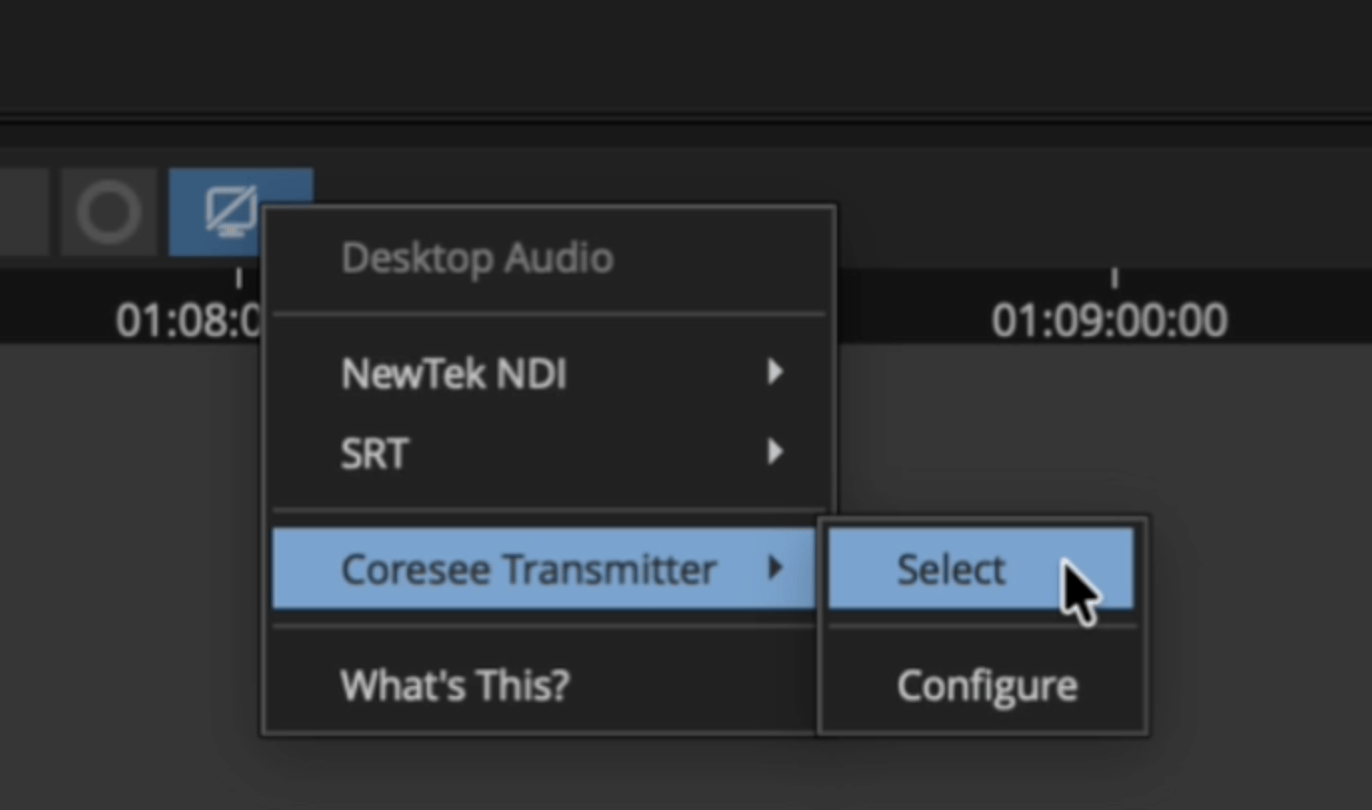
Hover over Coresee Transmitter and click Select.
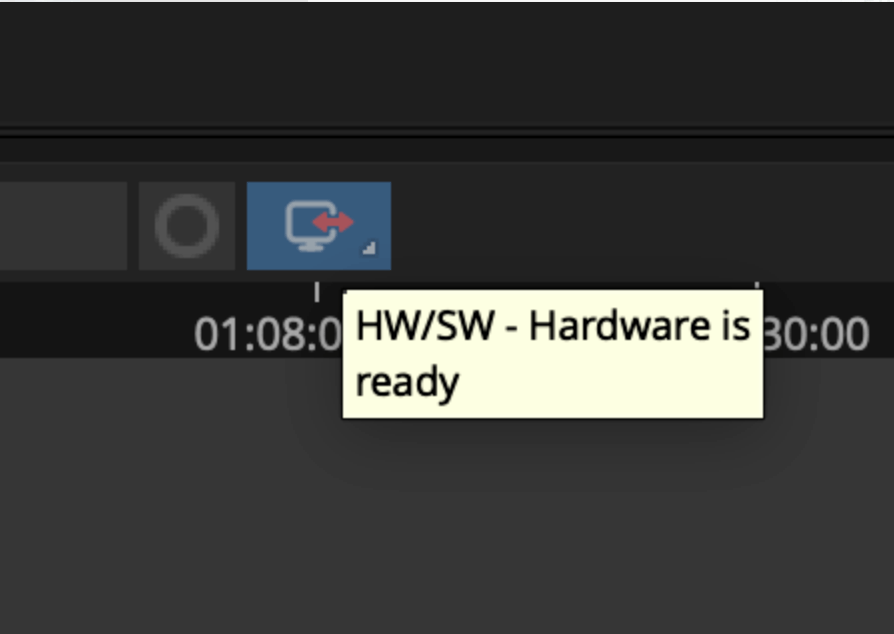
Click the HW/SW button again to activate the Coresee Transmitter. Once active, the button turns red.
Right-click HW/SW again to open the Coresee panel.
Hover over Coresee Transmitter and click Configure.
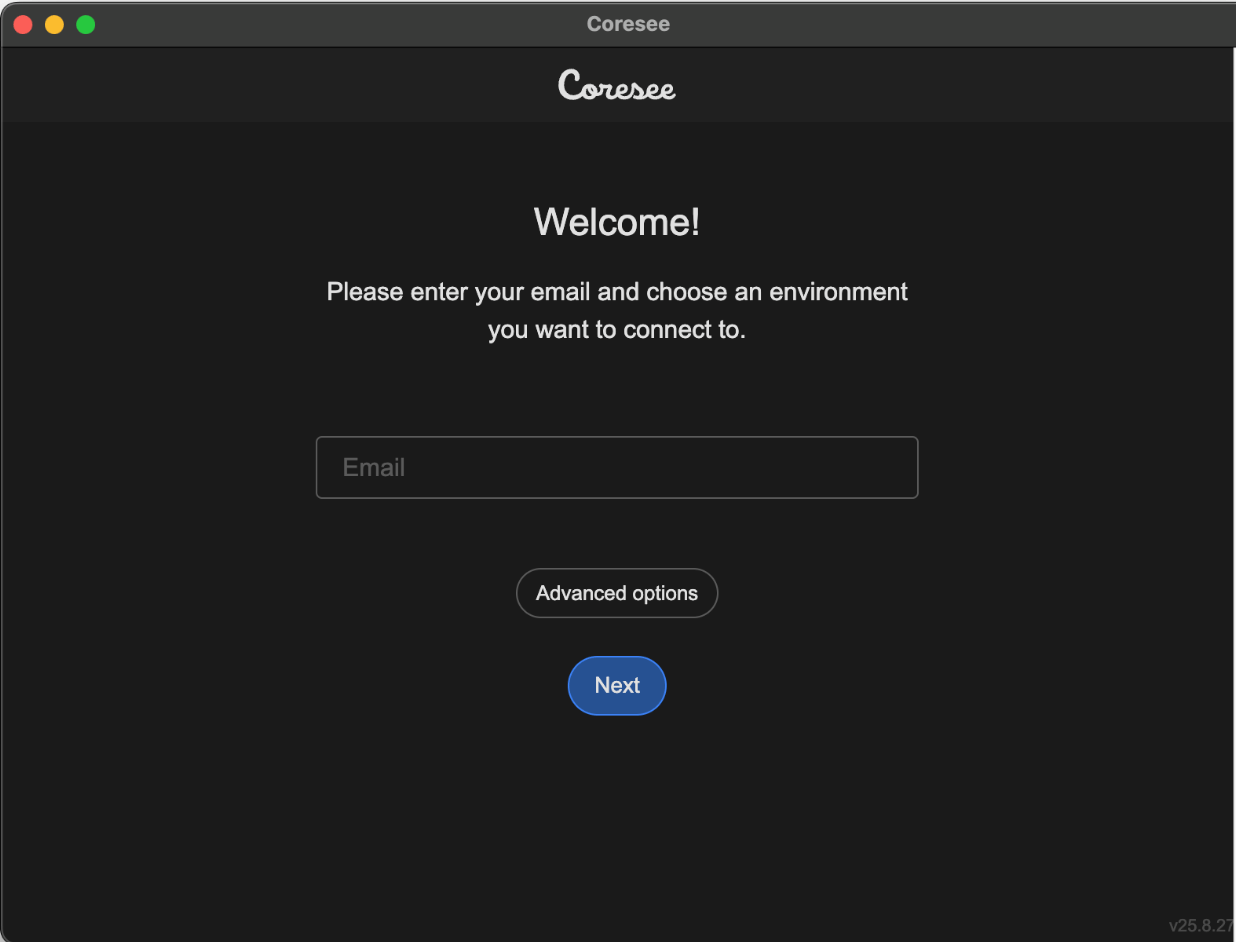
In the panel, enter the email address linked to your Coresee account. A list of available rooms is then displayed.
Share Your Stream to a Coresee Room
With the panel configured, choose a room and select what to send before starting the feed.Locate the room you want to stream to and click Connect.
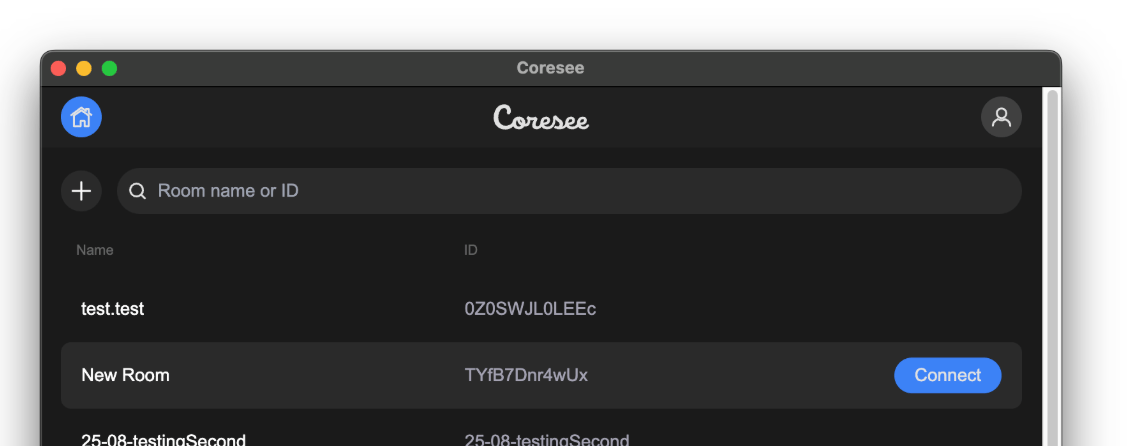
Prepare your stream through the Settings tab.
Click the Input tab. By default, you'll see options for Playback and Full Screen.
Select the content and audio source you want to share.
Selecting Playback streams whichever window you’re actively editing in — the Record Monitor or the Source Monitor. Switching between them mid-stream updates the room’s view in real time, with no need to restart the feed.
Click Start to send the feed directly to your room.
Adjusting Stream Settings
Streaming quality settings are host-only, and can only be changed while the stream is stopped.Sharing Specific Avid Panels
Beyond the Record and Source Monitors, you can stream an individual floated Avid panel — useful for showing just a bin, a timeline, or a scopes panel without the rest of the interface.Find the Panel you’d like to share and click on the Panel name.
Select Float this Panel.
From the Input tab, click the Refresh button, and the Panel will then appear as an available input option.