

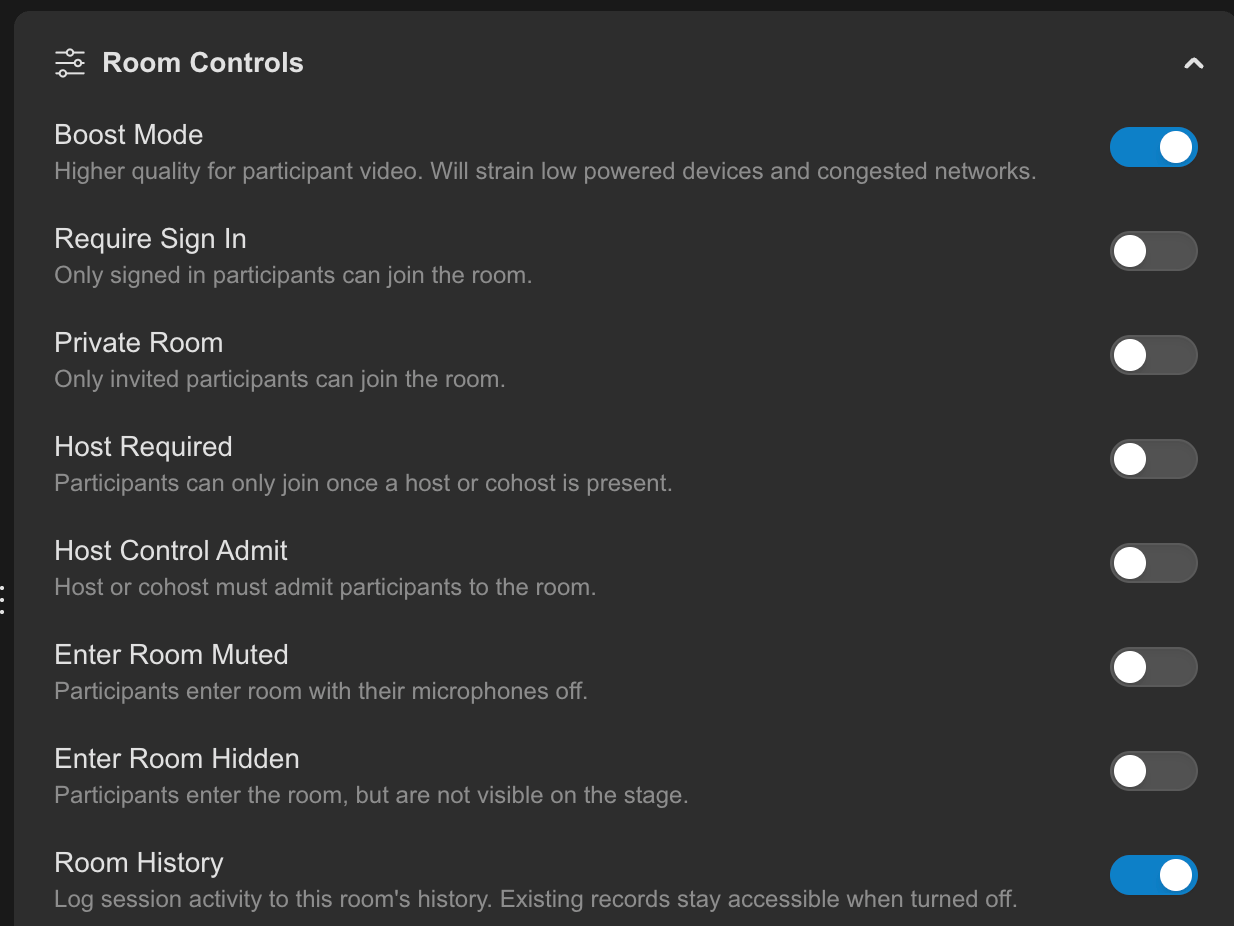
What Boost changes
Boost switches the room between two video quality levels.- It’s saved with the room. Your choice is still there the next time you open the room.
Boost only applies to participants’ video. Presentations (screen share, whiteboard) and video presented in the room, such as media and streaming, are not affected.
Who can use Boost
Boost is a Room Control, so it follows the same access rules as the other settings in that group.- Host and co-host can turn Boost on or off.
- Participants cannot change it, but they receive the room’s video quality.
How to turn Boost on or off
Boost is found in the Side Panel, under Settings → Room Controls. It’s the same control whether you’re on the homepage or inside a call.1
Open the Side Panel and go to the Settings tab.
2
Expand Room Controls.
3
Switch Boost on or off.
During a call, the change applies to the whole room. There’s no need for participants to do anything.
Boost and participant tiles
With Boost on, participant tiles can be displayed larger without looking blurry. Boost also affects the aspect ratio setting in Tile Settings (Appearance tab):- Boost on: you can choose the tile aspect ratio.
- Boost off: the aspect ratio setting is blocked and tiles use the default 16:9.
When to use Boost
ISO recording
Turn Boost ONBoost is important for ISO recording. Turn it on before you record so each participant’s individual feed is captured in high quality.
Demos, panels and productions
Turn Boost ONWhen viewers need to see people clearly, or you’re streaming or recording the room, turn Boost on for a sharper participant picture. Presentations and presented video aren’t affected by Boost.
Large meetings or mixed connections
Turn Boost OFFWhen many people are on the call or some have weaker connections, the lower setting keeps video lighter on bandwidth.