Screen sharing lets you present documents, slides, browser tabs, or your entire desktop to everyone else in the room — useful for walking through a deck, demoing an app, or reviewing a document together in real time. The control lives as the Share Screen icon in the Bottom Bar of the room — it isn’t a Side Panel tab, so there’s nothing to open first. Any participant can start a screen share; there’s no host-only or co-host-only restriction on the control itself. What the picker looks like — and what you’re able to choose from — depends on whether you’re joining from a browser or from the Coresee desktop app.

Starting a Screen Share

From the Browser

1

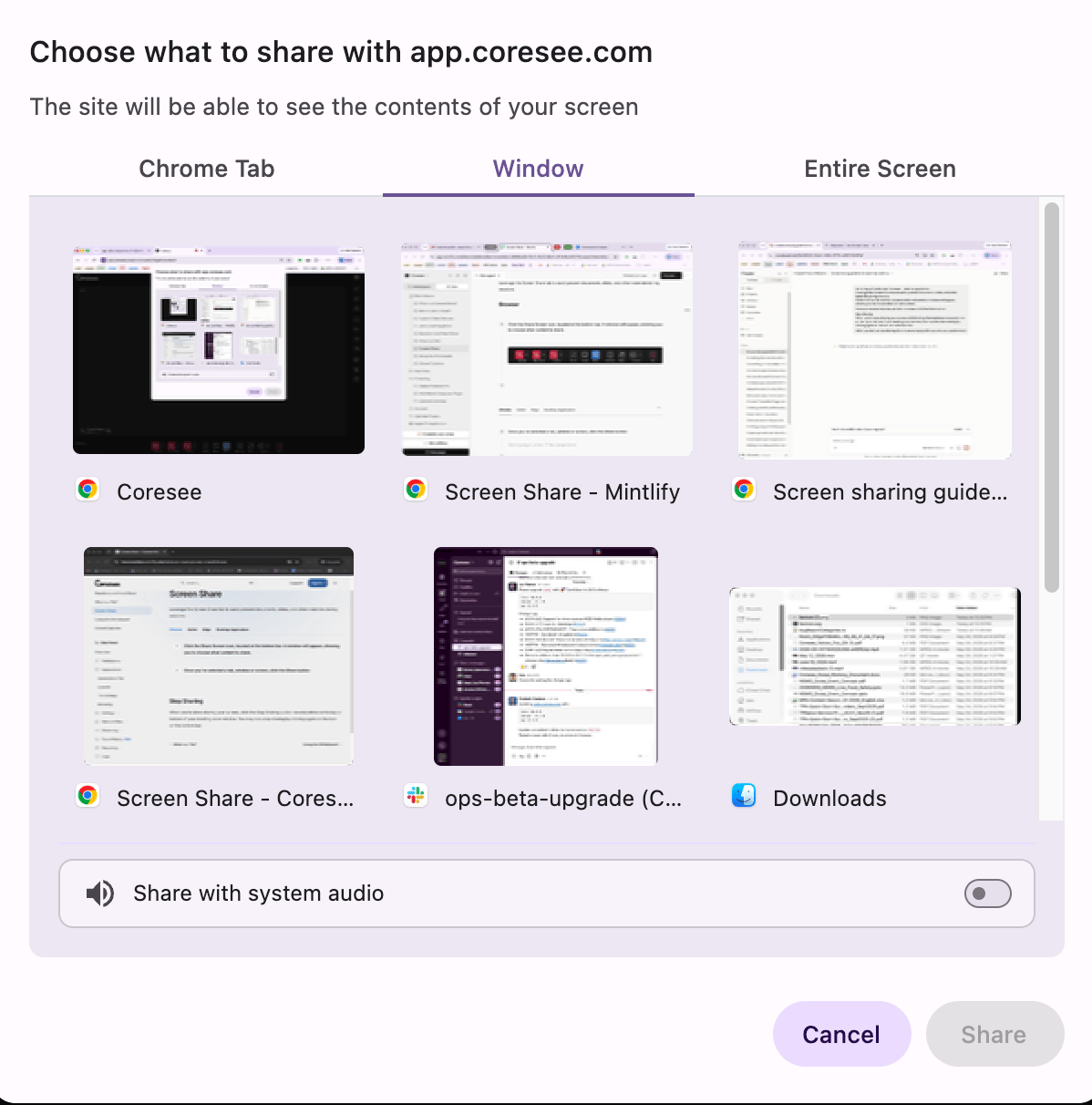
Click the Share Screen icon, located at the bottom bar. A window will appear, allowing you to choose what content to share.

Bottombar Sharescreen IconSharescreen Chrome Popup
2

Once you've selected a tab, window or screen, click the Share button
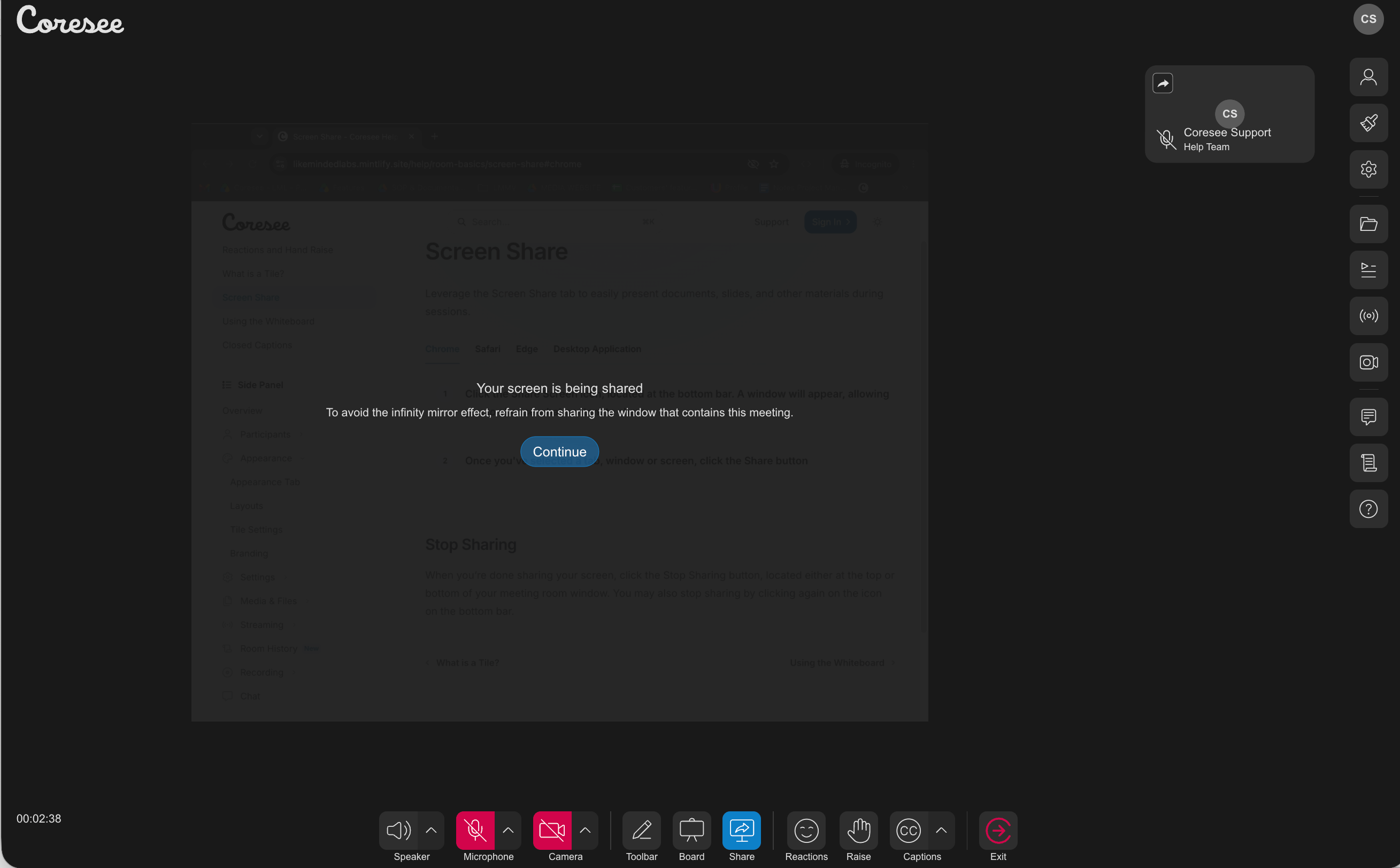
Screenshare InroomThis overlay is visible only to you — the person sharing — not to anyone else in the room. You can dismiss it at any time; dismissing it doesn’t stop your share, it just clears the reminder from your own view.

Stop Sharing

When you’re done sharing your screen, click the Stop Sharing button, located either at the top or bottom of your meeting room window. You may also stop sharing by clicking again on the icon on the bottom bar.