

Permissions are per site. Once you grant Coresee access in Chrome, the permission is saved for app.coresee.com and you won’t be asked again on future visits — unless you revoke it manually.
Granting permissions for the the first time?
The first time you join a Coresee room in Chrome, the browser will show a permission prompt asking whether it can access your camera and microphone.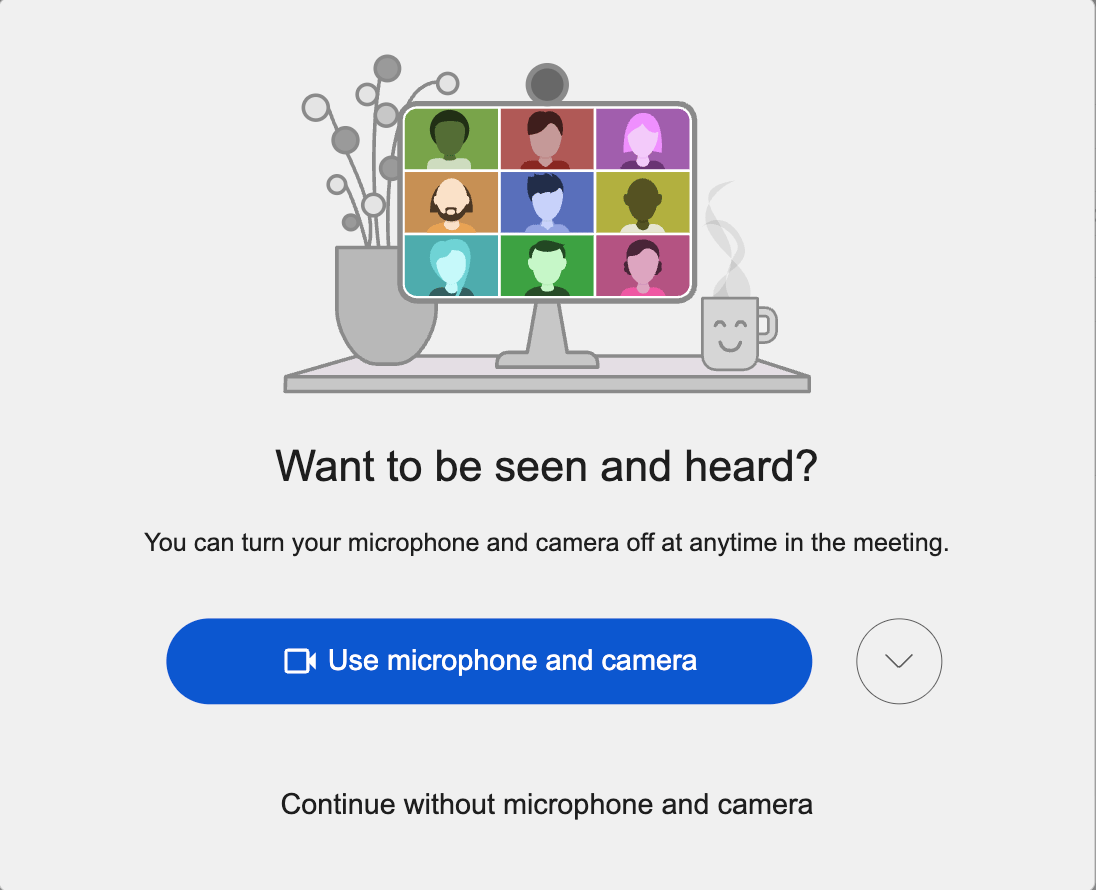
1
Choose Use microphone and camera
2
Select your preferred option
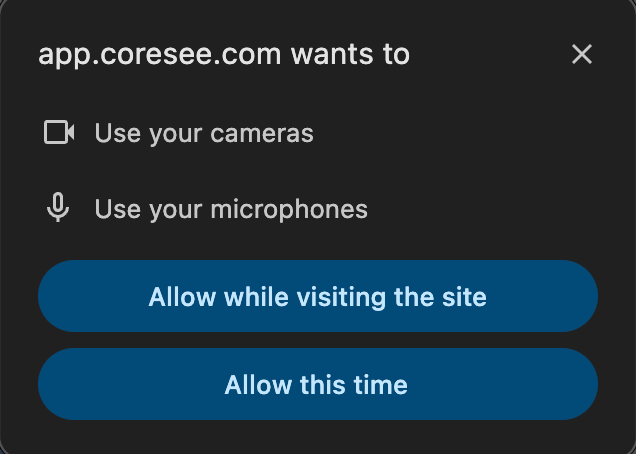
Allow this time — grants permission for this session only. Chrome will ask again the next time you join a room.
Recommended: Choose Allow while visiting the site for the smoothest experience. This means your camera and microphone are ready every time you join a room, without any extra steps.
Joining without permissions
If Coresee detects that camera or microphone access is unavailable when you enter a room, the affected device buttons will appear in red to indicate that permission is blocked.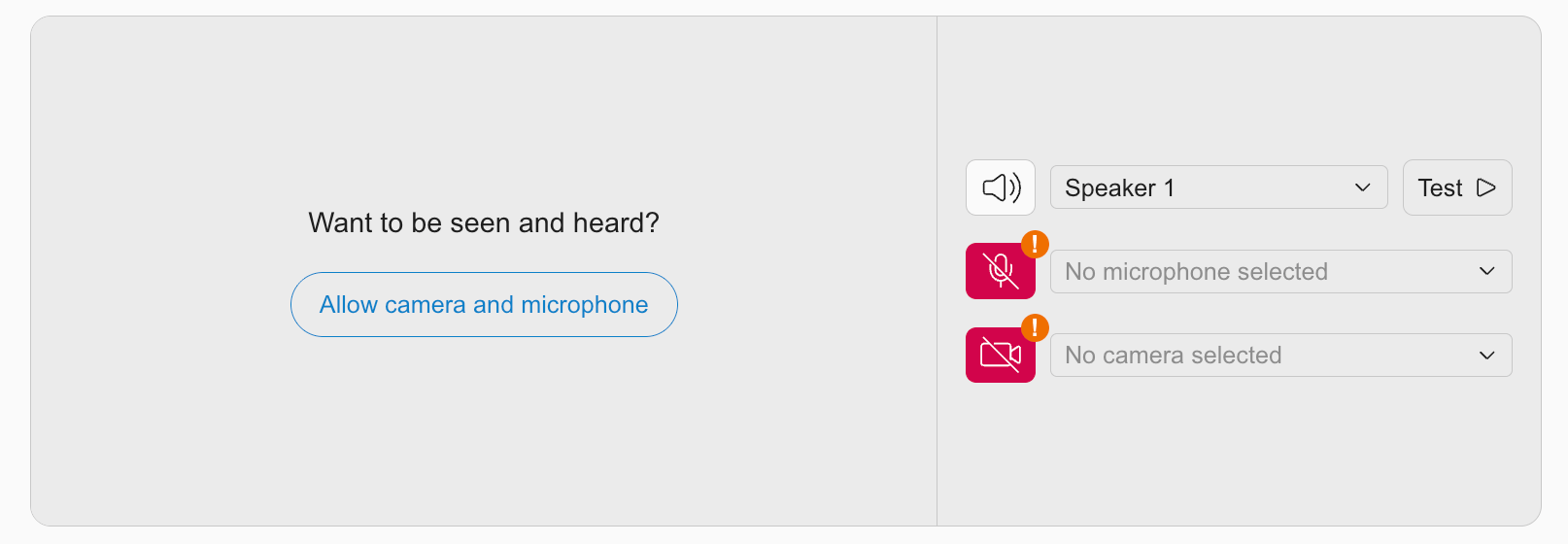
Re-granting permissions from inside the room
If you’re already in a session and realize your camera or microphone isn’t working because permission is blocked, click the affected device button in the Bottom Bar. Your browser will prompt you again to allow access to the camera or microphone.