Background blur softens what’s behind you on camera, keeping the focus on you instead of your surroundings. It’s applied to your own video only and takes just a couple of clicks from the bottom bar. You’ll need your camera on to preview the effect, but blur can be selected whether your camera is currently on or off.
1

Open the camera menu

At the lobby or in the room, click the arrow next to the camera icon to open its menu.
2

Choose a blur option

Under the blur selector, pick Light, or Strong. The effect applies immediately to your video.
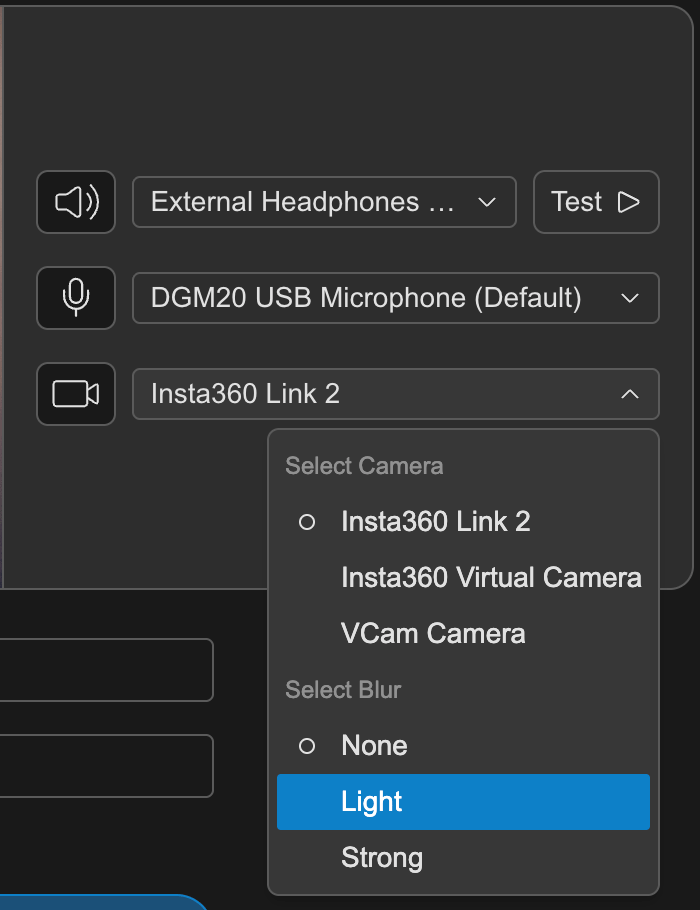
Blur
3

To turn blur off again, open the same menu and select None.