

Before you begin
Make sure you have the following ready.- A Coresee Event, with access to its event page.
- Wirecast open on the computer you’ll stream from.
- A network connection with enough sustained upload bandwidth for a 4 Mbps video stream.
Setup steps
Copy the connection details from your event, enter them in Wirecast’s output settings, then start the stream.1
Copy your RTMP URL and Channel ID
Go to your event’s page. In the left-hand side, under Event Streams, copy the RTMP URL and the Channel ID.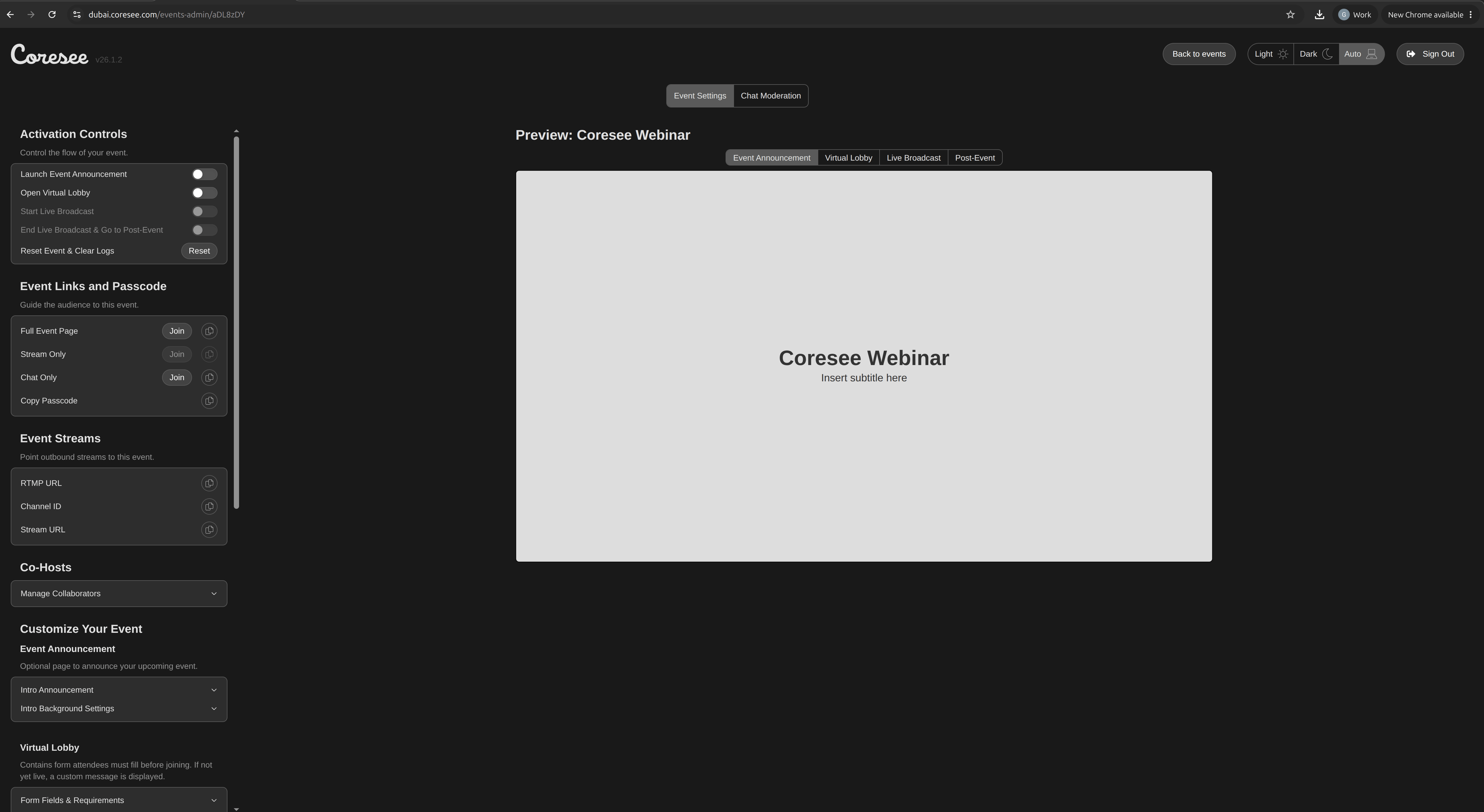
2
Open Wirecast's Output Settings
In Wirecast, open Output Settings and select RTMP Server as the destination.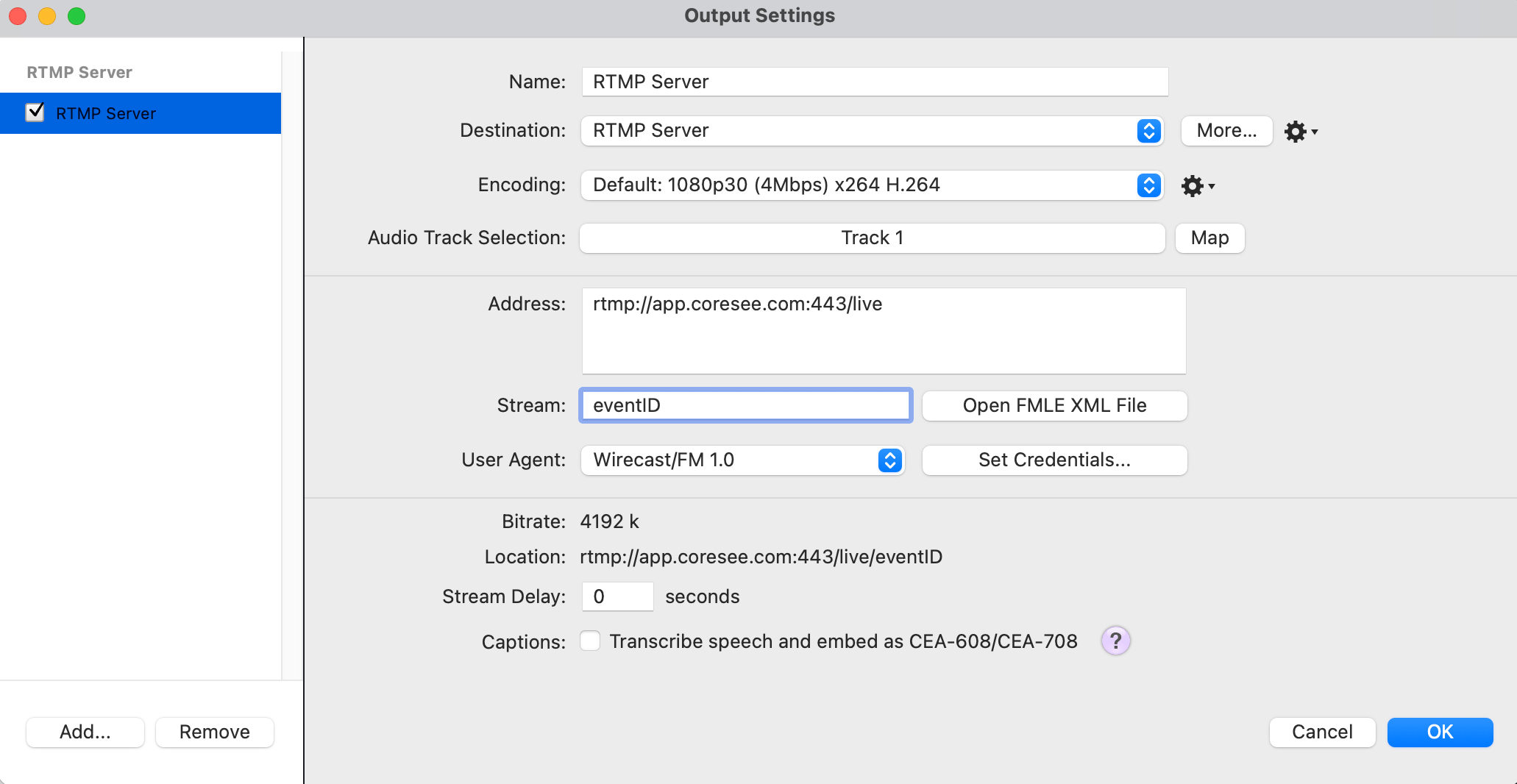
3
Choose the stream quality
Set the encoding to 1080p30 (4 Mbps), x264 H.264.
4
Enter your Coresee connection details
Fill in the fields as follows.
5
Start the stream
Start your stream from Wirecast.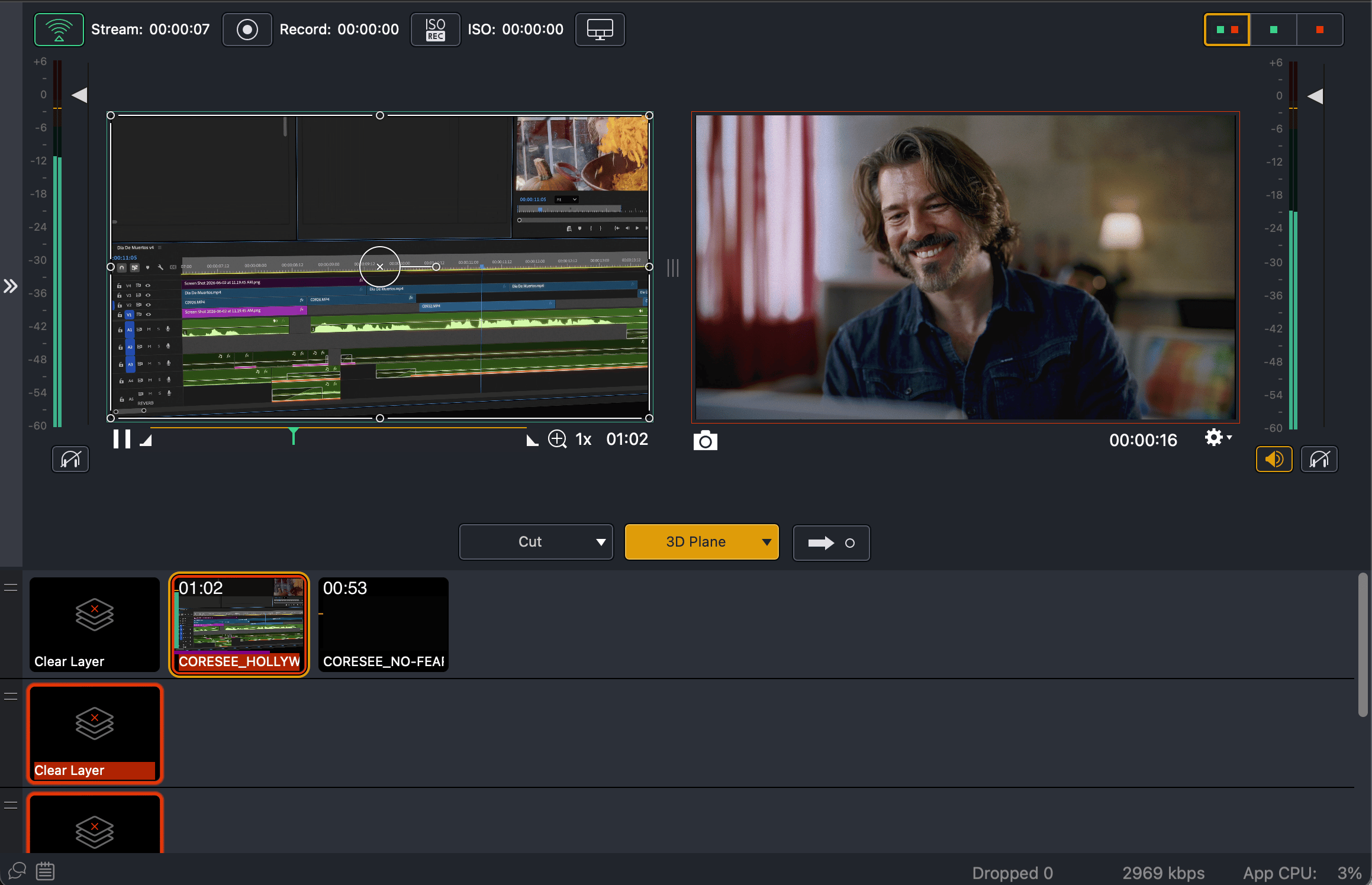
Troubleshooting
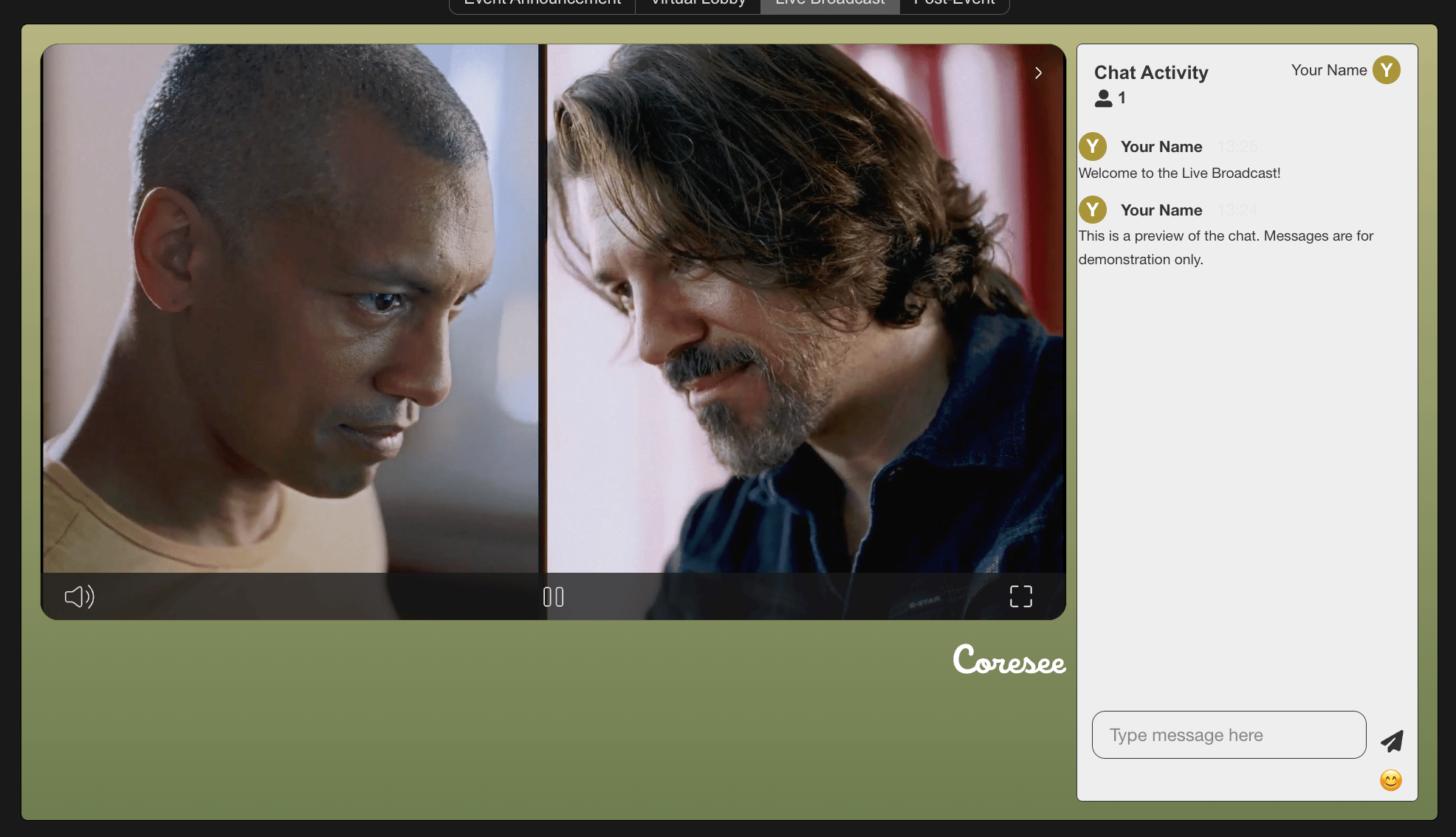
A few things to check if your stream doesn’t appear in the Live Broadcast preview.Nothing appears in Live Broadcast
Nothing appears in Live Broadcast
Confirm the stream is started in Wirecast, and that the Address and Stream values exactly match the RTMP URL and Channel ID under Event Streams on your event page. Make sure the final slash of the RTMP URL has been removed from the Address field.
Stream is choppy or drops
Stream is choppy or drops
Confirm your network has enough sustained upload bandwidth for the 4 Mbps stream quality selected.