

Before you begin
Make sure you have the following ready.- A Coresee Event, with access to its event page.
- OBS open on the computer you’ll stream from.
- A network connection with enough sustained upload bandwidth for your configured video bitrate.
Setup steps
Copy the connection details from your event, enter them in OBS’s stream settings, configure the encoder, then start streaming.1
Copy your RTMP URL and Channel ID
Go to your event’s page. In the left-hand side, under Event Streams, note the **RTMP URL **and the Channel ID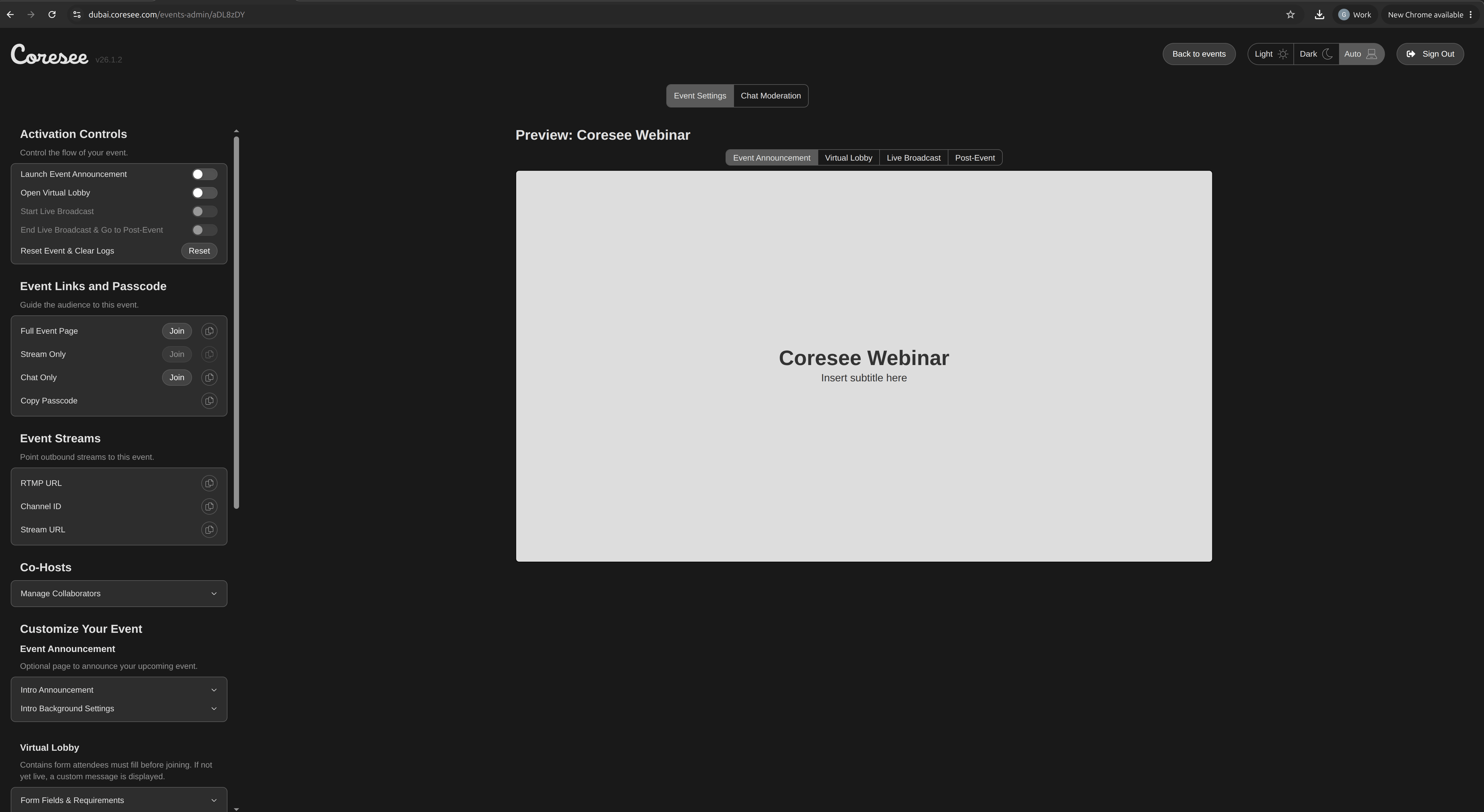
2
Enter your Coresee connection details in OBS
In OBS, click the **Settings **button in the bottom right corner, then select the **Stream **category in the left-hand side.Select **Custom **as the Service, fill in the fields below, then click Apply.
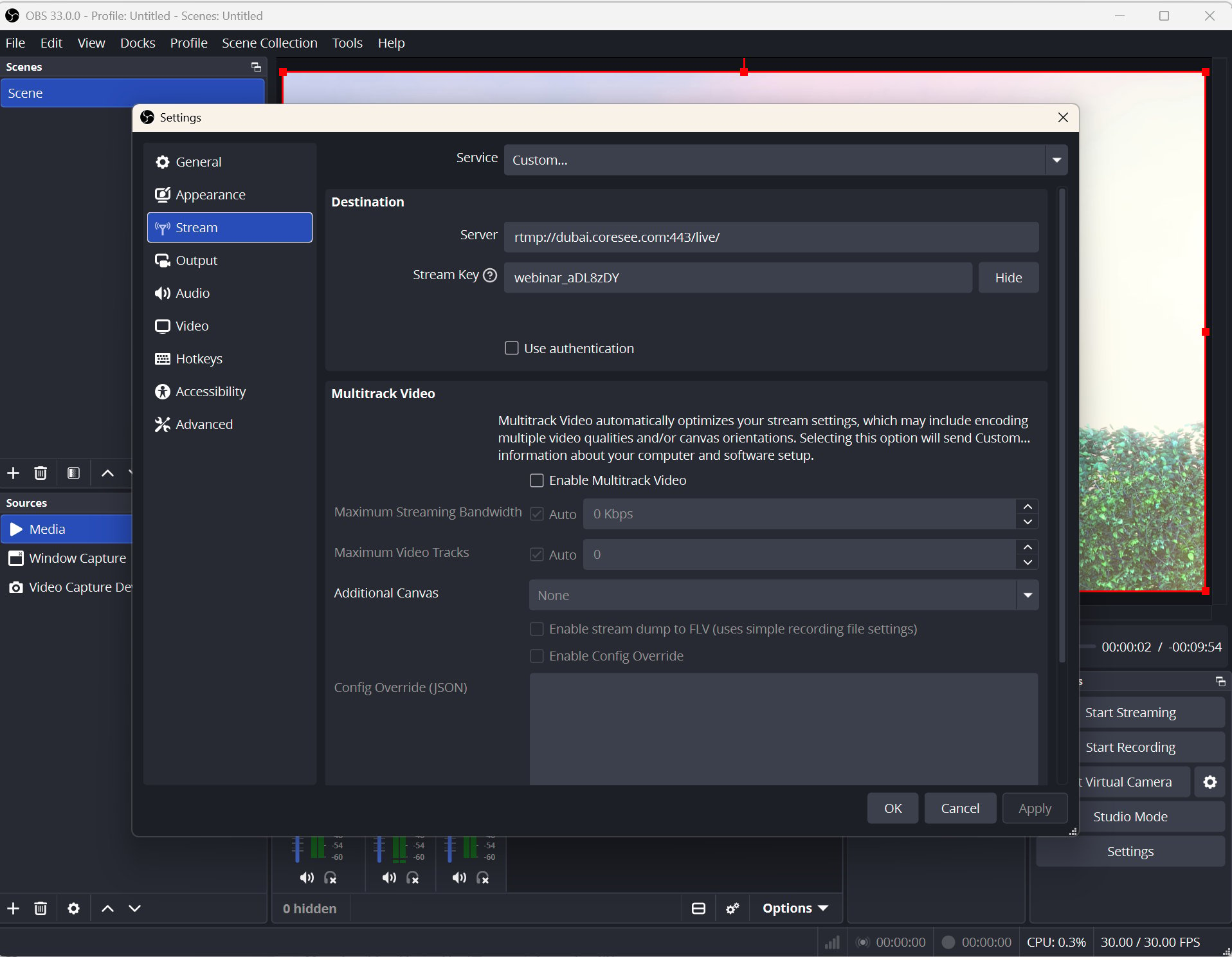
| OBS field | Enter |
|---|---|
| Server | The **RTMP URL **from step 1 |
| Stream Key | The **Channel ID **from step 1 |
3
Configure the output settings
Select the **Output **category in the left-hand side.Set **Output Mode **to Simple, then fill in your settings in the **Streaming **section.Select the **Software (x264) **encoder.Enable **Custom Encoder Settings **and enter the following: 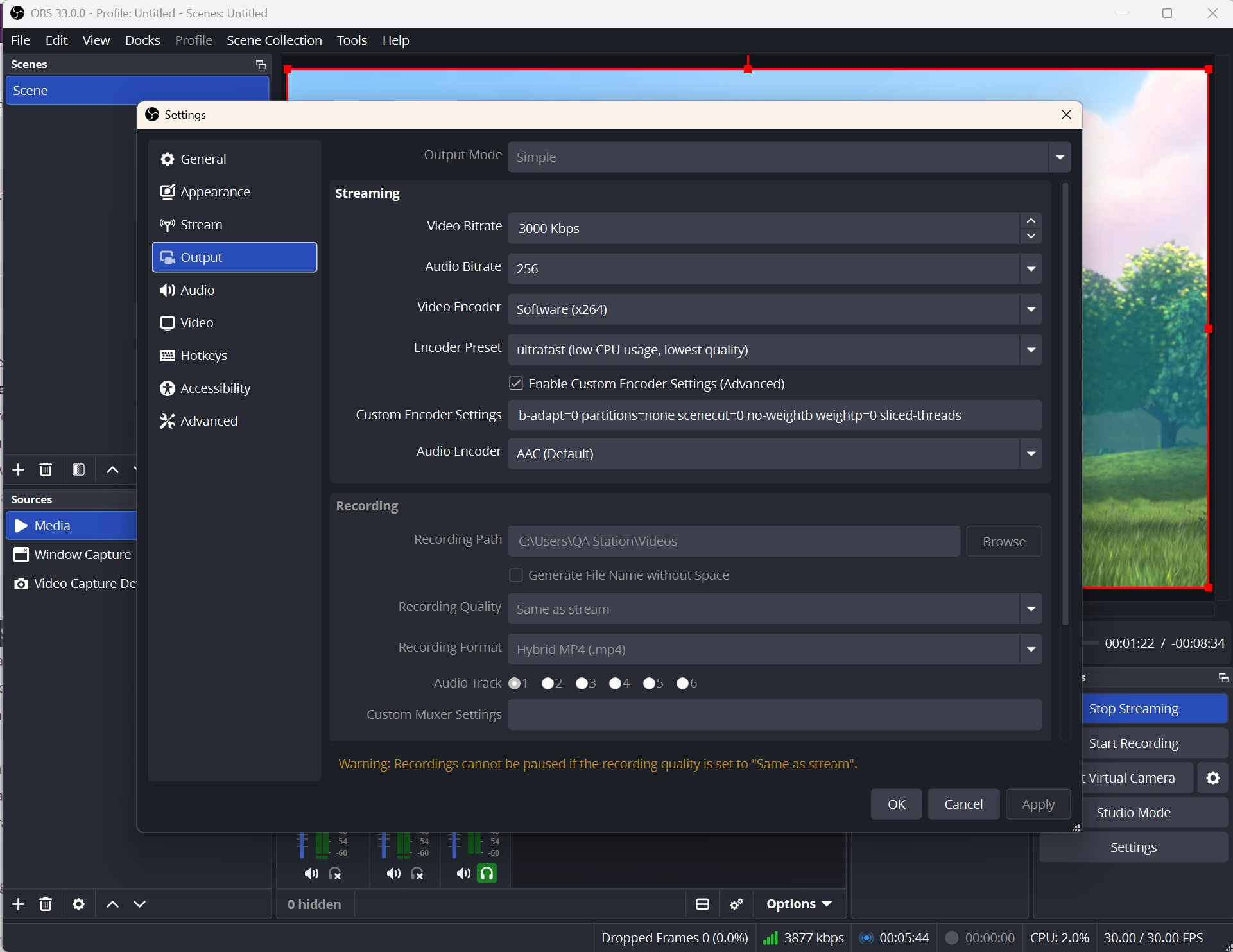
b-adapt=0 partitions=none scenecut=0 no-weightb weightp=0 sliced-threadsMake sure your **Audio Encoder **is set to AAC4
Start streaming
Click **Apply **to save your settings, then click Start Streaming.
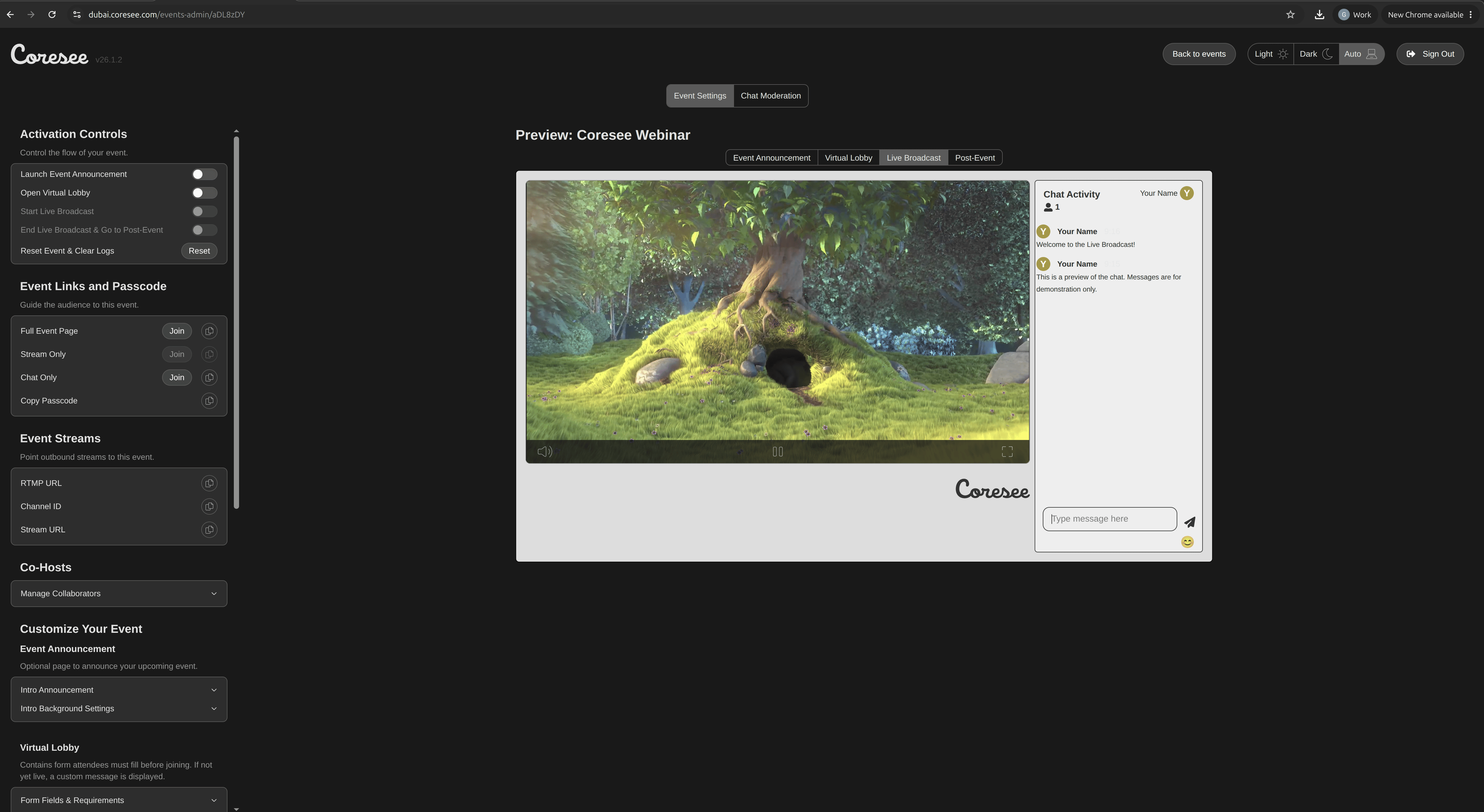
Your OBS stream appears in the event!On your event page, go to the Live Broadcast section of your preview. Your OBS stream will appear there.
Troubleshooting
A few things to check if your stream doesn’t appear in the Live Broadcast preview.Nothing appears in Live Broadcast
Nothing appears in Live Broadcast
Confirm streaming has started in OBS, and that the Server and Stream Key in OBS exactly match the RTMP URL and Channel ID shown under Event Streams on your event page.
Stream is choppy or drops
Stream is choppy or drops
Confirm your network has enough sustained upload bandwidth for your configured bitrate, and that the custom x264 encoder settings from step 3 were entered exactly as shown.