

Before you begin
Make sure you have the following ready before starting.- A Zowie Box and a video source with an HDMI output (such as a camera), plus an HDMI cable.
- A LAN cable and a network switch or router with DHCP enabled.
- A power source for the Zowie Box: either PoE (Power over Ethernet) through the LAN cable, or USB-C.
- A computer with a web browser (steps below were tested on Google Chrome). For the default login method, it must be on the same local network as the Zowie Box.
- An active Coresee room with access to the Streaming tab in the Side Panel, and host or co-host permissions to create an Inbound Feed.
- The Zowie Box user manual, for any detail not covered here — these steps follow its Quick Start closely but are not a substitute for it.
Zowie Box device initialization
The following instructions closely follow the Quick Start instructions from the Zowie Box user manual.1
Connect your video source
Connect the HDMI signal from your video source (such as a camera) to the HDMI input port of the Zowie Box using an HDMI cable. The Zowie Box automatically detects video formats and resolutions.
2
Connect the Zowie Box to your network
Use a LAN cable to connect the Zowie Box to a network port on a network switch or router with DHCP.
3
Power the Zowie Box
Power the device either through the PoE (Power over Ethernet) cable, or via USB-C.
4
Log in to the Zowie Box WEB Console
Use any one of the following methods: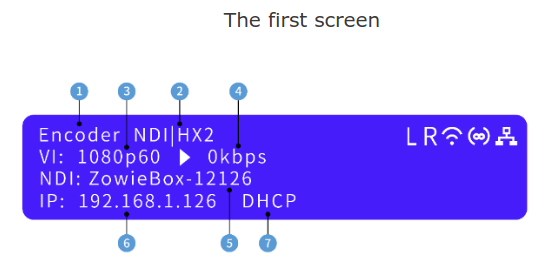
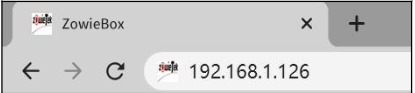
- By IP address. From a computer on the same local network as the Zowie Box, open your preferred browser and enter the Zowie Box IP address in the address bar. If DHCP is enabled, the IP address is displayed on the Zowie Box screen.
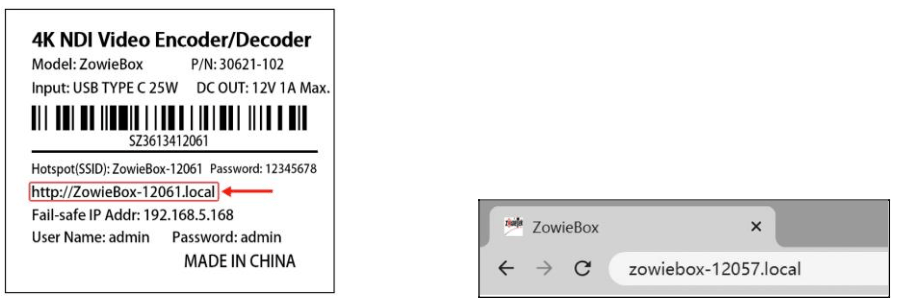
- By mDNS URL. Enter the mDNS URL printed on the bottom of the Zowie Box in your browser. It looks like
http://ZowieBox-xxxxx.local.
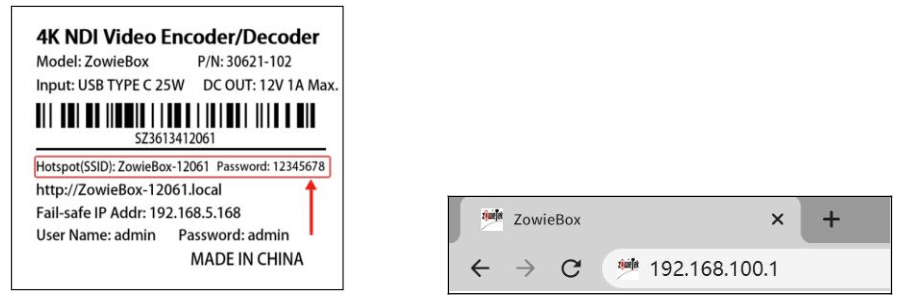
- By hotspot. Connect to the Zowie Box hotspot — its Hotspot ID and password are printed on the underside of the device. Once connected, enter
http://192.168.100.1in your browser to open the WEB console.
5
Sign in and validate the video input
Sign in to the WEB console. The default username and password are 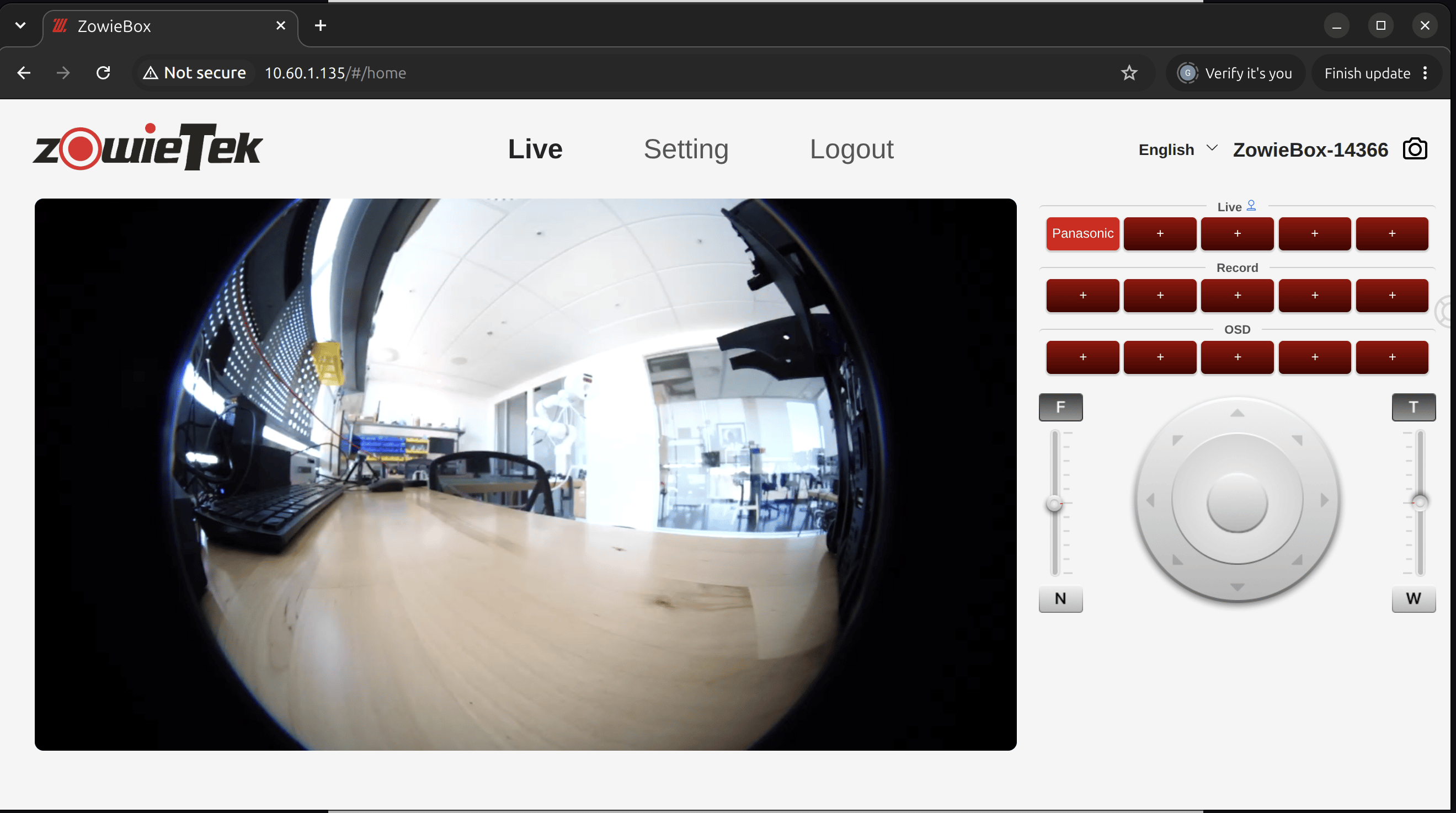
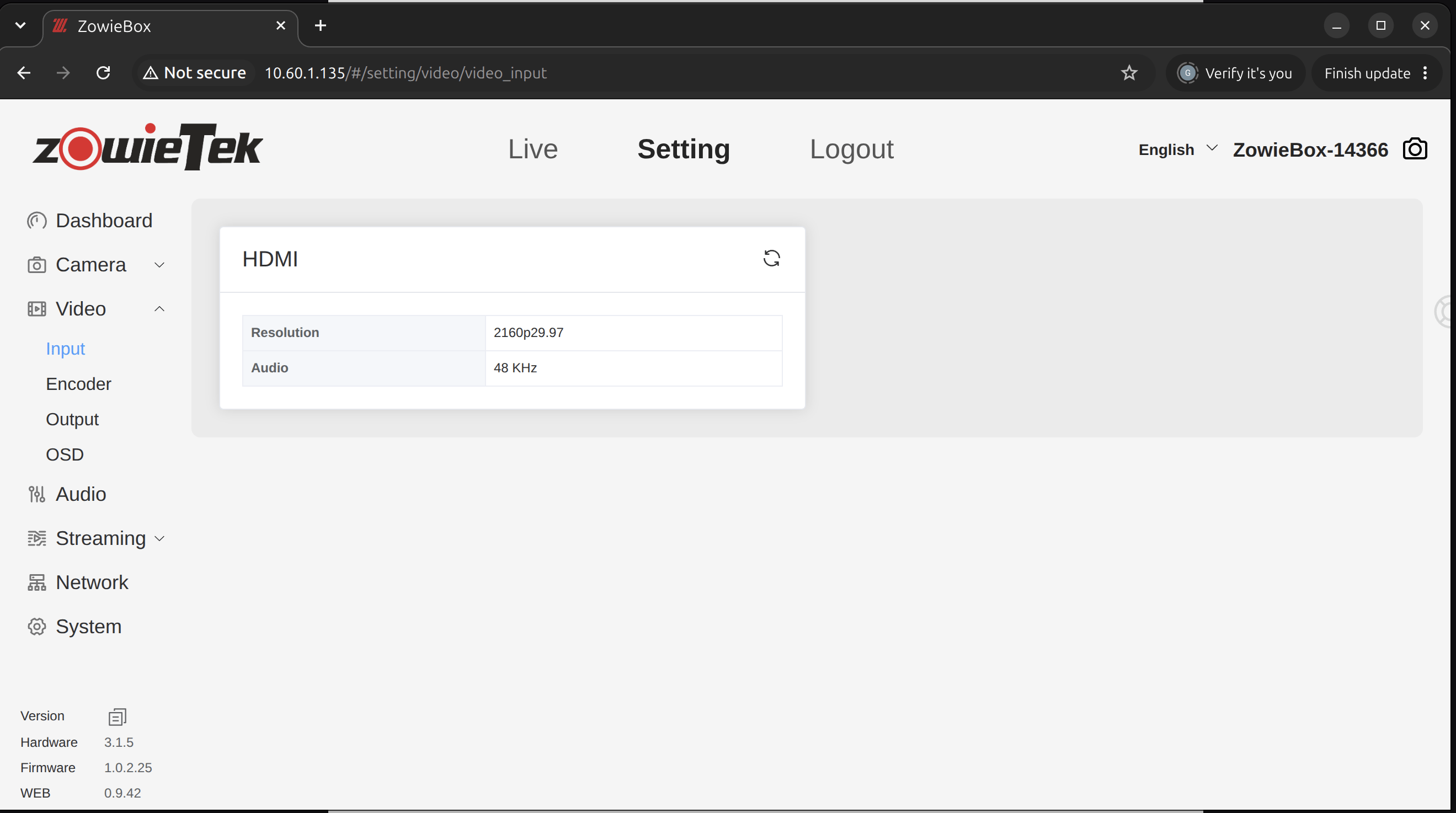
admin / admin. You will land on the Live page.Zowie Box initialized! Your Zowie Box is now ready to stream to Coresee. Next, set up the stream in the room.
2. Create an Inbound Feed
An Inbound Feed is an external source pushed into your room as a media source. Creating one gives you the Server URL and Channel ID that the Zowie Box will push its stream to in the next section.1
Open the Streaming tab
In your room, open the Streaming tab in the Side Panel and expand the Feeds section.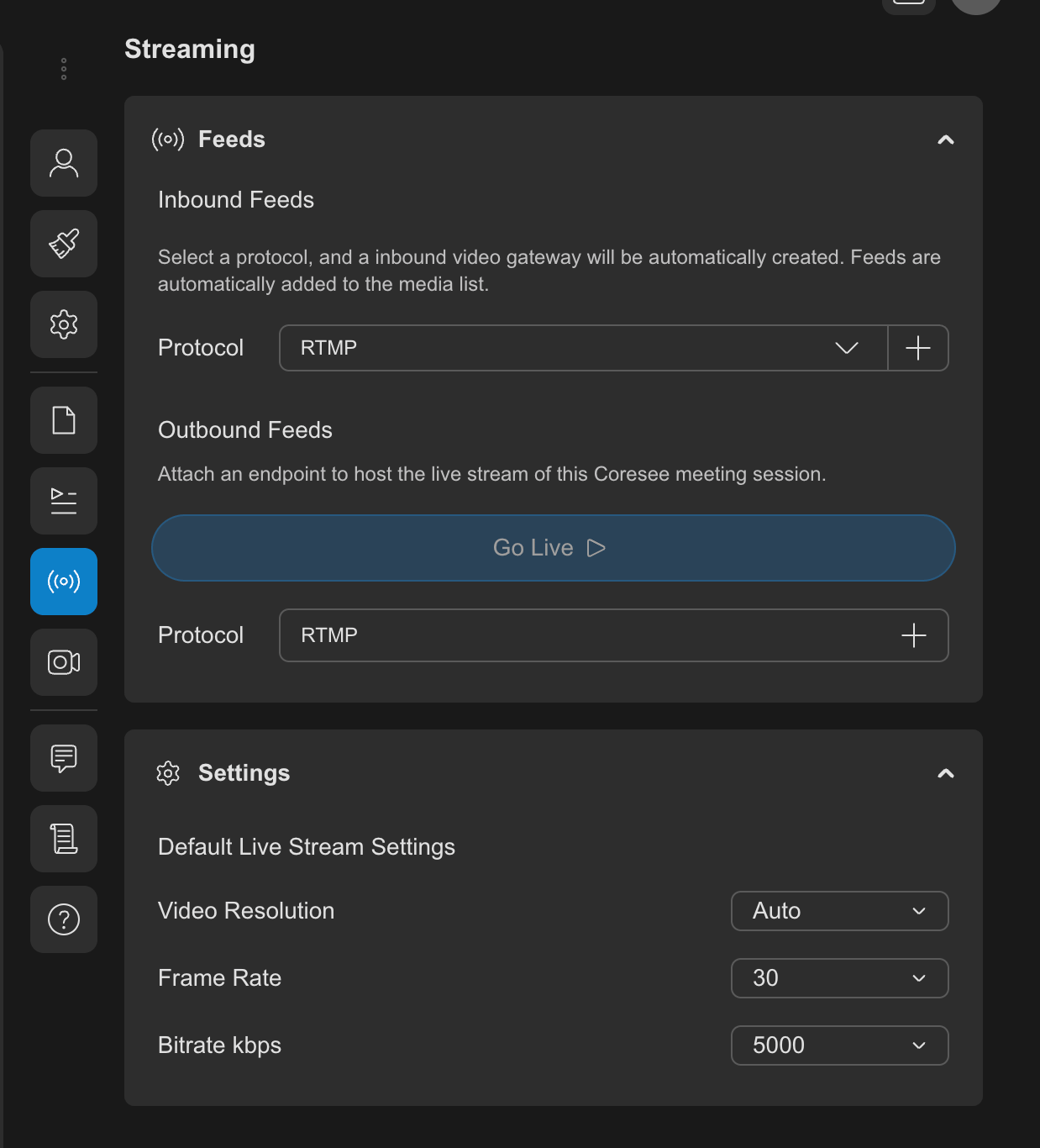
2
Create a new Inbound Feed
In the Inbound area, click + to create a new RTMP feed.
3
Reveal the connection details
Expand the feed card using its arrow to show the feed’s Server URL and Channel ID.You can use the copy button on the card to copy the feed’s connection details, so you can paste them into the Zowie Box in the next section.
Inbound Feed ready! Keep the room open with the feed card expanded — you’ll need the Server URL and Channel ID in the next section.
3. Stream setup
These steps configure the Zowie Box encoder and then push its feed to the Inbound Feed over RTMP(S).1
Configure the encoder settings
In the WEB console, go to Setting → Video → EncoderEnter the following Encoder Settings: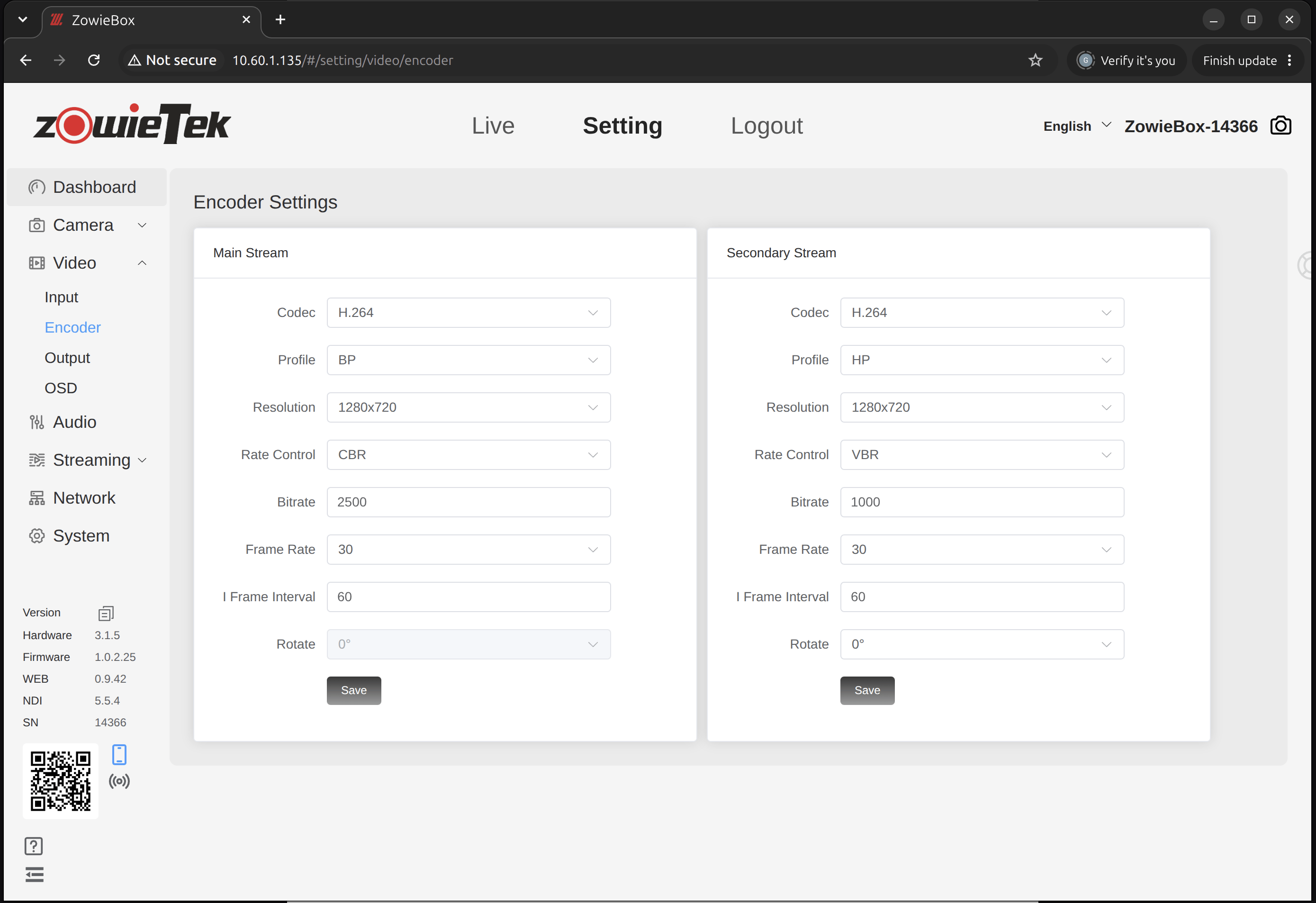
2
Add a Live Stream
Go to Setting → Streaming → Live and click +Add to add a Live Stream.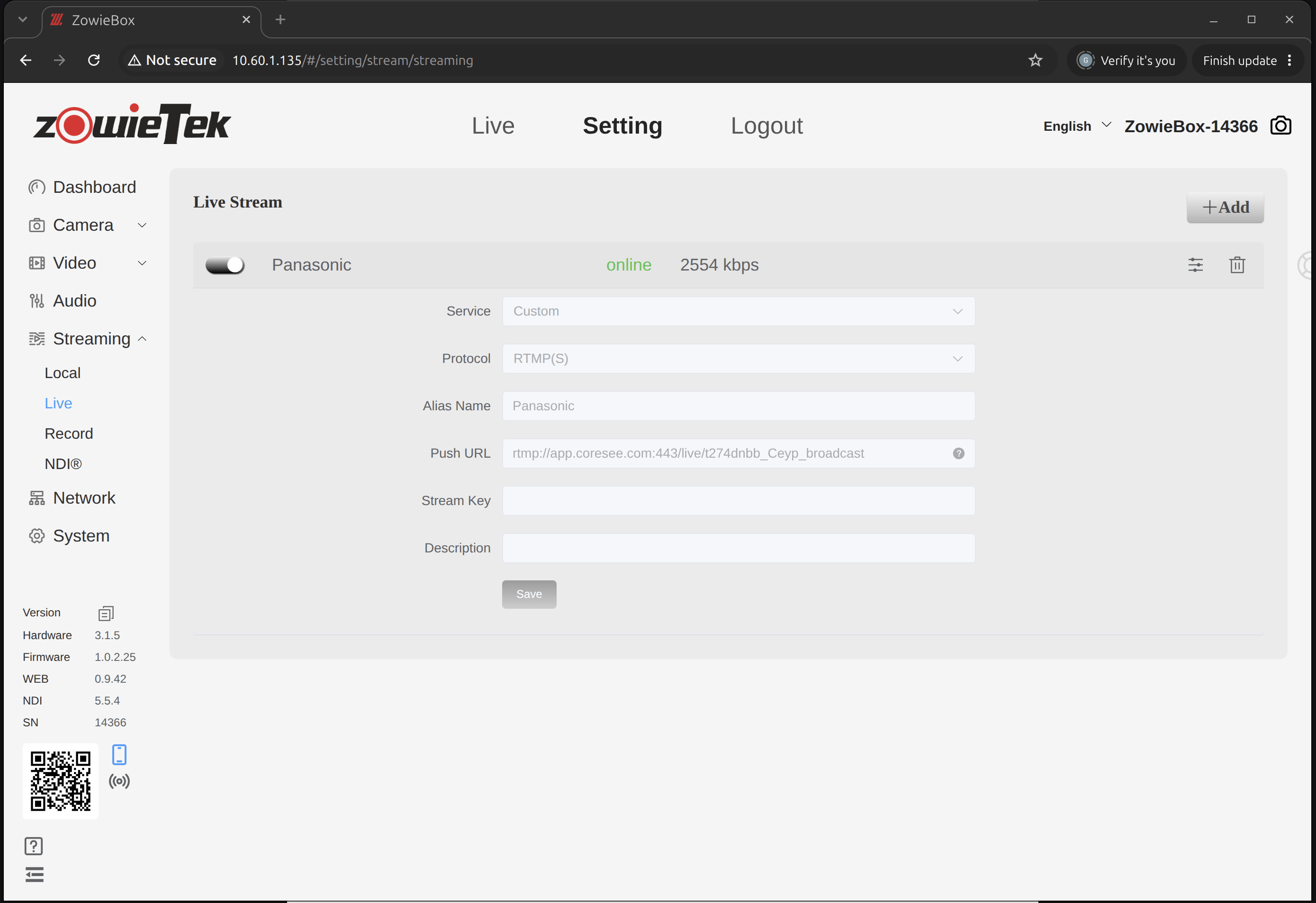
3
Save and switch the Live Stream on
Save the Live Stream, then switch it on.
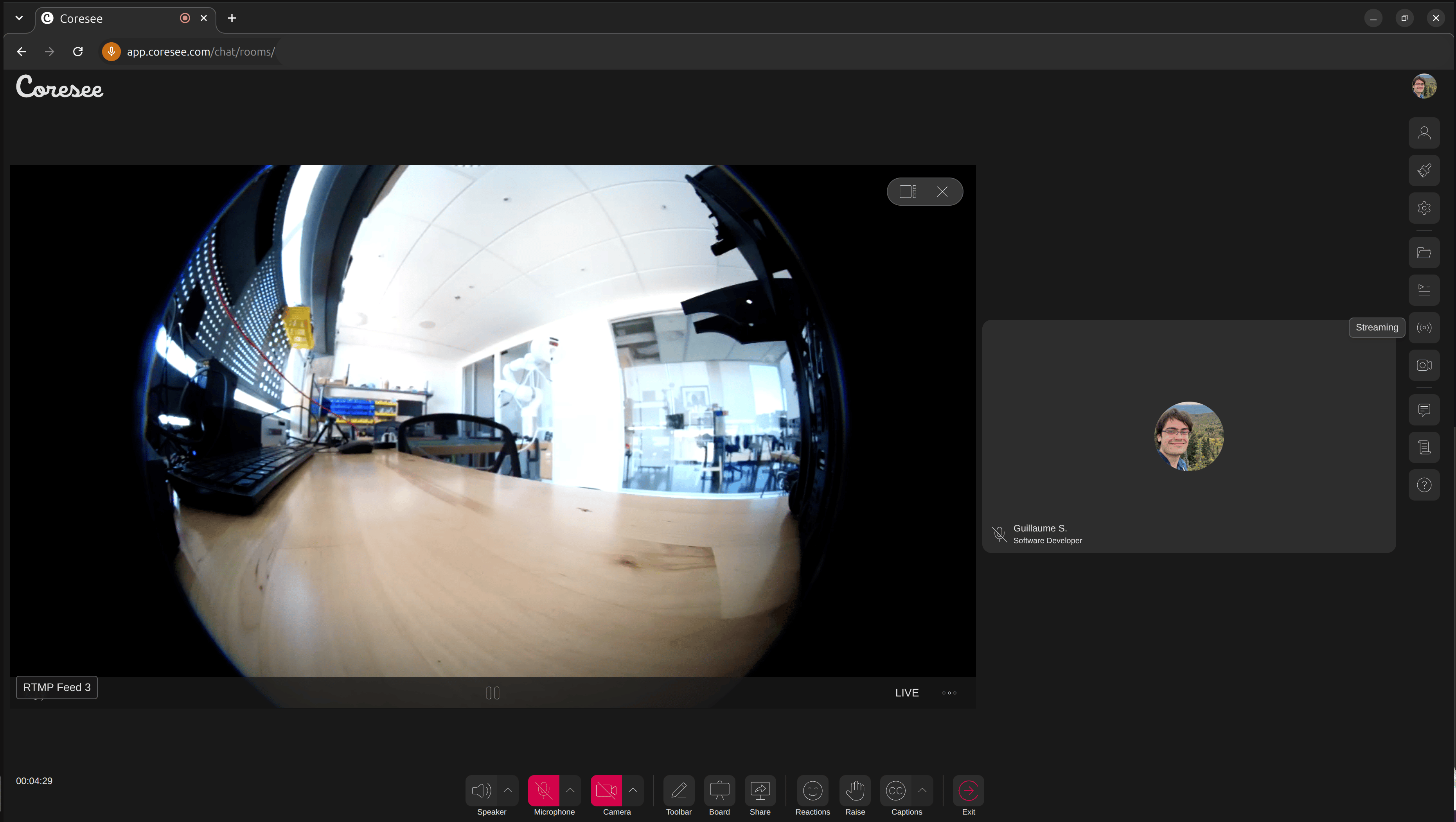
Feed is live in the room!Your camera feed is now accessible as an Inbound Feed inside your room. Once the feed appears in the room’s files, a host or co-host can bring it into the stage like any other media source.
Presenting Files in a Room
Presenting Files in a Room
Troubleshooting
A few things to check if the Zowie Box or its feed isn’t showing up where you expect.Can't reach the WEB console
Can't reach the WEB console
Confirm the Zowie Box is powered on and connected to a DHCP-enabled switch or router, and that your computer is on the same local network. If DHCP is enabled, the IP address is shown on the Zowie Box screen. Otherwise, try the mDNS URL or the hotspot method from step 4.
Video source doesn't appear under Setting → Video → Input
Video source doesn't appear under Setting → Video → Input
Check the HDMI cable connection between your source and the Zowie Box, and that the source is powered on and outputting video.
Can't create an Inbound Feed
Can't create an Inbound Feed
Only a host or co-host with a Studio license can create one.
Feed doesn't appear in the room
Feed doesn't appear in the room
Double-check that the Push URL entered on the Zowie Box matches the Server URL and Channel ID shown on the Coresee Inbound Feed card, and that the Live Stream is switched on.