

Two parts. Part 1 happens in your Coresee room. Part 2 happens in the DJI Fly app on the phone or controller connected to the drone. The drone’s video travels over the internet from that phone or controller, so the device running DJI Fly needs a stable connection.
Before you begin
Make sure you have the following ready before starting.- A DJI drone and controller that support RTMP live streaming in the DJI Fly app. This guide was tested with the DJI Mavic Air 2; for other models, check DJI’s documentation to confirm RTMP streaming is supported.
- The latest version of the DJI Fly app, with the drone connected and ready to fly.
- An internet connection on the device running DJI Fly (phone or smart controller), over Wi-Fi or cellular data, with enough sustained upload bandwidth for live video.
- A Studio Coresee license.
- A Coresee room with access to the Streaming tab in the Side Panel, and host or co-host permissions to create an Inbound Feed.
1. Create the Inbound Feed in Coresee
The Inbound Feed gives you the address the drone will stream to.1
Open the Streaming tab
In your room, open the Side Panel and select the Streaming tab. Expand Feeds if it isn’t already open.
2
Create a new Inbound Feed
In the Inbound section, create a new feed and select RTMP as its protocol.
3
Expand the feed card
Expand the new feed card to reveal its Server URL and Channel ID. You’ll need both in Part 2.
4
Copy the Server URL and Channel ID
The Server URL and Channel ID are copied separately. DJI Fly runs on a phone or controller, so send both values to that device (for example, by email or message) so you can copy and paste them into the app.
2. Start the stream from DJI Fly
DJI Fly asks for a single RTMP address rather than separate server and key fields, so you combine the two Coresee values into one.1
Connect the drone
Power on the drone and controller, open DJI Fly, and connect to the drone so you’re in the camera view.
2
Open the live streaming settings
Tap the three dots in the upper right corner to open settings, go to Transmission, then select Live Streaming Platforms and choose RTMP
3
Build the RTMP address
Join the Coresee Inbound Feed’s two values with a forward slash, with no spaces:
Paste the combined address into the RTMP address field in DJI Fly. Check it carefully, as a single wrong character will prevent the stream from starting.
| Part | From the Coresee Inbound Feed |
|---|---|
| 1st | Server URL |
| / | A forward slash |
| 2nd | Channel ID |
4
Start the stream
Start the live stream from the DJI Fly screen.
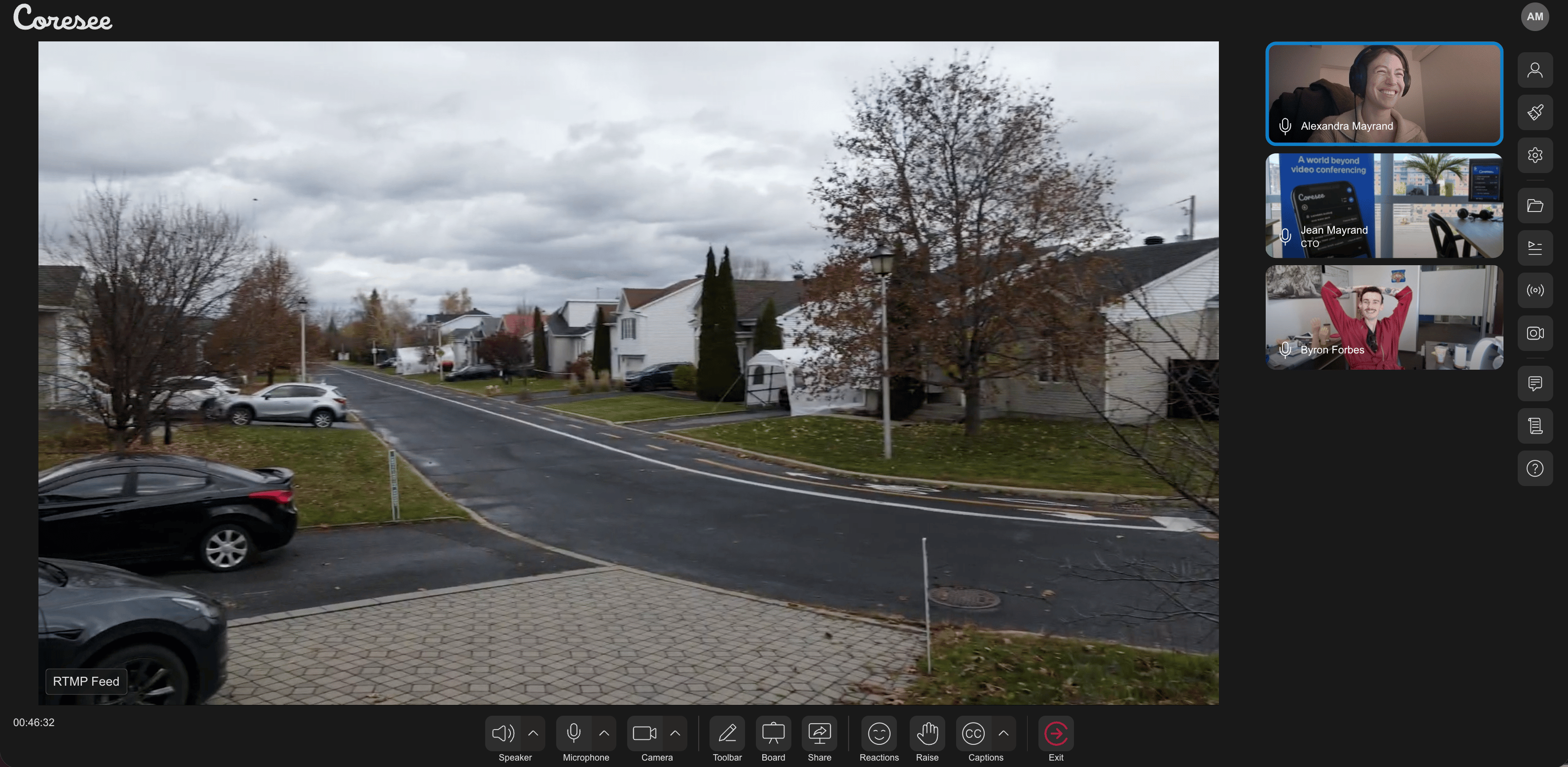
Once the feed appears in the room, a host or co-host can bring it onto the stage like any other media source.
Troubleshooting
A few things to check if the drone isn’t showing up where you expect it to.Live Streaming Platforms or RTMP isn't available in DJI Fly
Live Streaming Platforms or RTMP isn't available in DJI Fly
Update the DJI Fly app and confirm that your drone and controller model support RTMP live streaming.
Feed doesn't appear in the room
Feed doesn't appear in the room
Check that the address in DJI Fly is the Server URL, a forward slash, then the Channel ID, with no spaces or missing characters, and that it matches the values on the Coresee Inbound Feed card.
Stream is choppy or drops
Stream is choppy or drops
Check the internet connection on the device running DJI Fly. A stable Wi-Fi connection is usually more consistent than cellular data, and live streaming also drains the battery of a phone or tablet faster than normal.
Can't create an Inbound Feed
Can't create an Inbound Feed
Only hosts and co-hosts can create Inbound Feeds, and feeds require a Studio license. If the Streaming tab is disabled, your license may not include it.