

Background videos start muted. Enabling the sound control does not automatically turn on sound for attendees. It gives them a speaker icon they can use to unmute the video themselves.
Enable the sound control
Repeat these steps for each stage where you want attendees to have a sound control.1
Open the Event Configuration page
Sign in with an account that can manage Events. Find the Event, open its three-dot menu, and select Open or click directly on the card.
2
Open the stage's background settings
Expand Background Media Options.
3
Add your video
Under Media Type, select Video. Paste a direct link to your video file into Video URL, then click outside the field to apply it.Use a video link that attendees’ browsers can access and play. These settings do not include a file-upload button or media-library picker. A YouTube or Vimeo viewing-page link is not a direct video-file link.If Invalid Video URL appears, correct the link and click outside the field again.
4
Enable the attendee sound control
Turn on Sound Toggle For Background Video.This adds a speaker icon at the bottom right of the attendee page. Attendees click or tap it to turn sound on or off.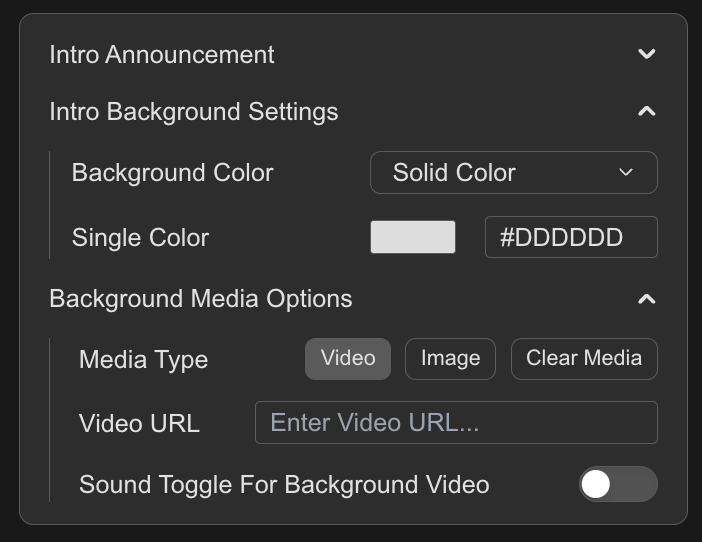
5
Preview your changes
Changes save automatically; there is no separate Save button.Under Preview:, select Event Announcement, Virtual Lobby, or Post-Event. Click the speaker icon to check the video’s sound.Unmuting the preview does not unmute attendees’ videos. Before your Event, also check the attendee experience on the browsers and devices your audience will use.
Understanding audio playback
Hosts decide whether the sound control appears. Attendees decide whether they hear the video.- Administrators: Decide whether to show the sound control on each stage.
- Attendees: Decide whether to hear the video by clicking or tapping the speaker icon at the bottom right.
Troubleshooting
Find the symptom that matches what you or your attendees are seeing.The background video plays but has no sound
The background video plays but has no sound
For attendees
- Click or tap the speaker icon at the bottom right.
- Check whether the browser tab or website is muted.
- Check device volume and the selected headphones or speakers.
Sound works in one browser but not another
Sound works in one browser but not another
Browsers can support different video and audio formats and apply different sound permissions.Open the same video URL directly in the affected browser and check its sound. Test on mobile devices too; a successful administration preview does not guarantee playback on every attendee device.
The video contains an audio track, but audio is not playing
The video contains an audio track, but audio is not playing
First, unmute the background video and check the device’s volume.Then open the video URL directly in the same browser. If its audio still does not play, ask your video provider to check the audio track and format. Adding a video URL does not guarantee that its sound will play in every browser.
Attendees cannot find the unmute option
Attendees cannot find the unmute option
Confirm that the current stage has the intended Video URL and that Sound Toggle For Background Video is enabled. Select Video under Media Type to find the setting.The attendee control is a speaker icon at the bottom right, rather than a full video-player toolbar. With the setting off, attendees have no background-video unmute control.If you used Clear Media while Video was selected, add the video URL again and re-enable the sound setting.
The background video does not start
The background video does not start
Check that the video URL opens in the attendee’s browser and review its playback permissions. The speaker icon controls sound; it does not provide a Play action for a video that has not started.