

What you’re seeing
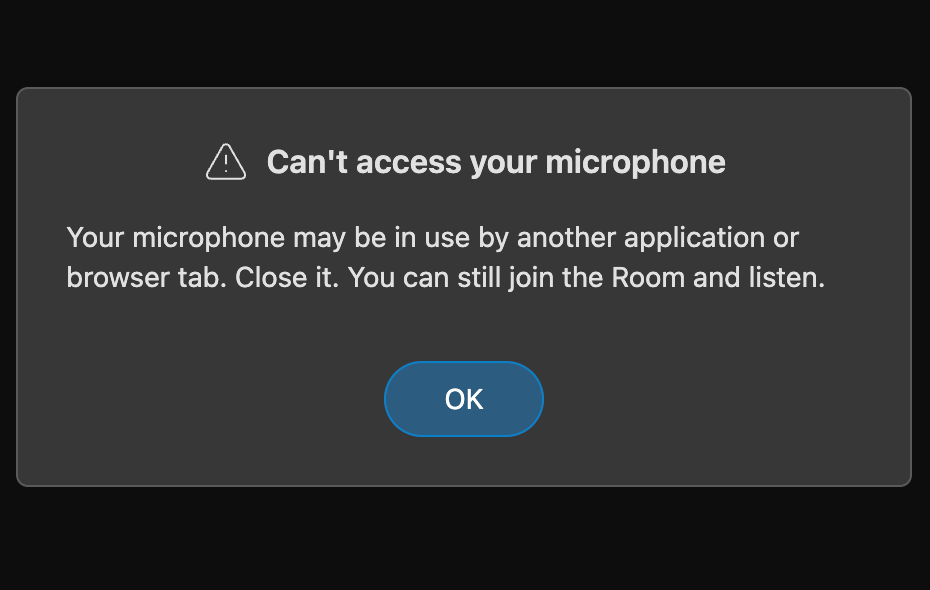
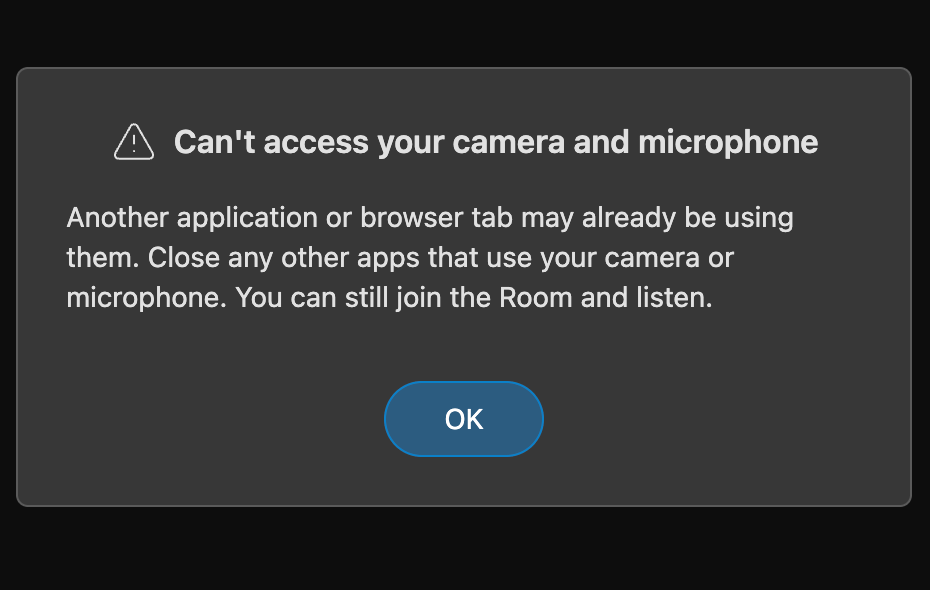
Coresee shows a notification warning that your camera or microphone is being used elsewhere and can’t be accessed. Until this is resolved, other participants may not see or hear you. Most operating systems and browsers let only one app use a camera or microphone at a time. If another app, browser tab, or window has it, Coresee can’t connect. Common causes: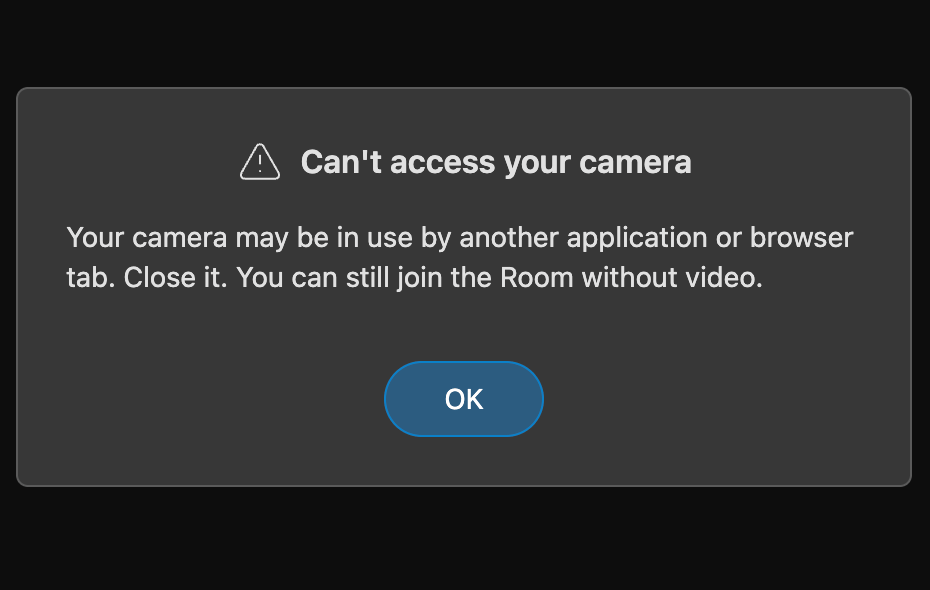
- Another video or voice app is open (Zoom, Teams, Meet, FaceTime, Discord, etc.).
- Coresee is open in another browser tab or window.
- A recording, streaming, or camera tool (OBS, virtual camera software) is running.
- A previous call didn’t release the device properly.
Fix it
- Close other apps that use the camera or microphone. Fully quit them, not just minimize.
- Close duplicate Coresee tabs or windows. Keep only the one you are using.
- Check other browser tabs. Close tabs running video calls, recordings, or camera tests.
- Reload Coresee. Refresh the page or rejoin the session.
- Select the correct device. In your device settings, confirm the camera and microphone chosen in Coresee are the ones you want.
- Check browser permissions. Click the lock or camera icon in your browser’s address bar and make sure Camera and Microphone are set to Allow for Coresee.
- Check system privacy settings.
- Windows: Settings → Privacy & security → Camera / Microphone
- macOS: System Settings → Privacy & Security → Camera / Microphone Ensure your browser is allowed access.
- Restart your browser. If the device is still locked, quit the browser fully and reopen it.
- Restart your computer. As a last step, a restart releases any device held by a stuck process.
Still not working?
- Unplug and reconnect an external camera or headset, or try another USB port.
- Try a different browser.
- Contact Support and include your browser, operating system, and the device you are trying to use.