> ## Documentation Index
> Fetch the complete documentation index at: https://help.coresee.com/llms.txt
> Use this file to discover all available pages before exploring further.
# Stream out to Facebook
This article walks through streaming a Coresee room out to a Facebook Page, using an [**Outbound Feed**](/help/control-panel/outbound-feeds) over RTMP.
**Facebook (Meta Business Suite) Protocol: RTMP Streaming tab → Outbound Feed**
## **Before you begin**
Make sure you have the following ready before starting.
* Admin access to the Facebook Page's **Meta Business Suite**, with permission to go live on that Page.
* An active Coresee room with access to the [**Streaming tab**](/streaming-tab) in the Side Panel, and host or co-host permissions to create an Outbound Feed.
## **Facebook stream setup**
Done entirely inside Facebook's Meta Business Suite — these steps generate the Server URL and Stream key that the Coresee room will push video to.
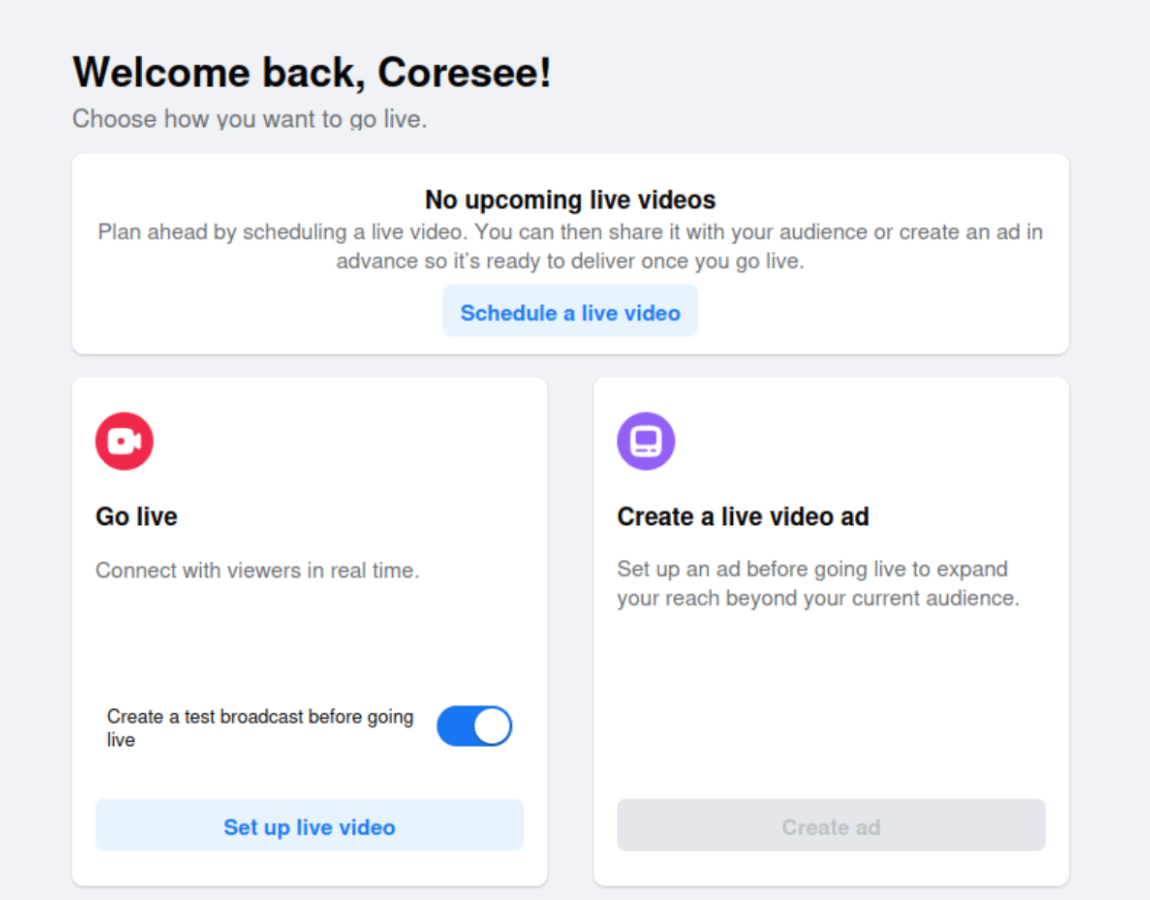
Head over to the Facebook Page's Meta Business Suite and select **Go live** under **More**
 On the Create live video page, select **Set up live video** under the **Go live** section.
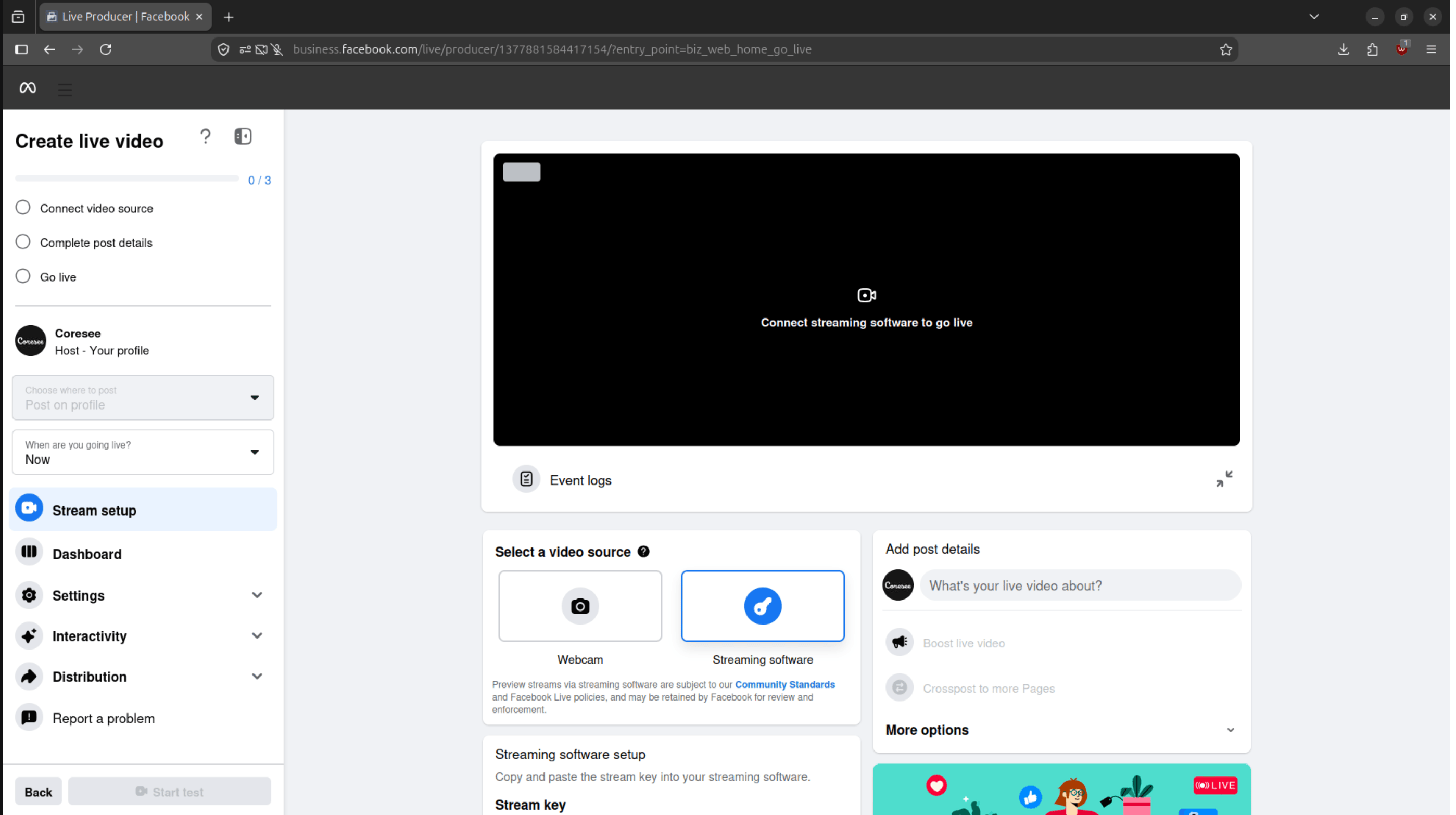
 Under **Select a video source**, choose **Streaming software**.
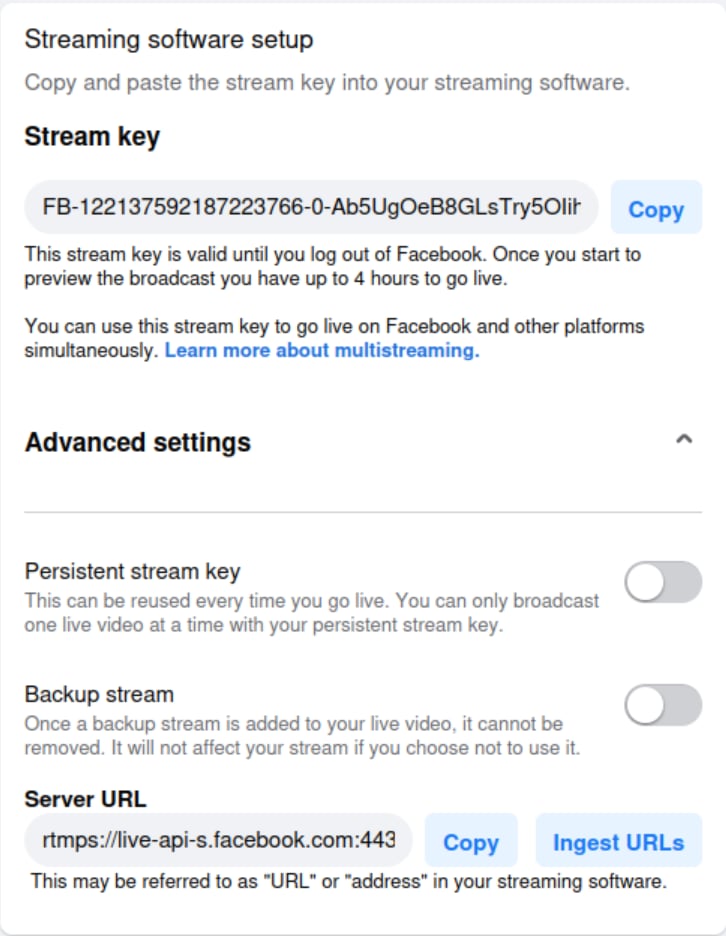 **Facebook side is ready.** You now have a Server URL and Stream key waiting for a stream to be pushed to them.
## **Coresee Outbound Feed setup**
Back inside the Coresee room, these steps create an RTMP Outbound Feed and point it at the Facebook values copied above.
In the room, go to the Streaming tab of the Side Panel and click the + symbol next to the RTMP protocol.
Paste the values copied from Facebook into the matching Outbound Feed fields.
**Facebook side is ready.** You now have a Server URL and Stream key waiting for a stream to be pushed to them.
## **Coresee Outbound Feed setup**
Back inside the Coresee room, these steps create an RTMP Outbound Feed and point it at the Facebook values copied above.
In the room, go to the Streaming tab of the Side Panel and click the + symbol next to the RTMP protocol.
Paste the values copied from Facebook into the matching Outbound Feed fields.
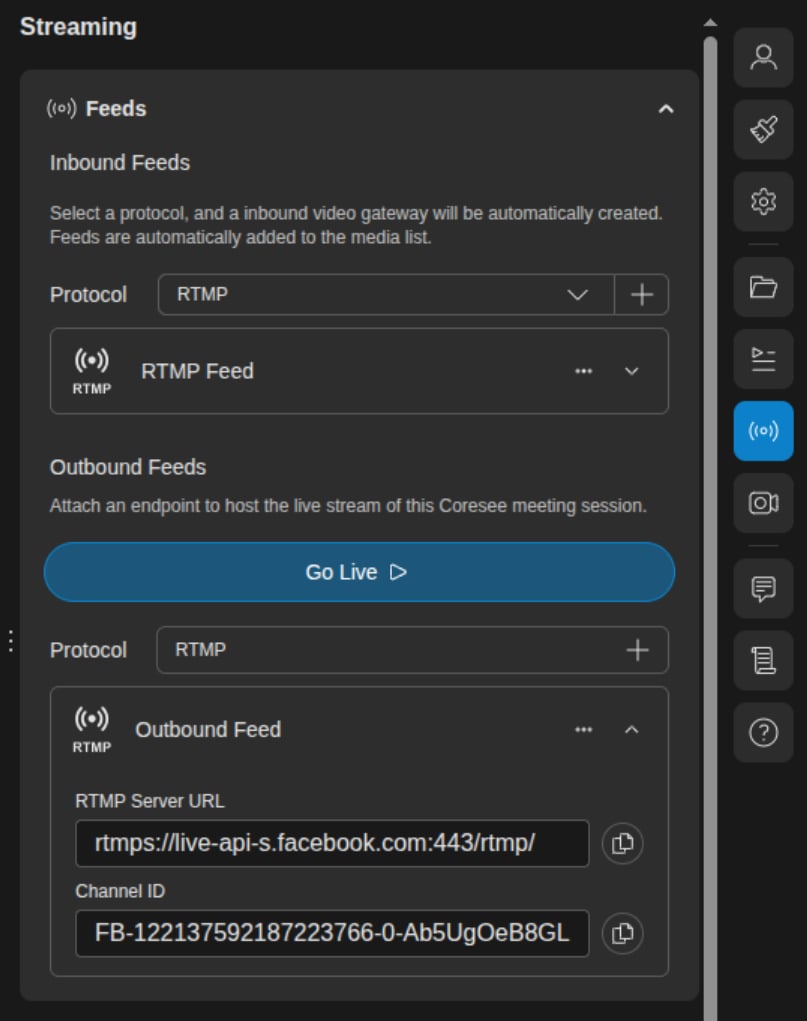 The Facebook **Stream Key** is the **Channel ID** in the room.
Once both fields are filled in, click the **Go Live** button on the Outbound Feed.
**Room is streaming to Facebook.** The Coresee room is now the source for the Facebook stream. Switch back to the Facebook Go live page to finish setting up the stream on that end (title, description, audience, etc.) before publishing it.
This documentation is built and hosted on [Mintlify](https://mintlify.com), a developer documentation platform.
The Facebook **Stream Key** is the **Channel ID** in the room.
Once both fields are filled in, click the **Go Live** button on the Outbound Feed.
**Room is streaming to Facebook.** The Coresee room is now the source for the Facebook stream. Switch back to the Facebook Go live page to finish setting up the stream on that end (title, description, audience, etc.) before publishing it.
This documentation is built and hosted on [Mintlify](https://mintlify.com), a developer documentation platform.