> ## Documentation Index
> Fetch the complete documentation index at: https://help.coresee.com/llms.txt
> Use this file to discover all available pages before exploring further.

# Stream Out to LinkedIn

This article walks through streaming a Coresee room to LinkedIn, using a Coresee [**Outbound Feed**](/help/control-panel/outbound-feeds) as the source. It covers creating a LinkedIn Live event and retrieving its stream credentials, then pointing a Coresee Outbound Feed at that destination over RTMP so your room becomes the broadcast source for the LinkedIn stream.

**<sup><kbd>LinkedIn</kbd>  <kbd>Protocol: RTMP</kbd>  <kbd>Streaming tab → Outbound Feed</kbd></sup>**

## **Before you begin**

Make sure you have the following ready before starting.

* A LinkedIn Page (or profile) eligible to create LinkedIn Live events.
* An active Coresee room with access to the **Streaming tab** in the Side Panel, and host or co-host permissions to create an Outbound Feed.
* A plan license that includes Outbound Feeds

## **Create your LinkedIn Live event**

These steps happen entirely on LinkedIn and produce the stream URL you'll paste into the Coresee Outbound Feed.

<Steps>
  <Step title="Start a new event on your LinkedIn Page">
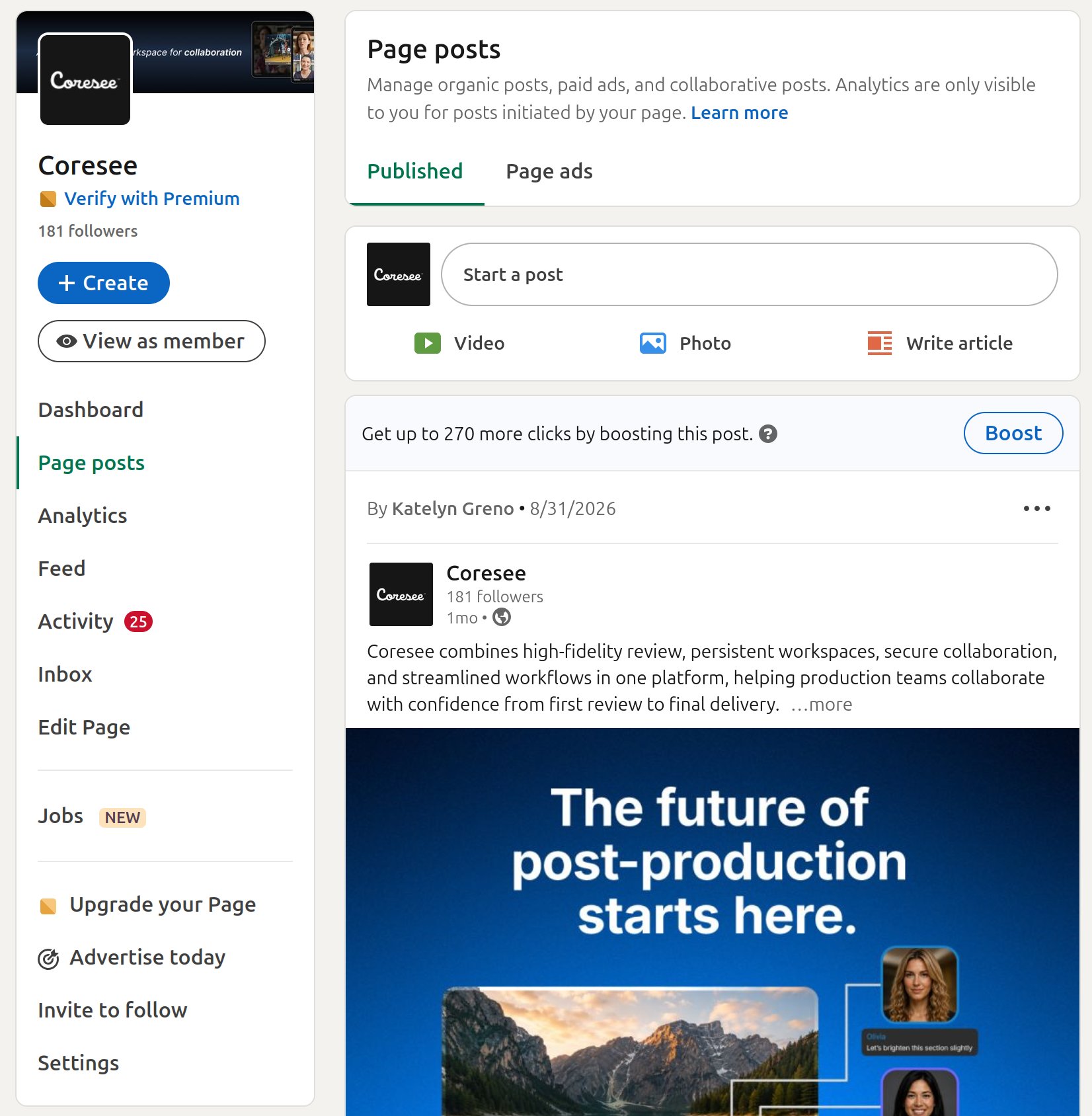
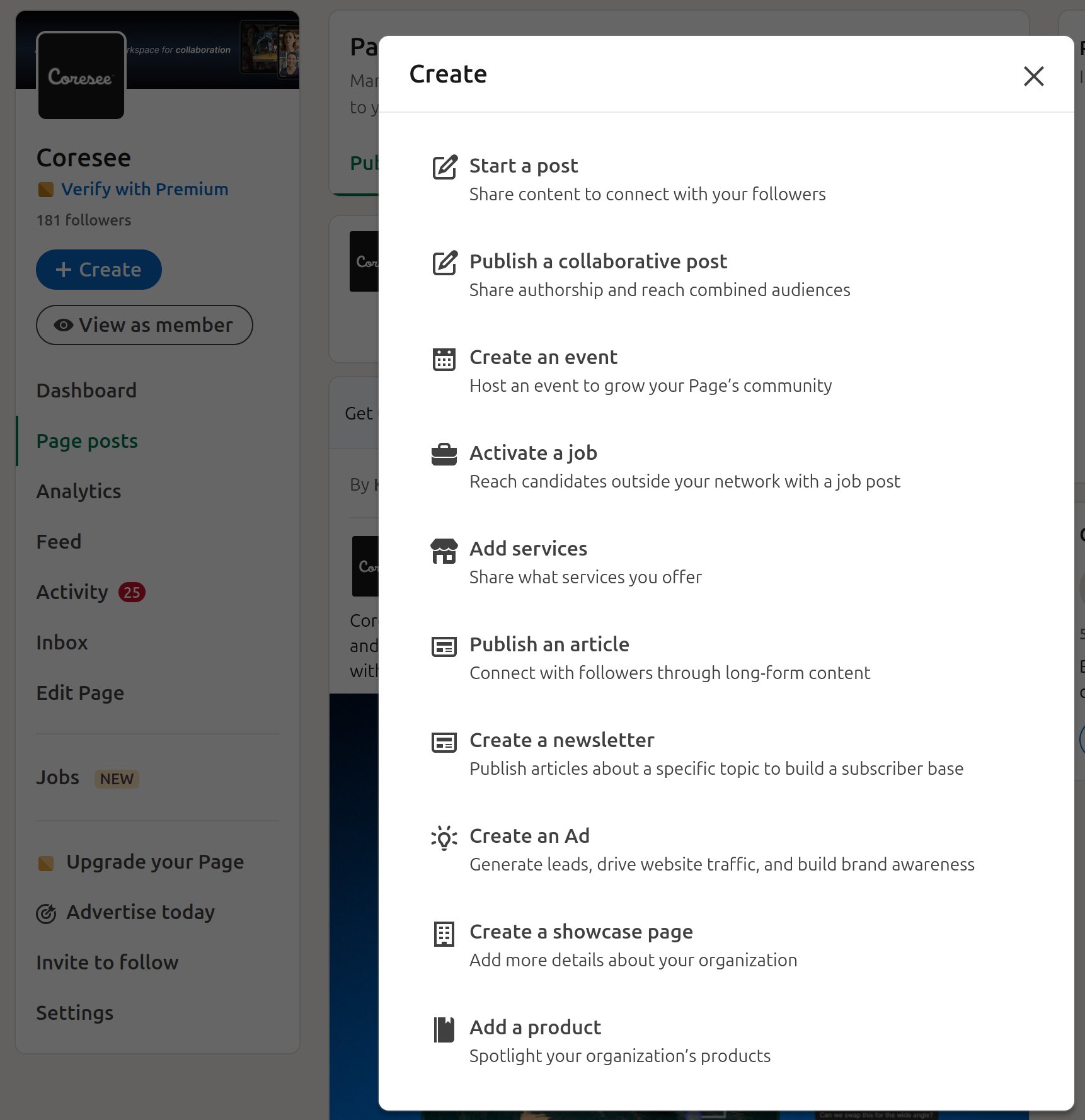
    From your LinkedIn Page, select **Create**, then **Create an event**

    <img src="https://mintcdn.com/likemindedlabs/SjSI0BLYJ8Q58dJ8/images/linkedin_create.png?fit=max&auto=format&n=SjSI0BLYJ8Q58dJ8&q=85&s=5a17bbe1fdfad91f464c573d028f4e96" alt="Linkedin Create" title="Linkedin Create" className="mx-auto" style={{ width:"55%" }} width="1652" height="1688" data-path="images/linkedin_create.png" />

    <img src="https://mintcdn.com/likemindedlabs/SjSI0BLYJ8Q58dJ8/images/linkedin_createevent.png?fit=max&auto=format&n=SjSI0BLYJ8Q58dJ8&q=85&s=3da70a09f8a9265796b110cc5ba6883c" alt="Linkedin Createevent" title="Linkedin Createevent" className="mx-auto" style={{ width:"55%" }} width="1722" height="1778" data-path="images/linkedin_createevent.png" />
  </Step>

  <Step title="Choose LinkedIn Live as the event format">
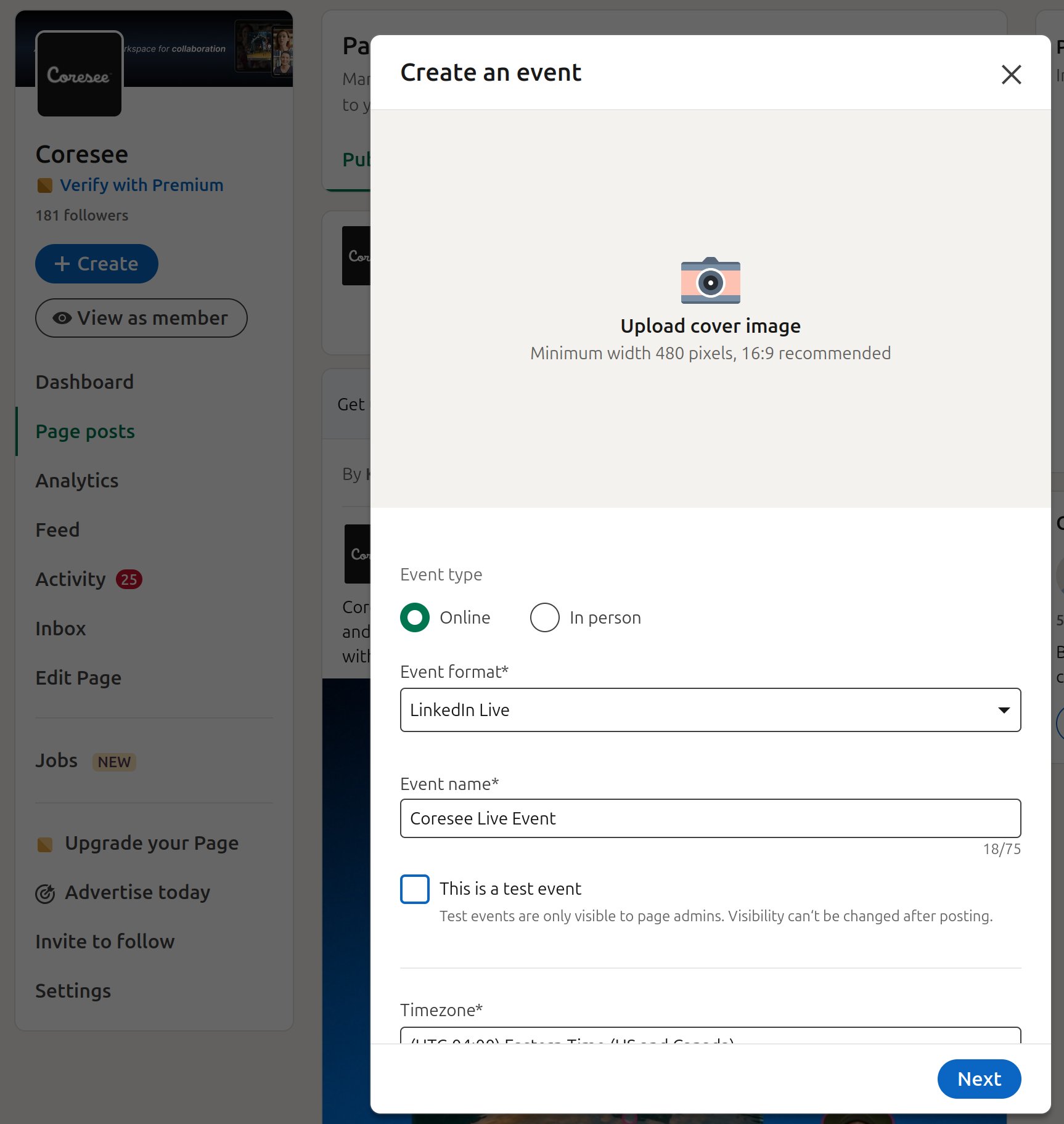
    Under **Event format**, select **LinkedIn Live**, configure your event's details, then select \*\*Next \*\*and **Post**.

    You can also configure the event as a test event before creating a real one.

    <img src="https://mintcdn.com/likemindedlabs/SjSI0BLYJ8Q58dJ8/images/linkedin_createevent2.png?fit=max&auto=format&n=SjSI0BLYJ8Q58dJ8&q=85&s=c500361ac39abbe4d6f056099da58fb0" alt="Linkedin Createevent2" title="Linkedin Createevent2" className="mx-auto" style={{ width:"52%" }} width="1726" height="1824" data-path="images/linkedin_createevent2.png" />
  </Step>

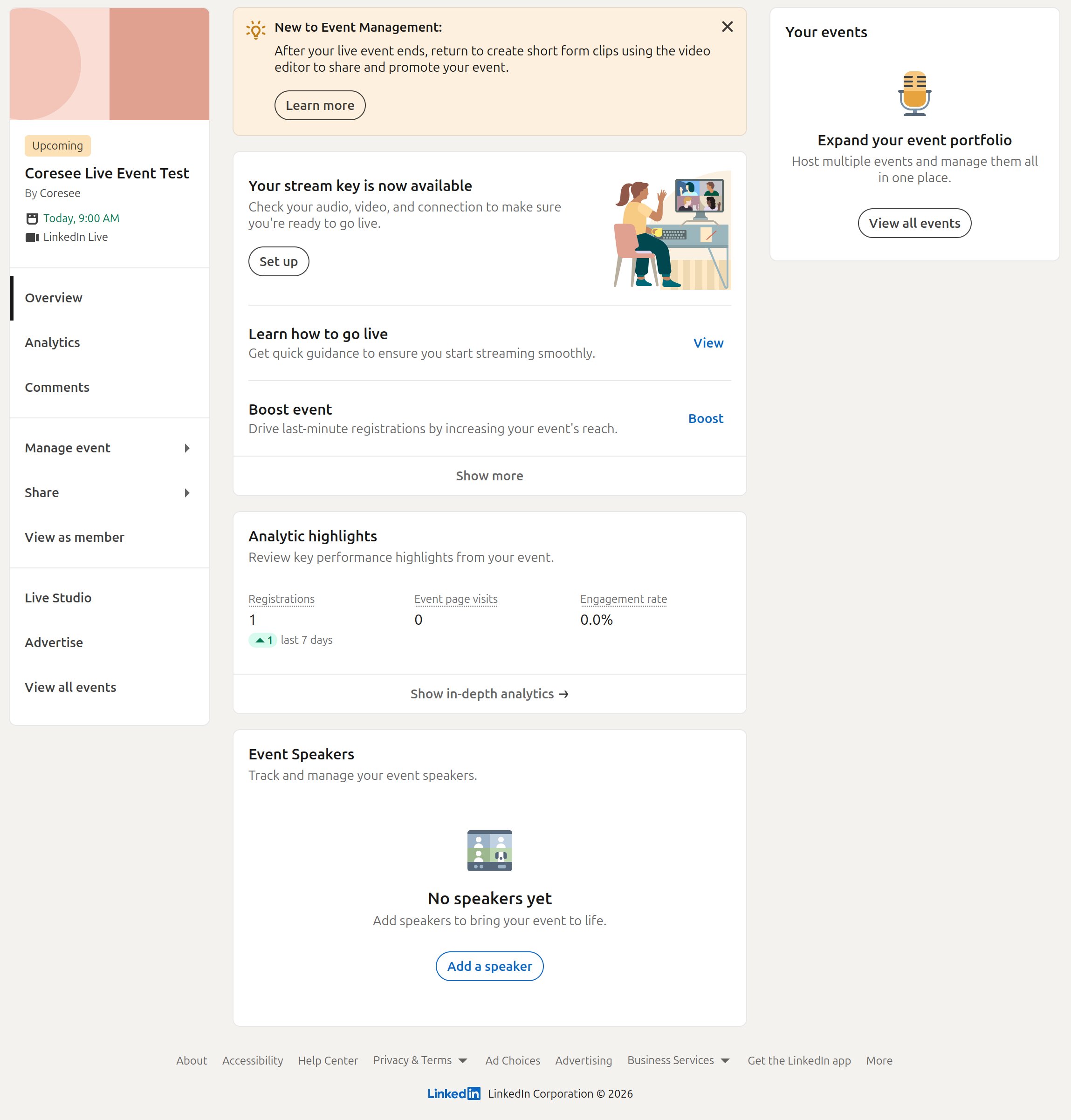
  <Step title="Open Live Studio">
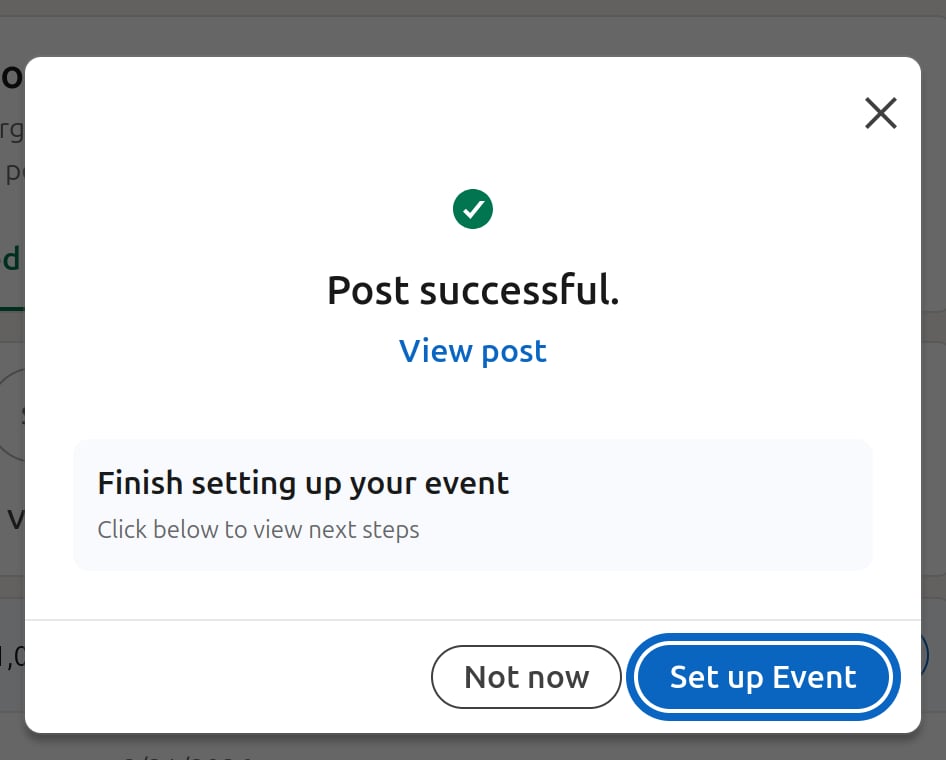
    On the prompt that follows, select **Set up event**, then go to \*\*Live Studio \*\*on the left-hand side of your event.

    <img src="https://mintcdn.com/likemindedlabs/SjSI0BLYJ8Q58dJ8/images/linkedin_setupevent.png?fit=max&auto=format&n=SjSI0BLYJ8Q58dJ8&q=85&s=3f2544d4056c9756d2730408860f38dd" alt="Linkedin Setupevent" title="Linkedin Setupevent" className="mx-auto" style={{ width:"48%" }} width="946" height="760" data-path="images/linkedin_setupevent.png" />

    <img src="https://mintcdn.com/likemindedlabs/SjSI0BLYJ8Q58dJ8/images/linkedin_event.png?fit=max&auto=format&n=SjSI0BLYJ8Q58dJ8&q=85&s=8a9f6aecad0cb2532d6e554412f31de2" alt="Linkedin Event" title="Linkedin Event" className="mx-auto" style={{ width:"61%" }} width="2298" height="2404" data-path="images/linkedin_event.png" />
  </Step>

  <Step title="Open the stream preview">
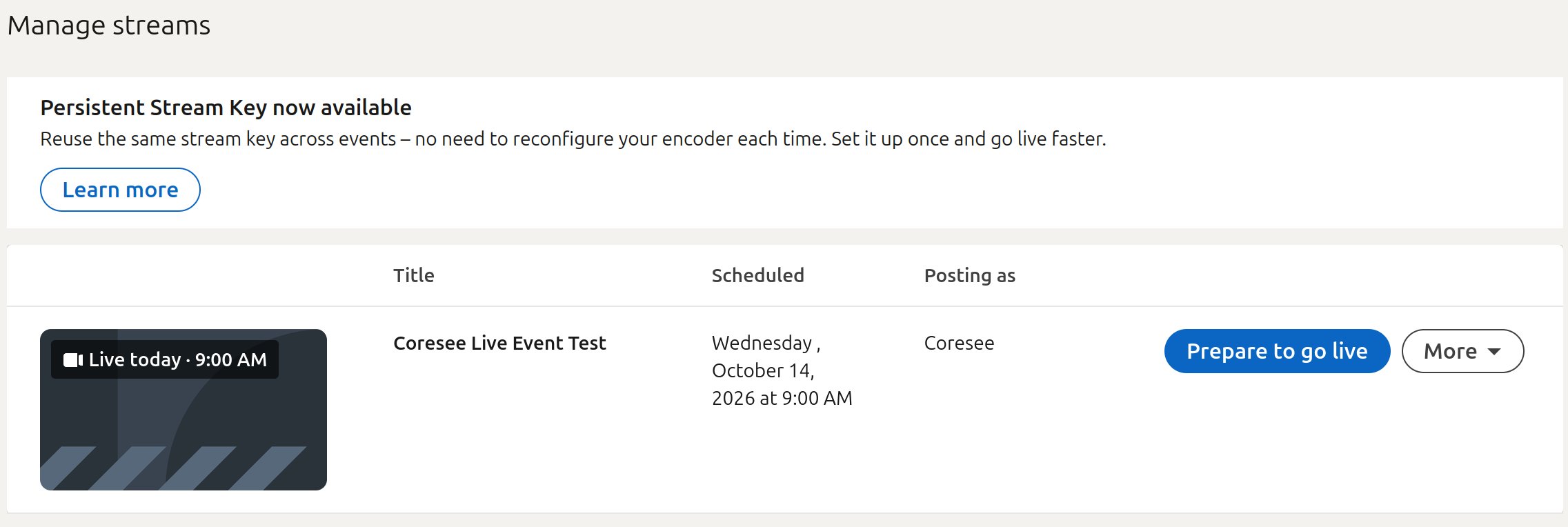
    On the \*\*Manage streams \*\*page, select **Prepare to go live**.

    This opens your event's stream preview.

    <img src="https://mintcdn.com/likemindedlabs/SjSI0BLYJ8Q58dJ8/images/linkedin_managestream.png?fit=max&auto=format&n=SjSI0BLYJ8Q58dJ8&q=85&s=3ddf8e4cfa3610c1e80127e5f6f71574" alt="Linkedin Managestream" width="2273" height="764" data-path="images/linkedin_managestream.png" />
  </Step>

  <Step title="Generate the stream URL">
    Under **Stream Settings**, pick the region corresponding to your event, then select **Get URL**. This generates an RTMPS URL for the Coresee Outbound Feed.

    <img src="https://mintcdn.com/likemindedlabs/SjSI0BLYJ8Q58dJ8/images/linkedin_streamurl.png?fit=max&auto=format&n=SjSI0BLYJ8Q58dJ8&q=85&s=2f8c05668dc0267b2fb3ef5da1649ae0" alt="Linkedin Streamurl" width="5115" height="994" data-path="images/linkedin_streamurl.png" />
  </Step>
</Steps>

<Check>
  **Stream URL ready.** Copy the stream URL up to the `/live/` part — you'll split this into a server URL and a stream key for the Outbound Feed.
</Check>

## **Connect the Coresee Outbound Feed**

These steps configure your Coresee room to push its output to the LinkedIn stream over RTMP.

<Steps>
  <Step title="Inside a room, open the [Streaming Tab](/streaming-tab) " />

  <Step title="Create a new RTMP Outbound Feed">
    Select the\*\*+\*\*symbol next to the \*\*RTMP \*\*protocol to create a new Outbound Feed.
  </Step>

  <Step title="Enter the LinkedIn stream details">
    Paste the LinkedIn connection details into the Outbound Feed's fields.

    <table>
      <colgroup>
        <col width="161" />

        <col width="474" />
      </colgroup>

      <thead>
        <tr>
          <th>**Outbound Feed field**</th>
          <th>**Enter**</th>
        </tr>
      </thead>

      <tbody>
        <tr>
          <td>RTMP Server URL</td>
          <td>Your LinkedIn Stream URL (up to the `/live/` part)</td>
        </tr>

        <tr>
          <td>Channel ID</td>
          <td>Your LinkedIn Stream key</td>
        </tr>
      </tbody>
    </table>
  </Step>

  <Step title="Go Live">
    Once both fields are filled in, select \*\*Go Live \*\*on the Outbound Feed.
  </Step>
</Steps>

<Check>
  **Room is streaming to LinkedIn.** Your Coresee room is now the source for the LinkedIn stream. Return to your LinkedIn stream to finish setting up the event on LinkedIn's side.
</Check>

## **Troubleshooting**

A few things to check if the stream isn't showing up where you expect it to.

<AccordionGroup>
  <Accordion title="LinkedIn never shows a live preview">
    Double-check that the RTMP Server URL and Channel ID entered in the Outbound Feed exactly match the Stream URL and Stream key generated on LinkedIn's Manage streams page.
  </Accordion>

  <Accordion title="Go Live button stays greyed out">
    Confirm both the RTMP Server URL and Channel ID fields are filled in; the Outbound Feed requires both before it can start.
  </Accordion>
</AccordionGroup>


This documentation is built and hosted on [Mintlify](https://mintlify.com), a developer documentation platform.