> ## Documentation Index
> Fetch the complete documentation index at: https://help.coresee.com/llms.txt
> Use this file to discover all available pages before exploring further.
# Screen Sharing in the Desktop App
The Coresee desktop app has its own screen-share picker — built into the app itself rather than handed off to the operating system or a browser. It offers more source types than a browser can: not just your monitors and open windows, but connected camera inputs and NDI sources on your network too.
[Mac OS](https://lml-software.s3.us-west-2.amazonaws.com/Coresee/current/Coresee-macos-installer-arm64.pkg)
[Windows](https://lml-software.s3.us-west-2.amazonaws.com/Coresee/current/Coresee-Setup.zip)
## Start Screen Sharing
Click the **Share Screen** icon in the Bottom Bar to open the source picker. Sources are organized into categories — Monitors, Application Windows, Inputs, and NDI.
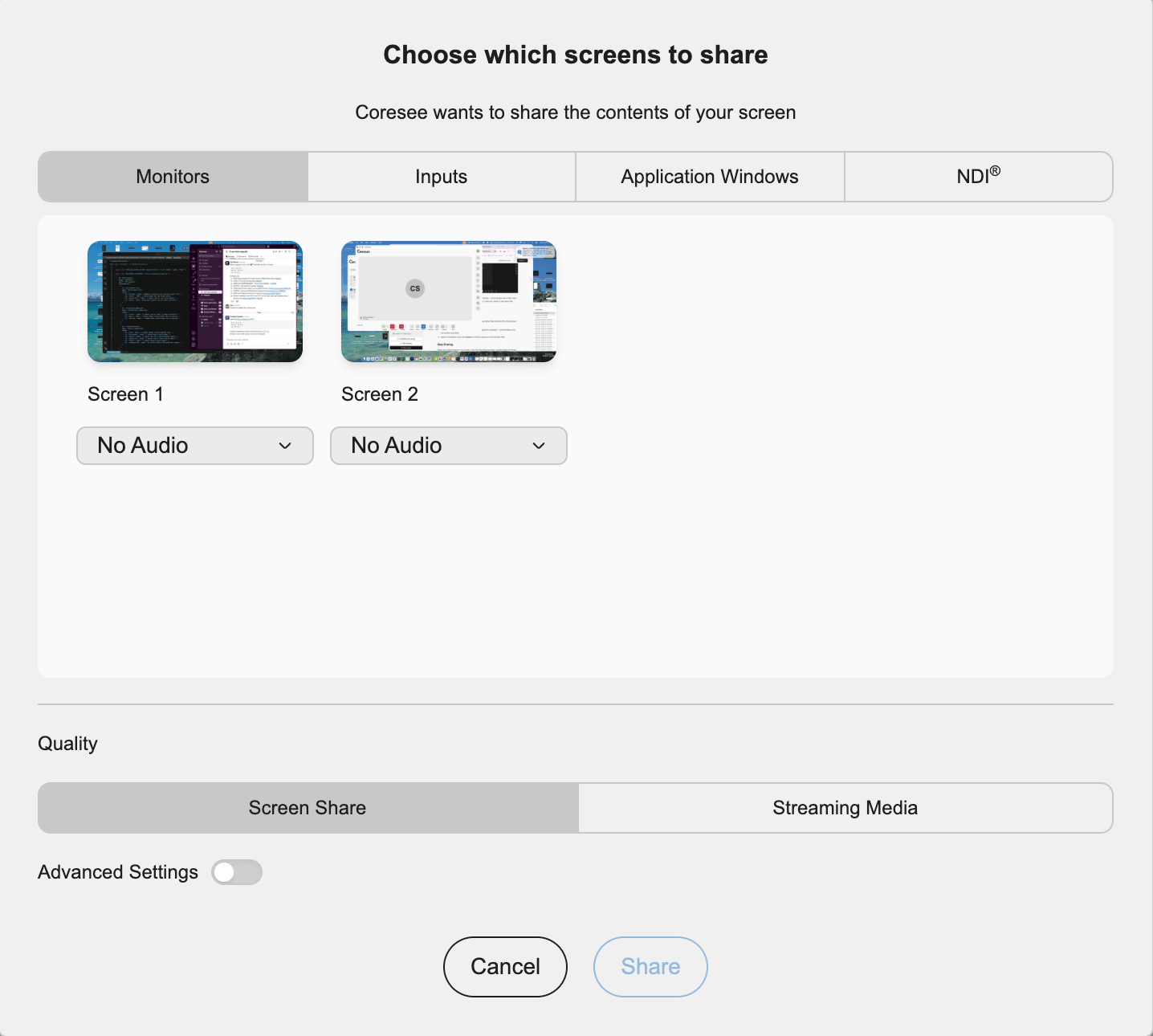 Every display connected to your device, shown as a thumbnail. Selecting one shares that entire screen — everything on it, including other open apps and notifications.
Every open application window on your device, each with a live thumbnail. Selecting one shares just that window's contents, without the rest of your desktop.
Cameras connected to your device — webcams, capture cards, document cameras, or any other video input your device can see. Use this when you want to share a physical camera feed rather than your screen's contents.
NDI (Network Device Interface) sources are video feeds broadcast by other NDI-enabled devices or software on your local network — production cameras, PTZ controllers, switchers, or other software with NDI output. The desktop app scans the network and lists the NDI sources you currently have access to.
* What shows up here depends on your network: the source device or software needs to be on the same network as your computer and actively broadcasting.
* Selecting an NDI source shares that feed to the room, the same way a monitor or window selection would.
* This is aimed at production-style setups — pulling a professional camera or graphics feed directly into a Coresee room without a physical capture card in between.
## **Quality: Screen Share vs. Streaming Media**
Before confirming your share, choose one of two quality modes. Which one fits depends on what kind of source you've selected and how much control you need over it.
The default mode. Treats your share as transient — a quick, real-time feed that starts and stops with your session, the same way a standard screen or window share behaves.
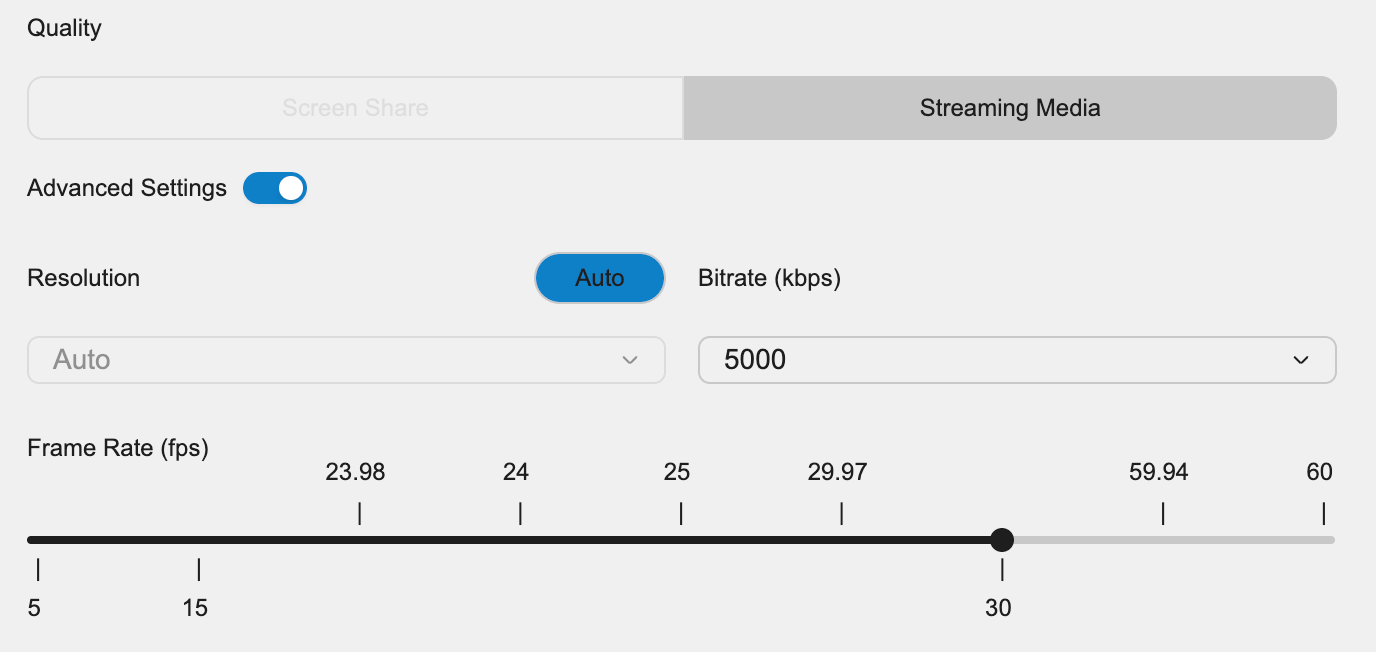
Built for higher-end sources like production cameras or dedicated encoders. Routes the feed through a streaming protocol — RTMP, SRT, or RTSP — and gives you finer control over frame rate and quality than Screen Share mode.
## **Advanced Settings**
Toggle **Advanced Settings** to fine-tune the technical parameters of your share instead of relying on the defaults.
Every display connected to your device, shown as a thumbnail. Selecting one shares that entire screen — everything on it, including other open apps and notifications.
Every open application window on your device, each with a live thumbnail. Selecting one shares just that window's contents, without the rest of your desktop.
Cameras connected to your device — webcams, capture cards, document cameras, or any other video input your device can see. Use this when you want to share a physical camera feed rather than your screen's contents.
NDI (Network Device Interface) sources are video feeds broadcast by other NDI-enabled devices or software on your local network — production cameras, PTZ controllers, switchers, or other software with NDI output. The desktop app scans the network and lists the NDI sources you currently have access to.
* What shows up here depends on your network: the source device or software needs to be on the same network as your computer and actively broadcasting.
* Selecting an NDI source shares that feed to the room, the same way a monitor or window selection would.
* This is aimed at production-style setups — pulling a professional camera or graphics feed directly into a Coresee room without a physical capture card in between.
## **Quality: Screen Share vs. Streaming Media**
Before confirming your share, choose one of two quality modes. Which one fits depends on what kind of source you've selected and how much control you need over it.
The default mode. Treats your share as transient — a quick, real-time feed that starts and stops with your session, the same way a standard screen or window share behaves.
Built for higher-end sources like production cameras or dedicated encoders. Routes the feed through a streaming protocol — RTMP, SRT, or RTSP — and gives you finer control over frame rate and quality than Screen Share mode.
## **Advanced Settings**
Toggle **Advanced Settings** to fine-tune the technical parameters of your share instead of relying on the defaults.