> ## Documentation Index
> Fetch the complete documentation index at: https://help.coresee.com/llms.txt
> Use this file to discover all available pages before exploring further.
# Inbound Feeds
An **Inbound Feed** lets you bring a live video source from outside Coresee directly into a room, where it appears alongside participants as a media source on the stage. This is how you connect an external camera, encoder, or production switcher to a Coresee session.
**Inbound vs. Outbound.** An Inbound Feed brings an external source *into* the room. An Outbound Feed sends the room's video *out* to an external destination (like YouTube Live or a custom RTMP endpoint). They're configured in the same place but do the opposite job.
## **Where to find Inbound Feeds**
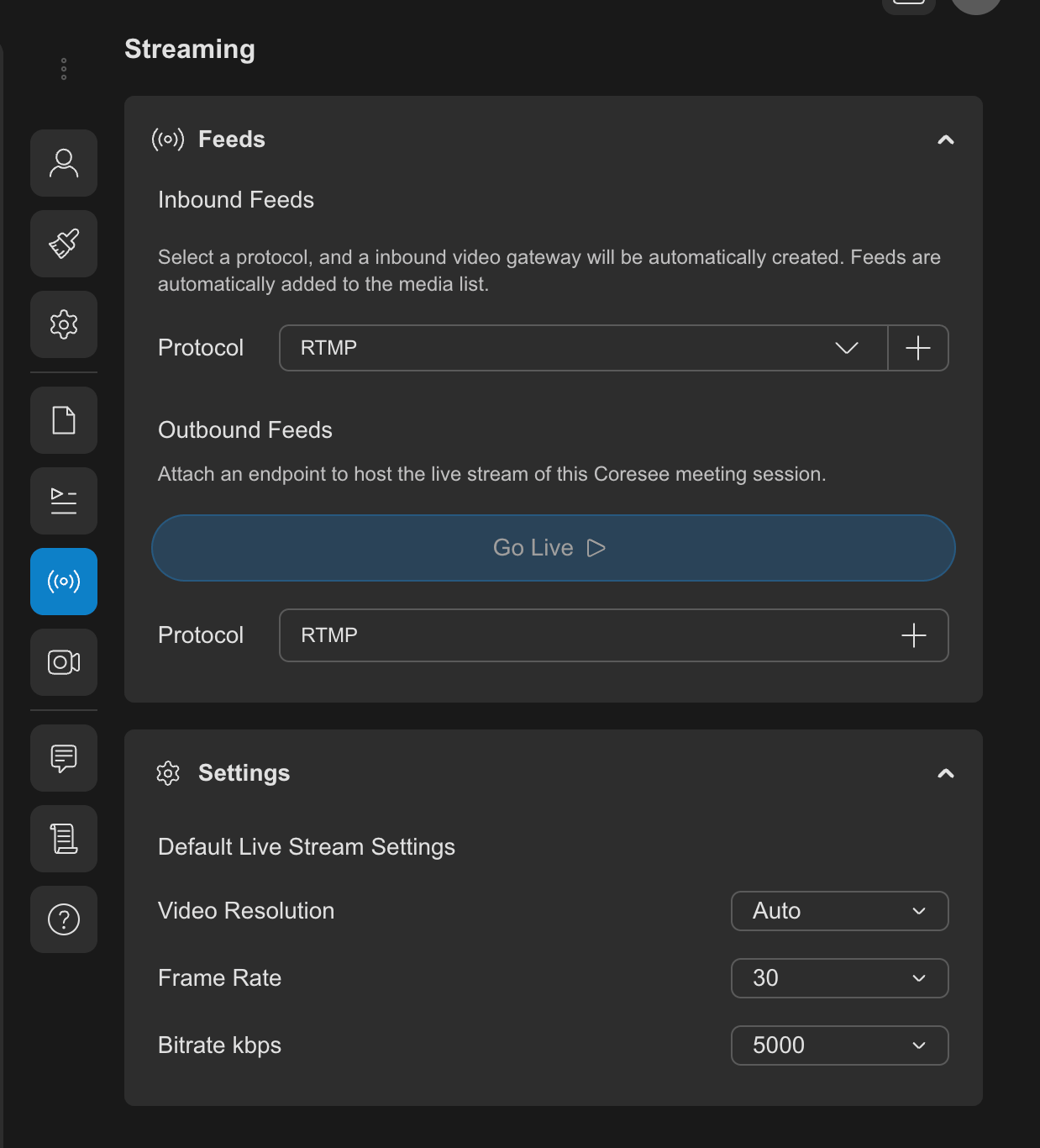
Inbound Feeds live in the **Streaming tab** of the Side Panel, under the **Feeds** section alongside Outbound Feeds.
**Host and co-host only.** The Streaming tab — and Inbound Feeds within it — is not visible to participants, in either the pre-session homepage or an active room.
 ## **How an Inbound Feed works**
Creating an Inbound Feed generates a unique ingest address for that feed — a Server URL and Channel ID. You enter these into your external device or encoder, which then pushes its video stream to Coresee. Once the stream is live, Coresee exposes it as a media source that can be brought into the room the same way you'd [present a file](/help/control-panel/present-in-room).
* The external source does the "pushing" — Coresee doesn't reach out to the device, so the device needs network access to send its stream out.
* A feed can be created and configured before a session starts, so it's ready to go the moment you need it.
* Multiple Inbound Feeds can exist on the same room at once, each with its own card in the Feeds list.
## **Creating an Inbound Feed**
Set up a new Inbound Feed from the Streaming tab before connecting your external device.
RTMP, SRT or RTSP
## **How an Inbound Feed works**
Creating an Inbound Feed generates a unique ingest address for that feed — a Server URL and Channel ID. You enter these into your external device or encoder, which then pushes its video stream to Coresee. Once the stream is live, Coresee exposes it as a media source that can be brought into the room the same way you'd [present a file](/help/control-panel/present-in-room).
* The external source does the "pushing" — Coresee doesn't reach out to the device, so the device needs network access to send its stream out.
* A feed can be created and configured before a session starts, so it's ready to go the moment you need it.
* Multiple Inbound Feeds can exist on the same room at once, each with its own card in the Feeds list.
## **Creating an Inbound Feed**
Set up a new Inbound Feed from the Streaming tab before connecting your external device.
RTMP, SRT or RTSP
 Exactly where these values go on your device varies by manufacturer — typically a **Server URL** (or similar) field and a **Stream Key/Channel ID** (or similar) field.
## Related Articles
* [Connect an Amcrest Camera](/untitled-page-4)
* [Connect a Panasonic Camera](/connect-a-panasonic-camera)
* [Connect a PTZ Optics camera](/connect-a-ptz-optics-camera)
This documentation is built and hosted on [Mintlify](https://mintlify.com), a developer documentation platform.
Exactly where these values go on your device varies by manufacturer — typically a **Server URL** (or similar) field and a **Stream Key/Channel ID** (or similar) field.
## Related Articles
* [Connect an Amcrest Camera](/untitled-page-4)
* [Connect a Panasonic Camera](/connect-a-panasonic-camera)
* [Connect a PTZ Optics camera](/connect-a-ptz-optics-camera)
This documentation is built and hosted on [Mintlify](https://mintlify.com), a developer documentation platform.