> ## Documentation Index
> Fetch the complete documentation index at: https://help.coresee.com/llms.txt
> Use this file to discover all available pages before exploring further.
# What is a Tile?
A tile is the video panel that represents each participant in the room. Every person in an active session has their own tile in the room view.
Each tile typically displays the participant's name, title, and current audio status.
The tile appearance is controlled through the [Appearance tab](/help/control-panel/appearance-tab) by the host.
## Tile Menu
Each tile has a menu that gives you quick access to actions for that participant.
Hover over any participant's tile to reveal the Tile Menu, located in the bottom right corner of the tile. What options you see depends on your role and who you selected.
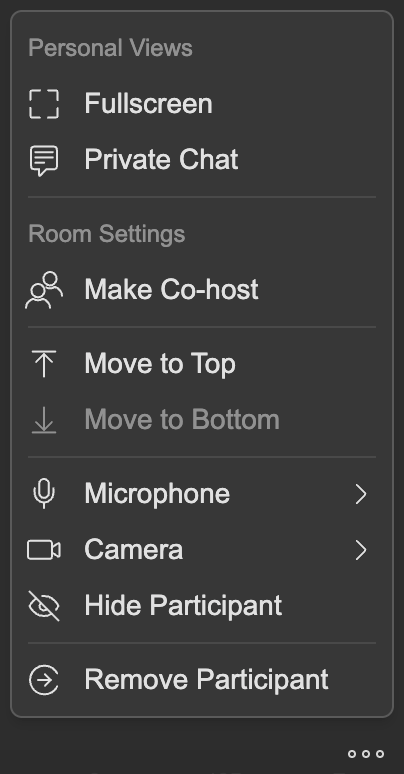 Expand a single participant's tile — including your own — to fill your entire screen. This is a personal view; it only affects what you see and has no impact on any other participant's view.
To exit, open the Tile Menu and select Exit Fullscreen
Send a direct, private message to a participant during the session.
Promote a participant to co-host, granting them elevated room privileges. Demote a co-host back to standard participant access by clicking **Make Participant.**
**Move to Top / Move to Bottom.** Reorder a participant's tile to the first or last position in the room view.
These controls act on the participant's actual input, affecting what everyone in the room sees and hears — not just your own view. Each control has two tiers with different levels of finality.
**Turn Off**
Immediately turns off the participant's microphone or camera for the whole room. The participant can turn their own input back on at any time — because consent belong to the participant, the host or co-host cannot re-enable a temporarily turned-off input on their behalf.
* Found under the **Microphone** or **Camera** submenu in the Tile Menu
* The participant sees their own mic or camera toggle in the bottom bar remain enabled — they can switch it back on themselves
**Disable**
Completely blocks the participant's microphone or camera at the platform level. The participant's own toggle is locked and they cannot re-enable it themselves while the disable is active.
* Found under the same **Microphone** or **Camera** submenu, alongside the corresponding Turn Off option
* The participant sees their bottom-bar toggle locked, with a notice explaining it's been disabled by the host
* When the host or co-host re-enables it, the input returns to whatever state it was in before being disabled — if it was on, it comes back on; if it was off, it stays off
Hides a participant's tile from the room layout for everyone. The participant becomes a viewer only: they can still watch and listen, raise their hand, and use chat, but they can no longer speak or be seen — their tile no longer appears on anyone's screen, including their own.
This ends their active participation immediately and takes them off the participant list — their tile is taken down, they can no longer contribute to the room, and they no longer appear among the room's participants.
*Your tile only*
Mirror your video horizontally for everyone in the room, not just on your screen.