> ## Documentation Index
> Fetch the complete documentation index at: https://help.coresee.com/llms.txt
> Use this file to discover all available pages before exploring further.
# Reactions and Hand Raise
Reactions let you communicate in a session without interrupting the flow. You can raise your hand to signal that you'd like to speak, or send an emoji to respond to what's happening in the room — without needing to unmute.
Both are available to all participants during a live session as two separate buttons on the bottom bar.
 ## Hand Raise
Use Hand Raise to signal to the host that you'd like to make a comment or ask a question. It's a persistent signal — it stays visible until you click again on the same button.
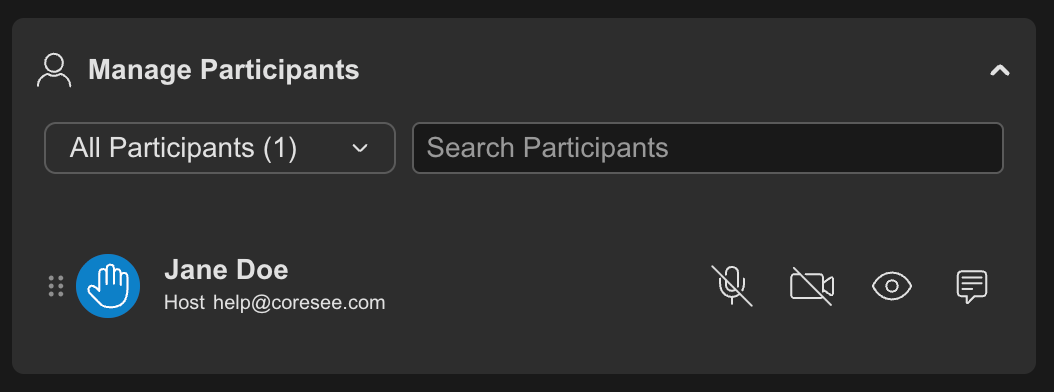
The host can see all raised hands in the Participants panel.
## Hand Raise
Use Hand Raise to signal to the host that you'd like to make a comment or ask a question. It's a persistent signal — it stays visible until you click again on the same button.
The host can see all raised hands in the Participants panel.
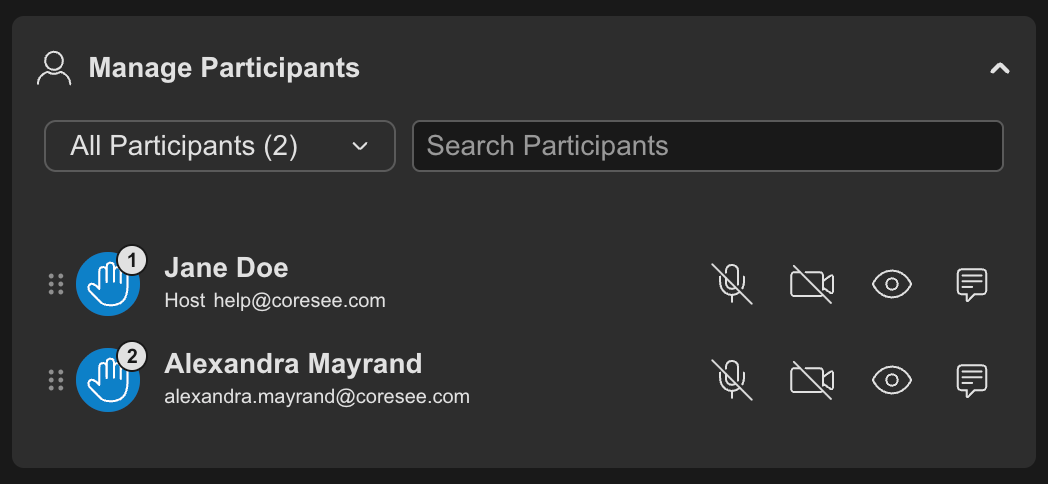
 Hand-raising is numbered so the host knows the order in which hands were raised.
 ## Reactions
Emoji reactions let you respond to what's happening in the room — applause, agreement, a thumbs up — without needing to say anything. They're brief by design and disappear automatically after a few seconds.
The reaction is displayed briefly on your tile for everyone to see, then fades automatically. No action is needed to dismiss it.
## Reactions
Emoji reactions let you respond to what's happening in the room — applause, agreement, a thumbs up — without needing to say anything. They're brief by design and disappear automatically after a few seconds.
The reaction is displayed briefly on your tile for everyone to see, then fades automatically. No action is needed to dismiss it.