> ## Documentation Index
> Fetch the complete documentation index at: https://help.coresee.com/llms.txt
> Use this file to discover all available pages before exploring further.
# Dial In
Enhance your daily communications by dialing into your next Coresee meeting!
The Dial In feature provides uninterrupted connectivity, perfect for those with limited internet access or who are on the go, making Coresee accessible from anywhere.
Dial In is an optional add-on for Coresee packages and is currently offered with phone numbers for the United States and Canada. For more details on adding this feature to your plan, please contact [help@coresee.com](mailto:help@coresee.com)
## Dial In from the Lobby
Once you’ve joined a Coresee room and have landed in the Lobby, click the Dial In button.
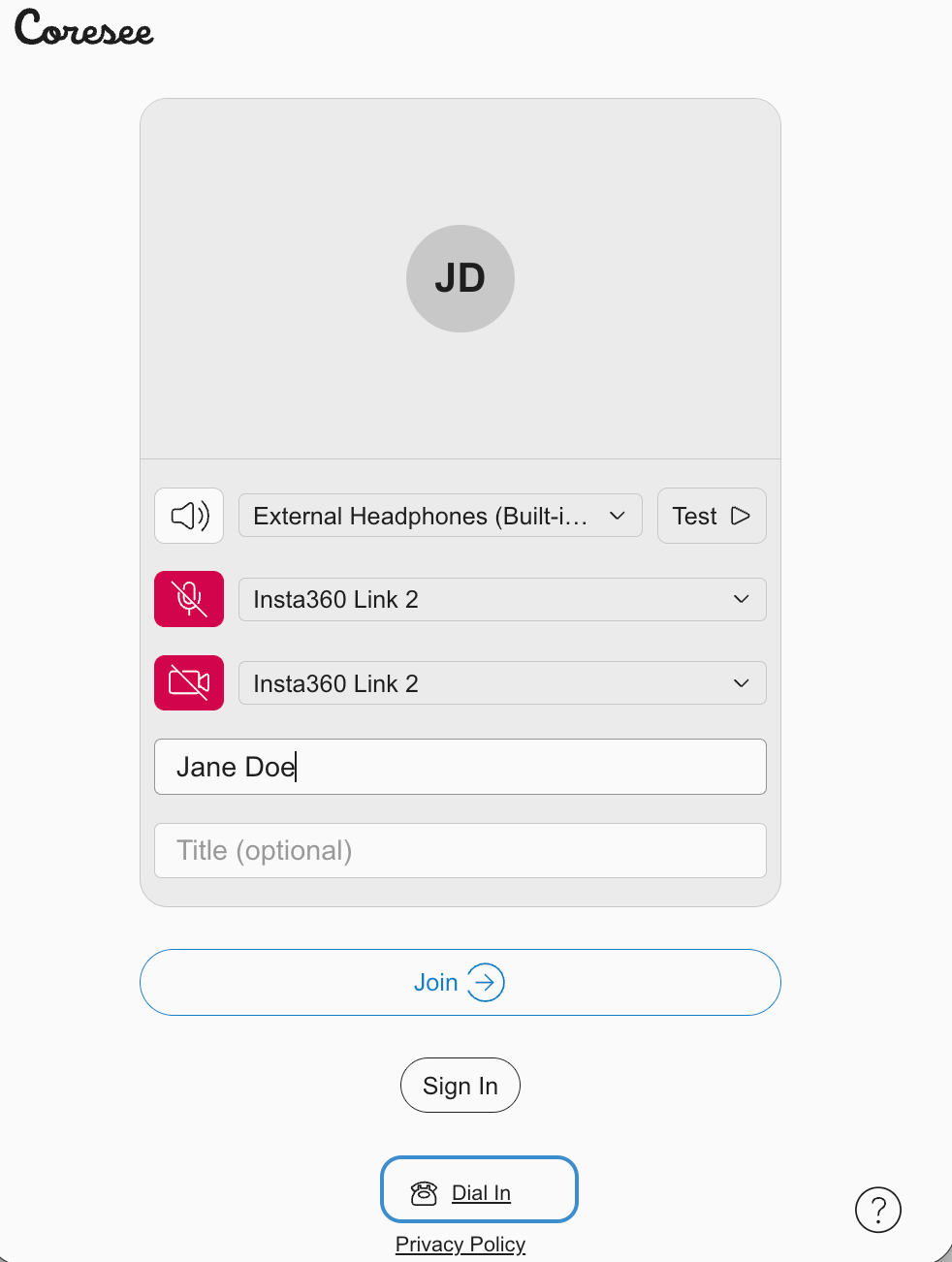 (Optional) When prompted, using your dial keypad, enter your unique 4 digit Participant ID, then select the pound (#) key. . Press only the pound (#) key to skip, if you wish to join the meeting as a Guest.
Rooms with the following settings enabled may require additional steps:
**Host Control Admit** - Host can allow or reject attendees from entering the room.
(Optional) When prompted, using your dial keypad, enter your unique 4 digit Participant ID, then select the pound (#) key. . Press only the pound (#) key to skip, if you wish to join the meeting as a Guest.
Rooms with the following settings enabled may require additional steps:
**Host Control Admit** - Host can allow or reject attendees from entering the room.
**Private Room** - Only invited Participants can join the room.
**Login Required** - Attendees must enter their participant ID to join a room.