> ## Documentation Index
> Fetch the complete documentation index at: https://help.coresee.com/llms.txt
> Use this file to discover all available pages before exploring further.
# Close Room
Closing a room ends the session that's currently in progress. It's a way to wrap up a session for everyone at once — it doesn't remove the room itself.
Every Coresee room is persistent: it stays on the account with its files, recordings, and settings whether a session is running or not. Closing a room only affects the active session — the room is still there afterward, ready to be entered again whenever you need it.
## **How to close a room**
Close Room is found in the Side Panel, under Settings.
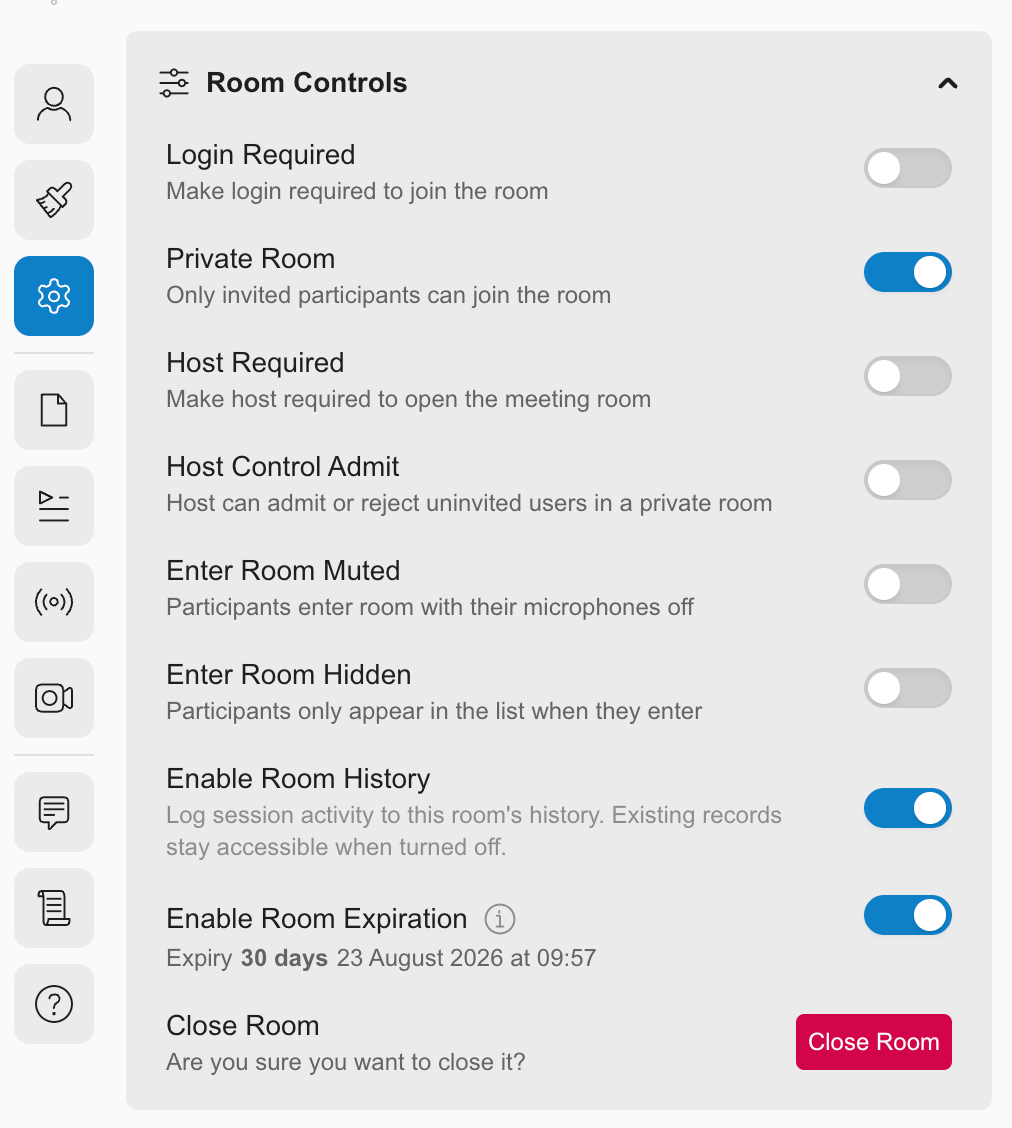
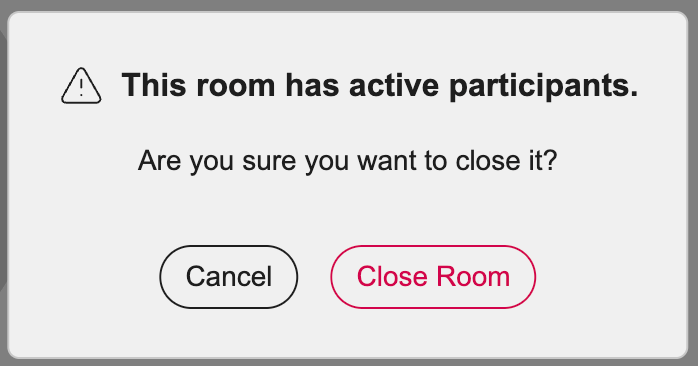 **Available from the room or the homepage:** Close Room is available from the Settings tab whether you're inside an active session or managing the room from the homepage.