> ## Documentation Index
> Fetch the complete documentation index at: https://help.coresee.com/llms.txt
> Use this file to discover all available pages before exploring further.

# Outlook

The Coresee plugin for Microsoft Outlook lets you create and manage Coresee rooms without leaving your calendar. Add a room to any event, share it with invitees, and update its settings — all from the Outlook Web App or the Outlook Desktop App.

## **Installation**

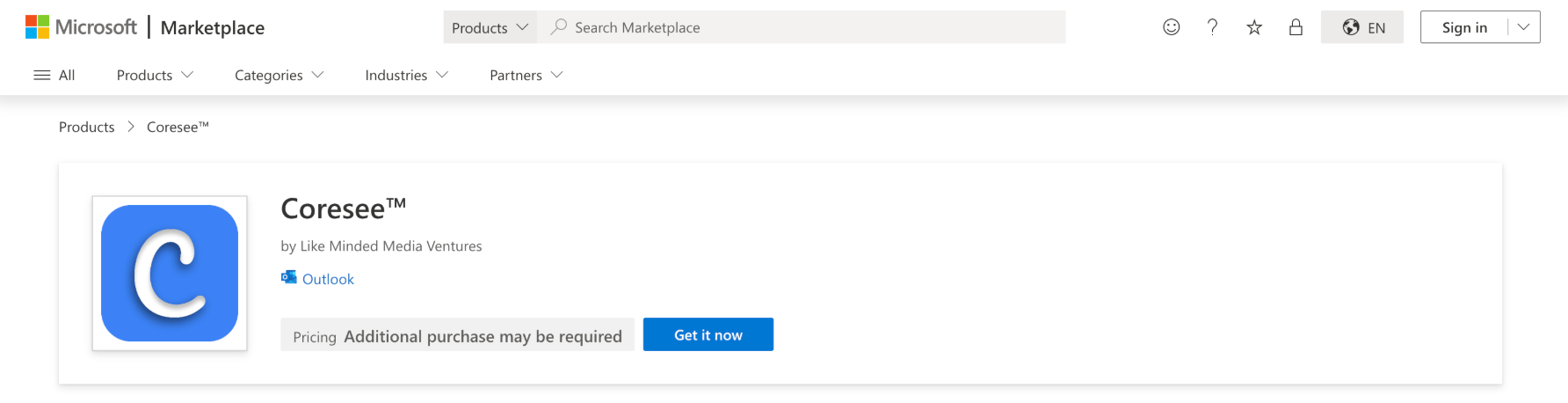
<Card title="Install from the Microsoft AppSource Marketplace" icon="down" href="https://marketplace.microsoft.com/en-us/product/office/WA200009138?tab=Overview">
  Install the plugin once from the Microsoft AppSource Marketplace and it becomes available across both the Outlook Web App and the Outlook Desktop App on your account.
</Card>

<Steps>
  <Step title="Click **Get it now**">
    <img src="https://mintcdn.com/likemindedlabs/F3BX3HPmCPJ12CH7/images/outlook_install.png?fit=max&auto=format&n=F3BX3HPmCPJ12CH7&q=85&s=f1210bfdc39300c6e4cb5989b96c8da2" alt="Outlook Install" width="1784" height="458" data-path="images/outlook_install.png" />
  </Step>

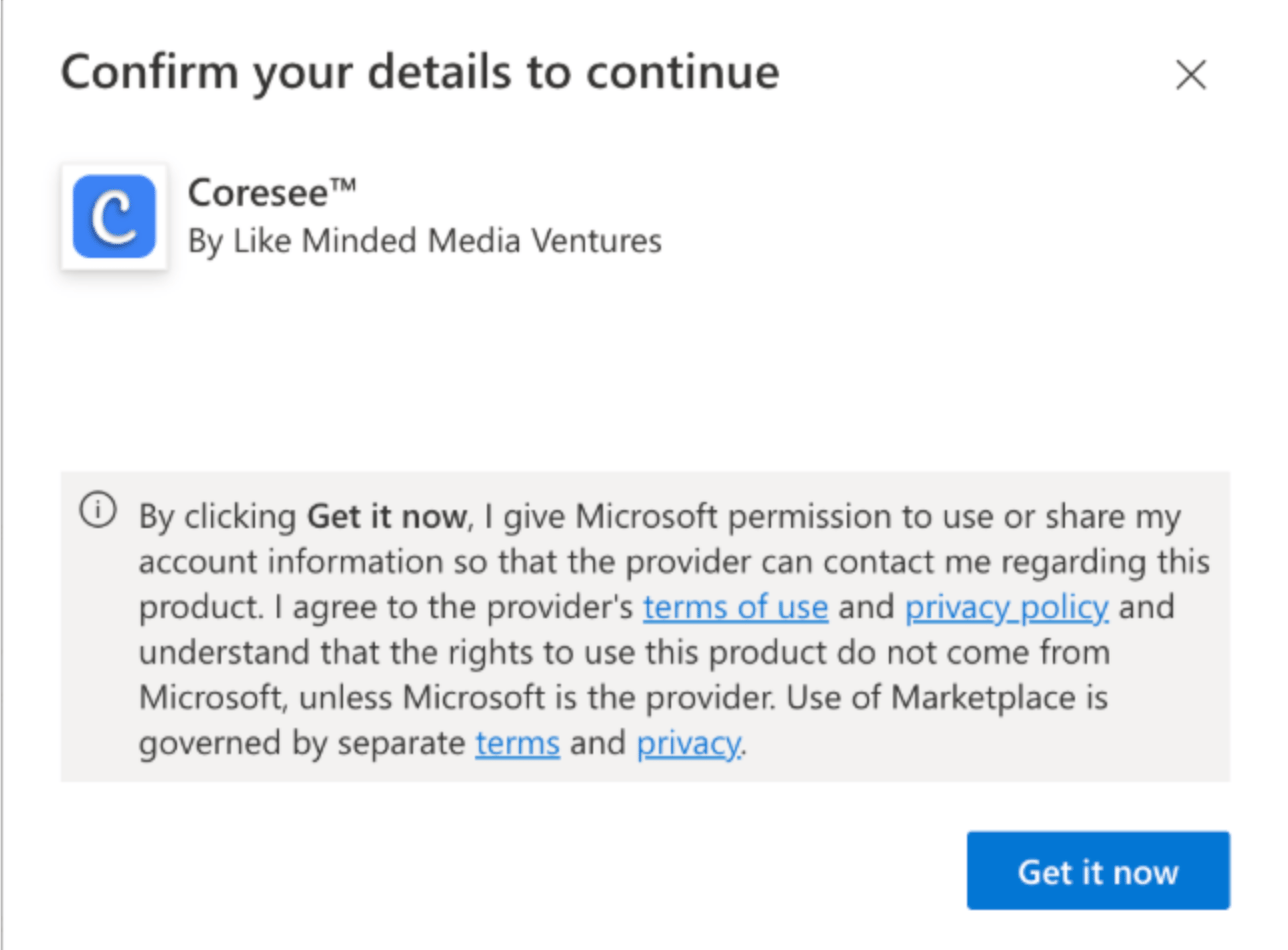
  <Step title="In the &#x22;Confirm your details&#x22; window, click **Get it now** again.">
    <img src="https://mintcdn.com/likemindedlabs/F3BX3HPmCPJ12CH7/images/outlook_getitnow.png?fit=max&auto=format&n=F3BX3HPmCPJ12CH7&q=85&s=60d9301630ebf0f46a117d3117fc57b0" alt="Outlook Getitnow" title="Outlook Getitnow" className="mx-auto" style={{ width:"58%" }} width="1288" height="950" data-path="images/outlook_getitnow.png" />
  </Step>

  <Step title="In the &#x22;Confirm your details&#x22; window, click **Get it now** again." />

  <Step title="Click **Continue**." />
</Steps>

<Check>
  The Coresee plugin is now added to your Microsoft account!
</Check>

<Warning>
  **Don't see the plugin icon?** If it doesn't appear immediately after installation, restart the Outlook Desktop App, or refresh the browser tab for the Outlook Web App.
</Warning>

## **Signing In**

Whether you use the Outlook Web App or the Desktop App, the sign-in process follows the same steps — only how you open the plugin panel differs.

<Steps>
  <Step title="Open your **Outlook Calendar** and create a new event (or open an existing one)." />

  <Step title="Open the plugin panel">
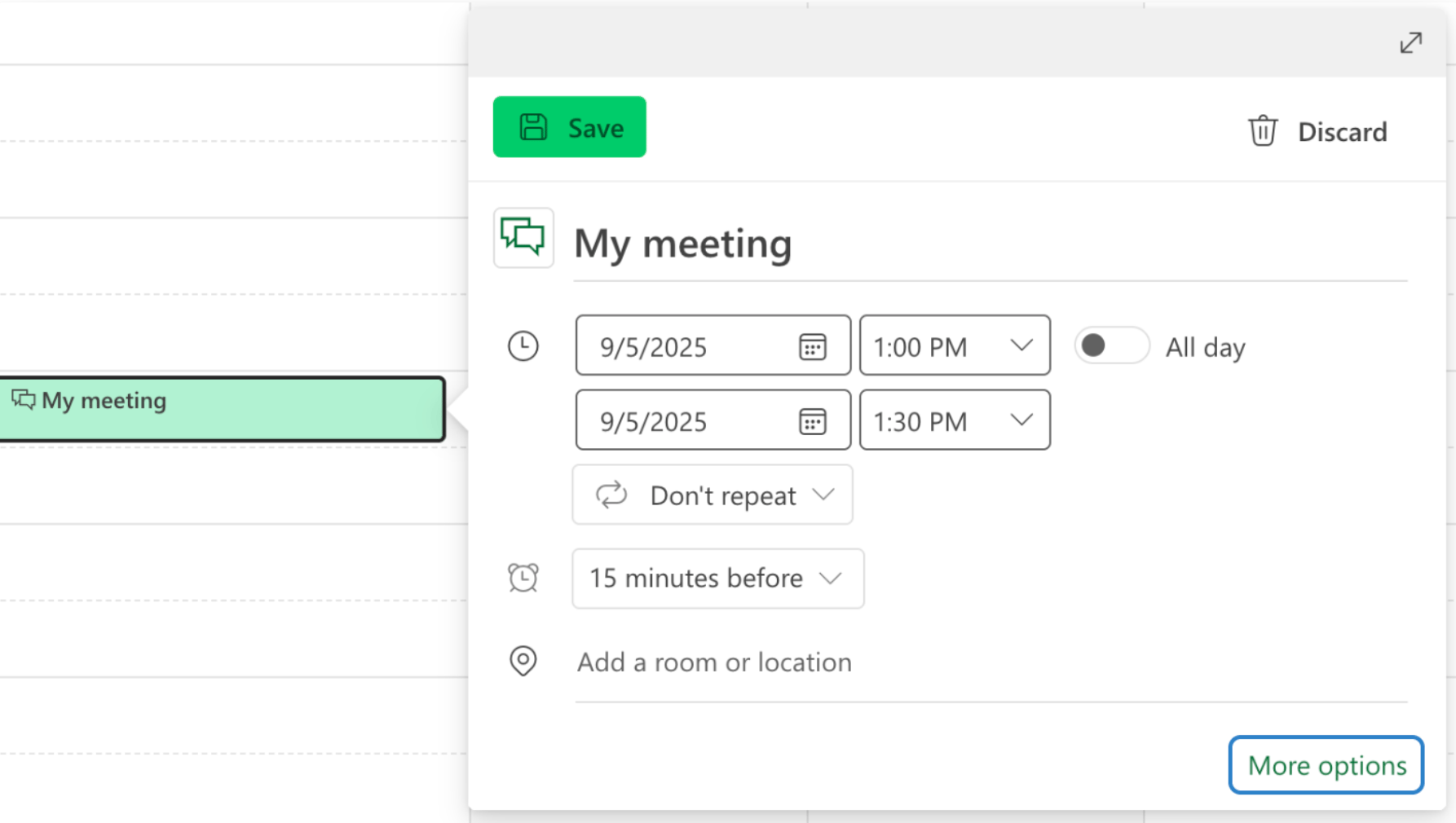
    * **For Web Users:** If you don't see the plugin, click **More Options**
          <img src="https://mintcdn.com/likemindedlabs/F3BX3HPmCPJ12CH7/images/outlook_event.png?fit=max&auto=format&n=F3BX3HPmCPJ12CH7&q=85&s=dc175faf47a955165bab4f6ac37531d9" alt="Outlook Event" width="1786" height="1010" data-path="images/outlook_event.png" />

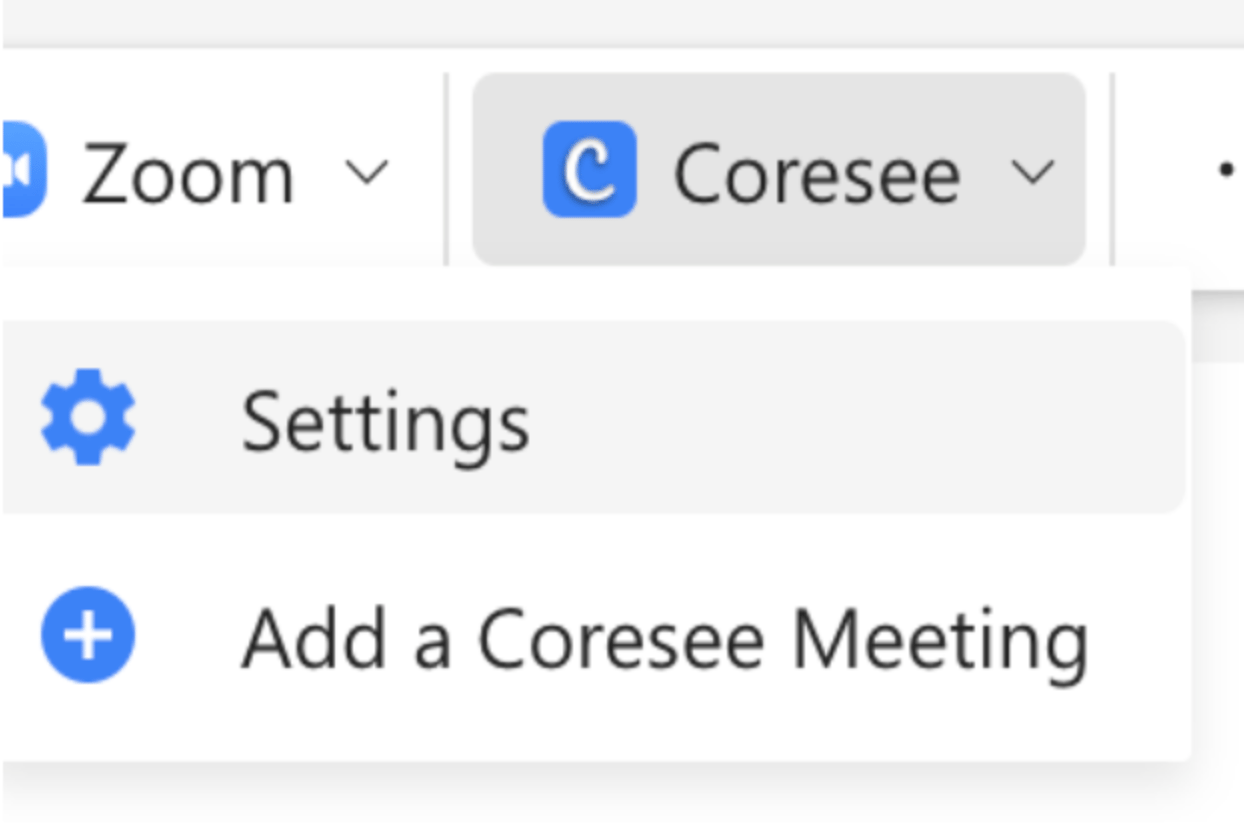
    * **For Desktop Users:** Click the **Coresee** icon in the ribbon. *Note: You may need to click the **three-dot (...) menu** to find the plugin.*
    <img src="https://mintcdn.com/likemindedlabs/F3BX3HPmCPJ12CH7/images/outlook_ribbon.png?fit=max&auto=format&n=F3BX3HPmCPJ12CH7&q=85&s=e9eabd52c978a2bd798222297679db26" alt="Outlook Ribbon" title="Outlook Ribbon" className="mx-auto" style={{ width:"49%" }} width="1244" height="828" data-path="images/outlook_ribbon.png" />
  </Step>

  <Step title="Select **Settings** from the Coresee dropdown." />

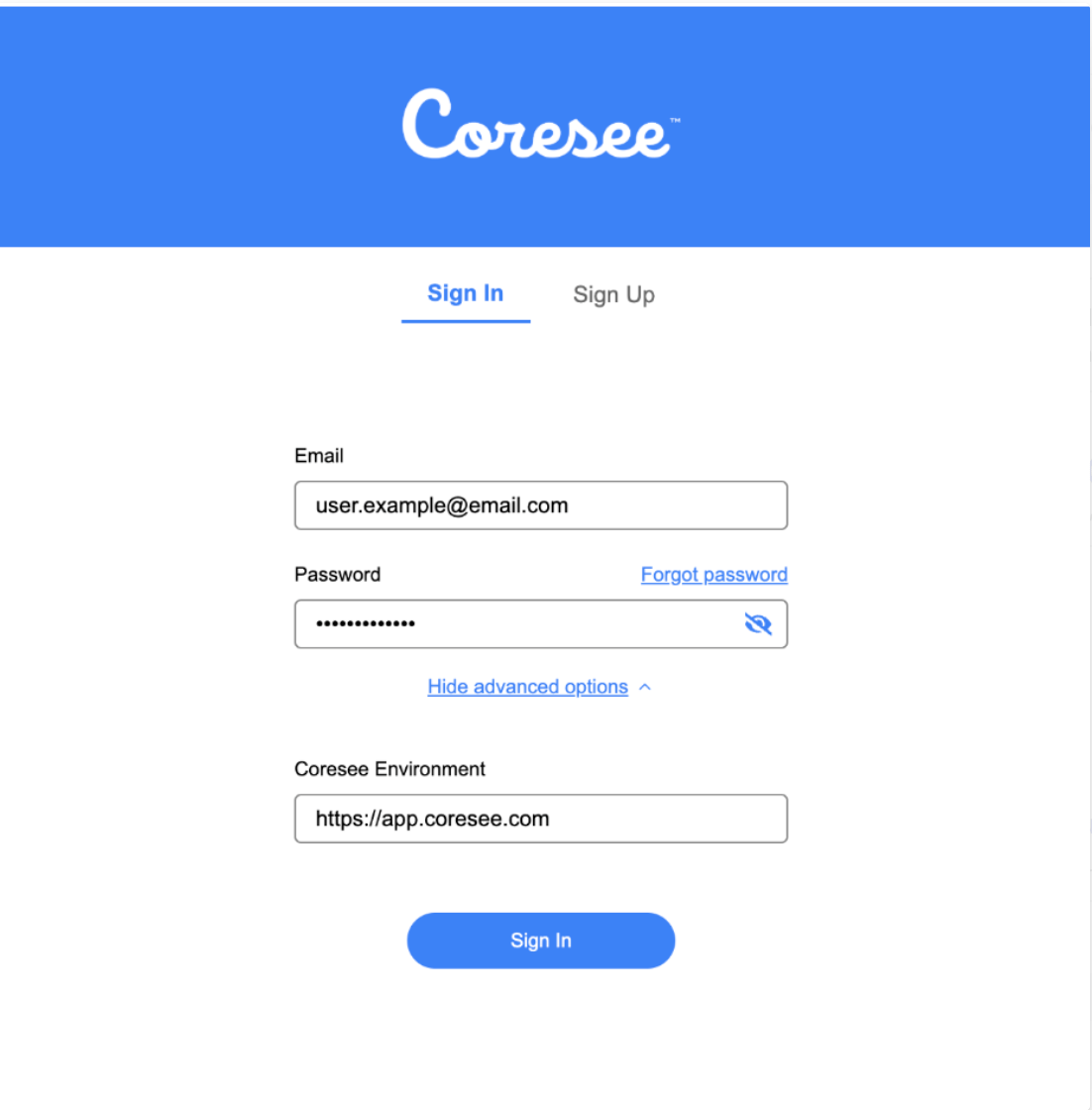
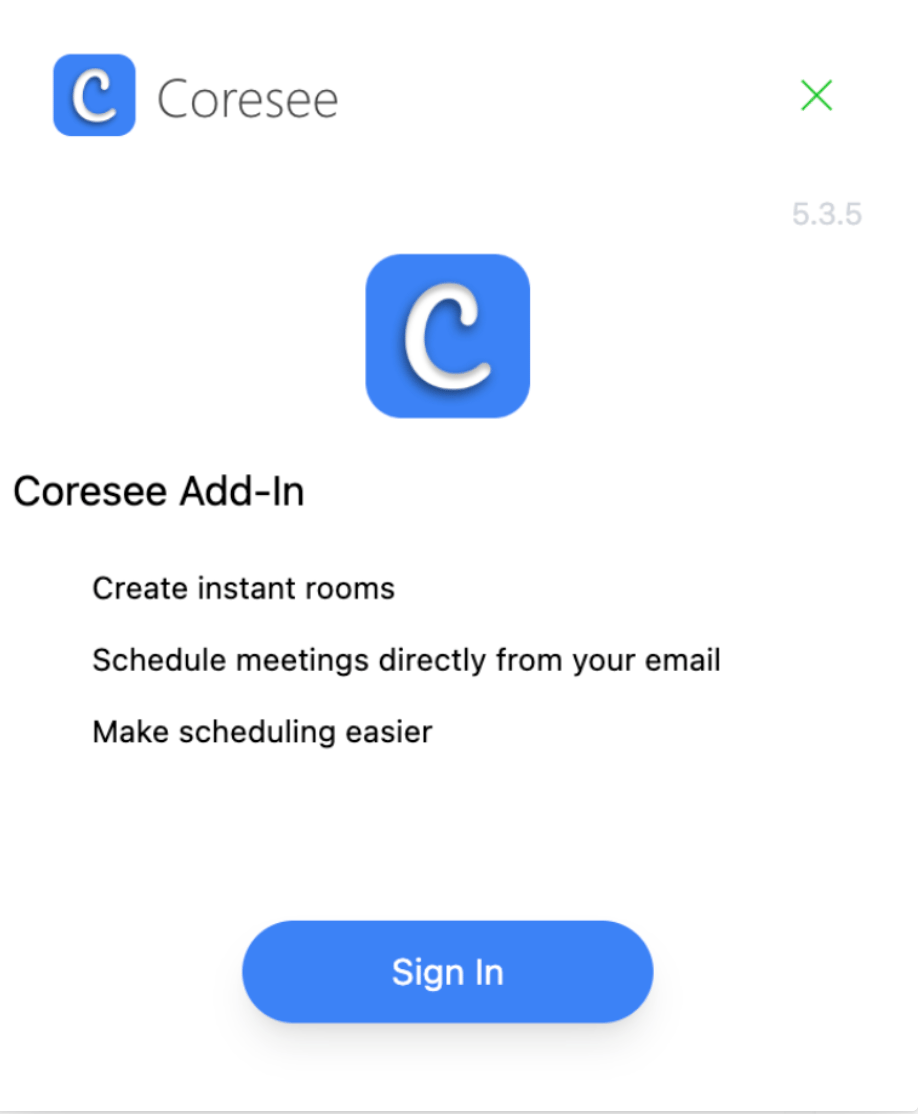
  <Step title="In the panel that appears on the right, click **Sign In**.">
    <img src="https://mintcdn.com/likemindedlabs/F3BX3HPmCPJ12CH7/images/outlooksignin.png?fit=max&auto=format&n=F3BX3HPmCPJ12CH7&q=85&s=c65fc0405b951628904dc37b7a6ae99a" alt="Outlooksignin" title="Outlooksignin" className="mx-auto" style={{ width:"45%" }} width="918" height="1114" data-path="images/outlooksignin.png" />
  </Step>

  <Step title="Enter your Coresee credentials">
    <img src="https://mintcdn.com/likemindedlabs/F3BX3HPmCPJ12CH7/images/outlook_signin.png?fit=max&auto=format&n=F3BX3HPmCPJ12CH7&q=85&s=7deae4a2397da7faa02975c506023d4a" alt="Outlook Signin" title="Outlook Signin" className="mx-auto" style={{ width:"43%" }} width="1102" height="1120" data-path="images/outlook_signin.png" />
  </Step>
</Steps>

## **Creating & managing a room**

Once signed in, you can create a Coresee room directly on an event and invite others to it — right from the Outlook Web or Desktop App.

<Steps>
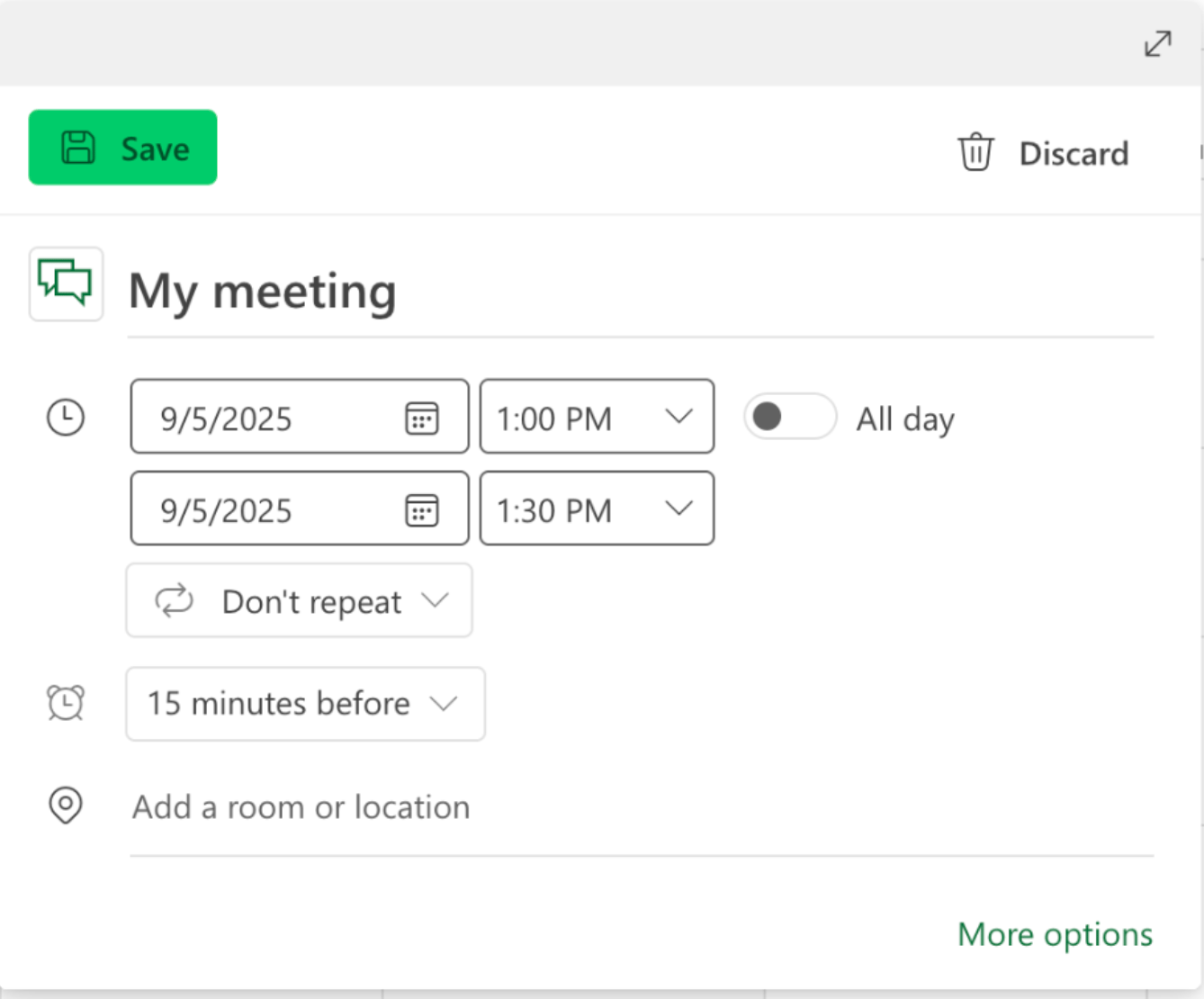
  <Step title="Create or open an event.">
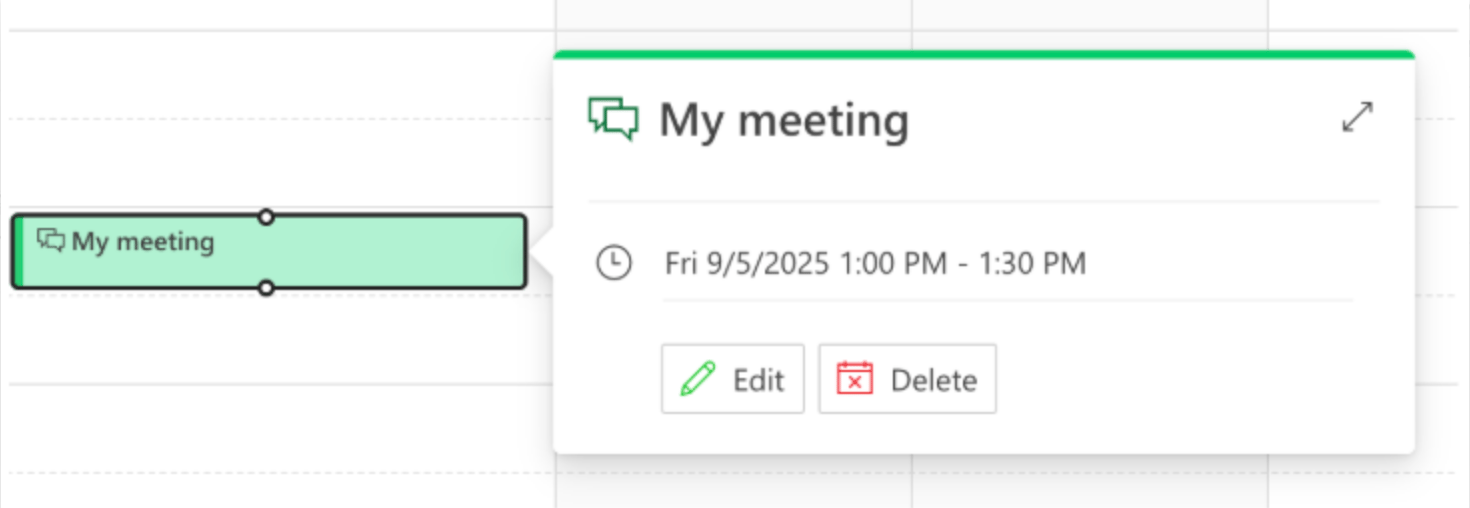
    * For a new event, click **More options** to open the full event editor.
    * For an existing event, click **Edit**.
          <img src="https://mintcdn.com/likemindedlabs/F3BX3HPmCPJ12CH7/images/outlook_edit.png?fit=max&auto=format&n=F3BX3HPmCPJ12CH7&q=85&s=5c216dd47a07310785ee805102352115" alt="Outlook Edit" width="1470" height="508" data-path="images/outlook_edit.png" />

          <img src="https://mintcdn.com/likemindedlabs/F3BX3HPmCPJ12CH7/images/outlook_event_card.png?fit=max&auto=format&n=F3BX3HPmCPJ12CH7&q=85&s=79971051d3419a2bad1de2b2c091d412" alt="Outlook Event Card" width="1338" height="1110" data-path="images/outlook_event_card.png" />
  </Step>

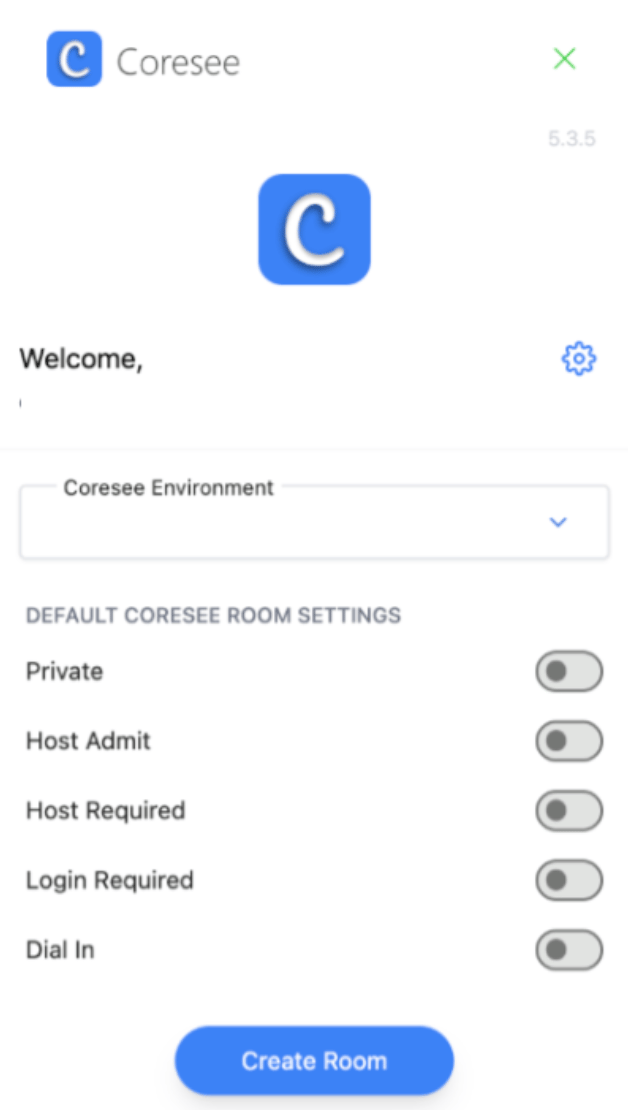
  <Step title="Navigate to the Coresee plugin and select **Settings** to open the plugin panel.">
    <img src="https://mintcdn.com/likemindedlabs/F3BX3HPmCPJ12CH7/images/outlook_ribbon.png?fit=max&auto=format&n=F3BX3HPmCPJ12CH7&q=85&s=e9eabd52c978a2bd798222297679db26" alt="Outlook Ribbon" title="Outlook Ribbon" style={{ width:"38%" }} width="1244" height="828" data-path="images/outlook_ribbon.png" />
  </Step>

  <Step title="In the panel, enable your preferred room settings, then click **Create Room**.">
    <img src="https://mintcdn.com/likemindedlabs/F3BX3HPmCPJ12CH7/images/outlook_createroom.png?fit=max&auto=format&n=F3BX3HPmCPJ12CH7&q=85&s=ebfd95669319d11bad09dc3208763f73" alt="Outlook Createroom" title="Outlook Createroom" className="mx-auto" style={{ width:"31%" }} width="628" height="1110" data-path="images/outlook_createroom.png" />
  </Step>
</Steps>

The room's meeting link is added to the event, so anyone invited to the event automatically has what they need to join.

### **Update a room**

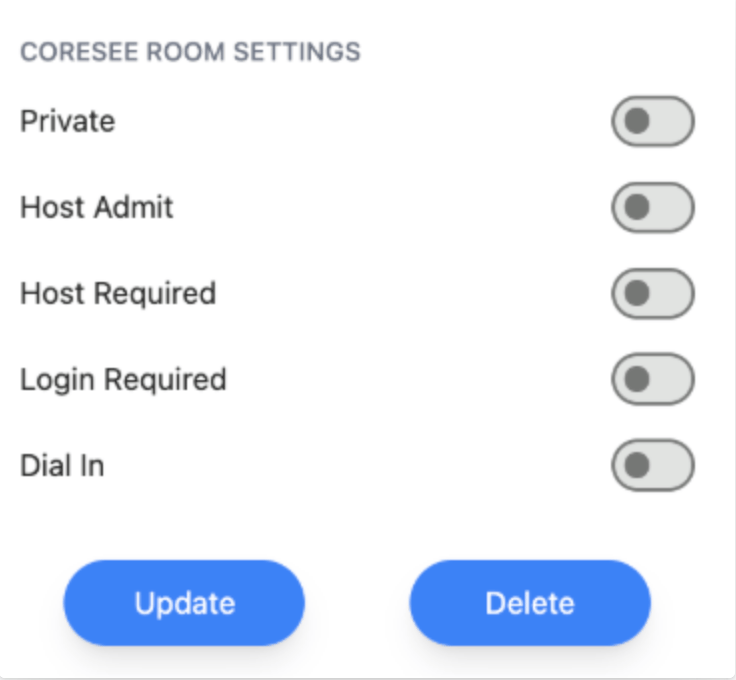
To change a room's settings after it's been created, return to the event, adjust your event details as needed, then open the Coresee plugin panel and click **Update**.
<img src="https://mintcdn.com/likemindedlabs/F3BX3HPmCPJ12CH7/images/outlook_update.png?fit=max&auto=format&n=F3BX3HPmCPJ12CH7&q=85&s=12605b45c8ca0c7c7afbd4e6737a1d64" alt="Outlook Update" title="Outlook Update" className="mx-auto" style={{ width:"31%" }} width="736" height="680" data-path="images/outlook_update.png" />