> ## Documentation Index
> Fetch the complete documentation index at: https://help.coresee.com/llms.txt
> Use this file to discover all available pages before exploring further.
# Google Workspace Plugin
The Coresee Add-on for Google Calendar lets you create and manage Coresee rooms without leaving your calendar — turn any event into an instant meeting room, invite others, and adjust room settings directly from the event.
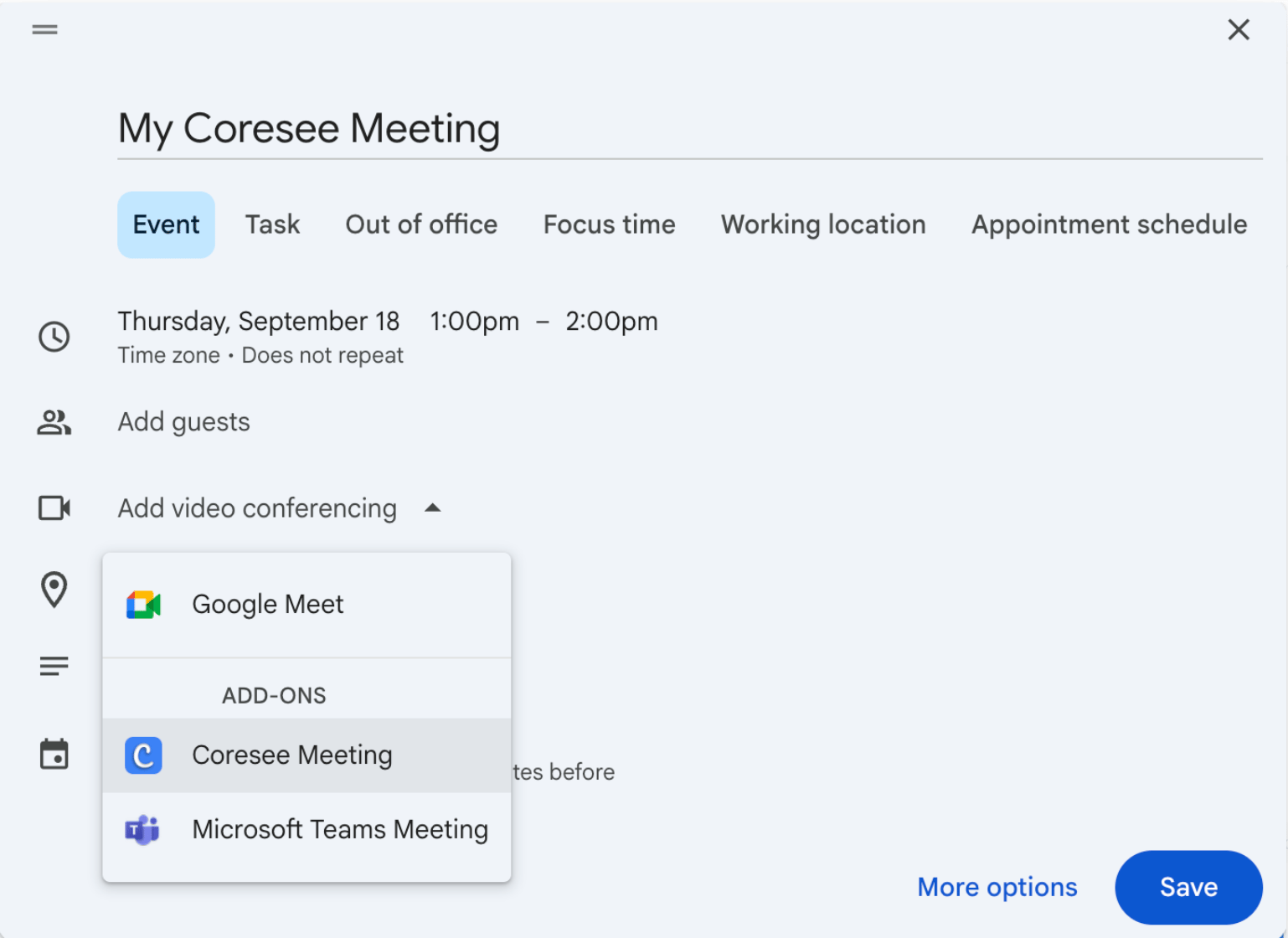
Once installed, the add-on adds a Coresee panel to the Google Calendar sidebar and a Coresee Meeting option to the video conferencing dropdown on any event.
## Requirements
Before you can sign in or create rooms from Google Calendar, the add-on needs to be installed on your Google account.
Install from the Google Workspace Marketplace to enable Coresee inside Google Calendar.
# **Sign In to Coresee**
Sign in to your Coresee account through the Google Calendar Add-on to manage your room settings and start inviting others to your meeting room.
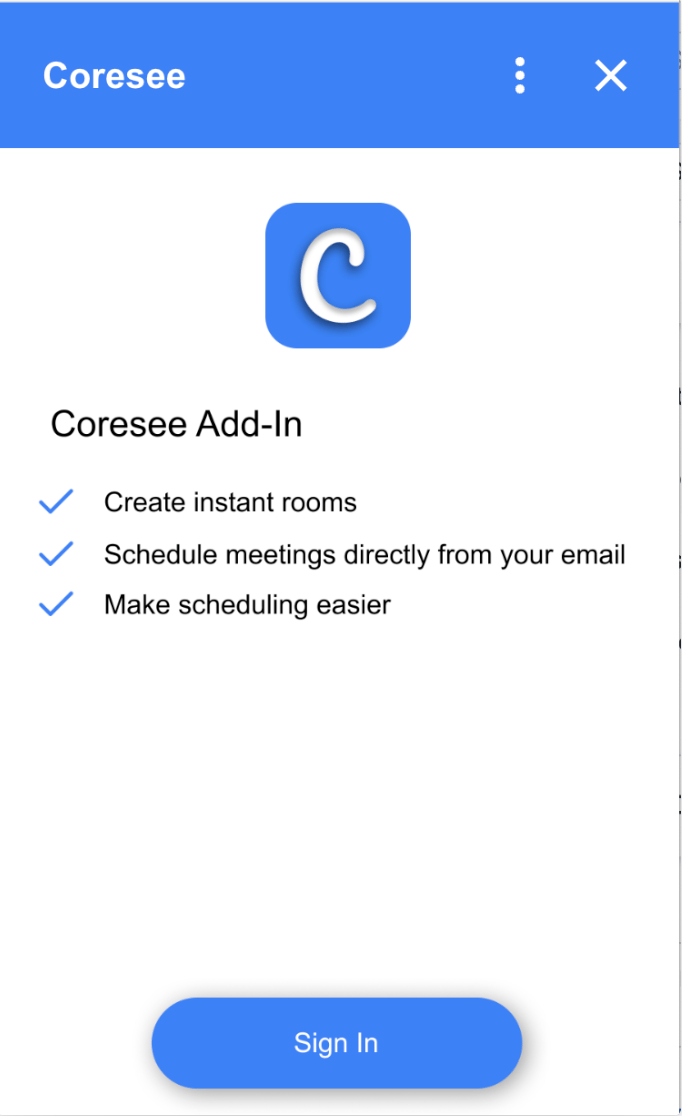
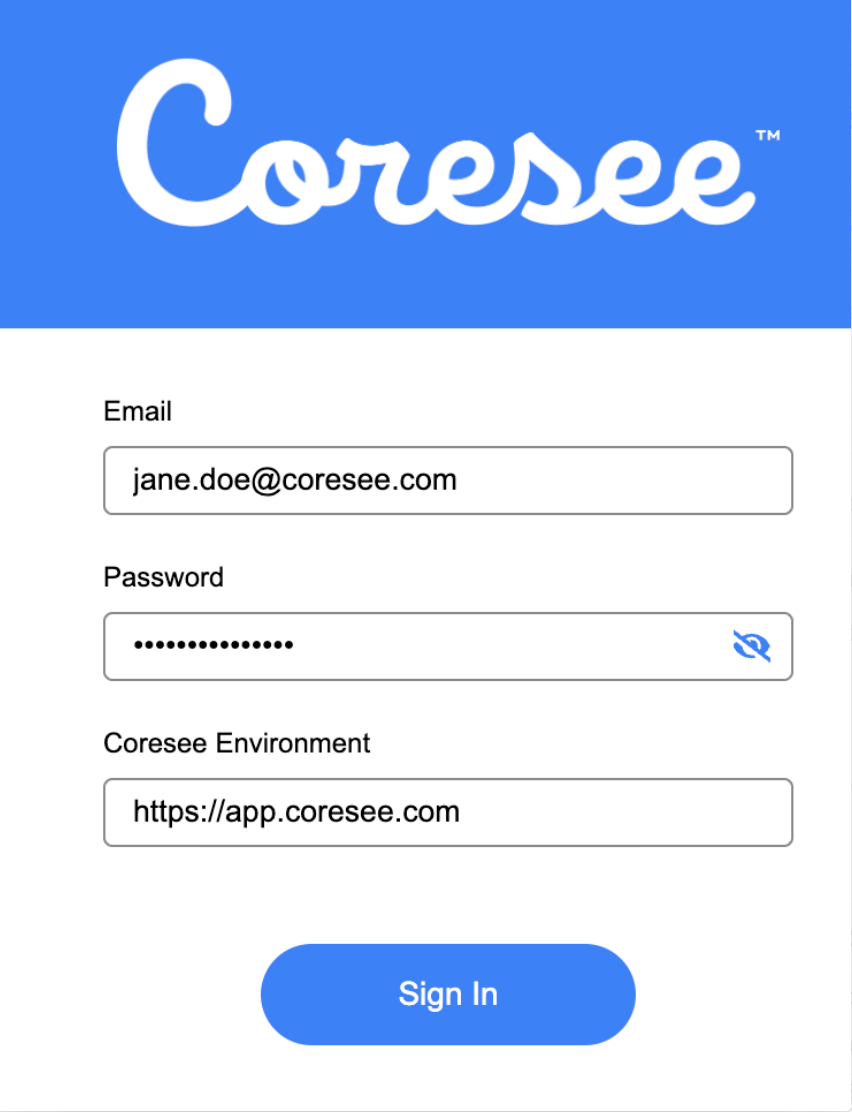 Once you're signed in, you can close the Sign In modal — you're ready to create and manage rooms from Google Calendar.
## Create a Coresee Room
Create, schedule, and invite others to your next Coresee session while creating an event in Google Calendar — no need to set up the room separately.
Once you're signed in, you can close the Sign In modal — you're ready to create and manage rooms from Google Calendar.
## Create a Coresee Room
Create, schedule, and invite others to your next Coresee session while creating an event in Google Calendar — no need to set up the room separately.
 ## **Meeting Room Settings**
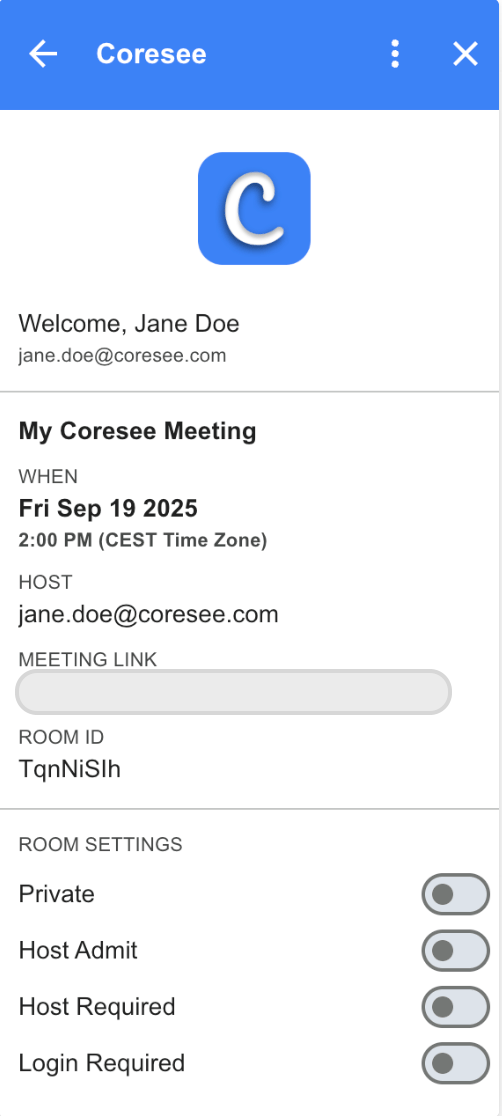
Coresee meeting room settings can be updated directly from Google Calendar, without opening Coresee separately.
Coresee meeting room settings can be updated directly from Google Calendar.
## **Meeting Room Settings**
Coresee meeting room settings can be updated directly from Google Calendar, without opening Coresee separately.
Coresee meeting room settings can be updated directly from Google Calendar.
 ## **Sign Out / Switch Accounts**
Switch accounts easily by signing out of your current Coresee account and signing in to a new one.
## **Sign Out / Switch Accounts**
Switch accounts easily by signing out of your current Coresee account and signing in to a new one.