> ## Documentation Index
> Fetch the complete documentation index at: https://help.coresee.com/llms.txt
> Use this file to discover all available pages before exploring further.
# Avid Media Composer Plugin
The Coresee Avid Media Composer plugin lets you stream a live feed from Avid directly into a Coresee room, without switching applications, sharing your whole screen, or exporting a proxy file first. It's built for review sessions, dailies, and remote collaboration where an editor needs to show cut footage — or a specific Avid panel — to people who aren't in the room.
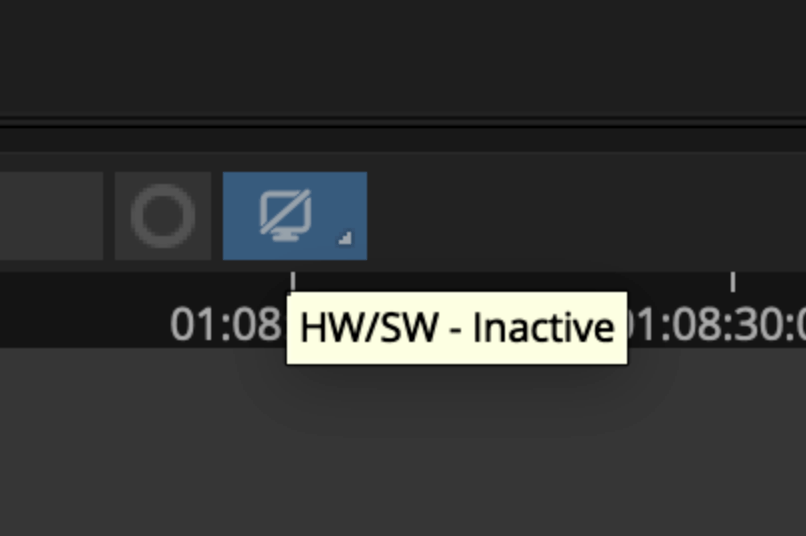
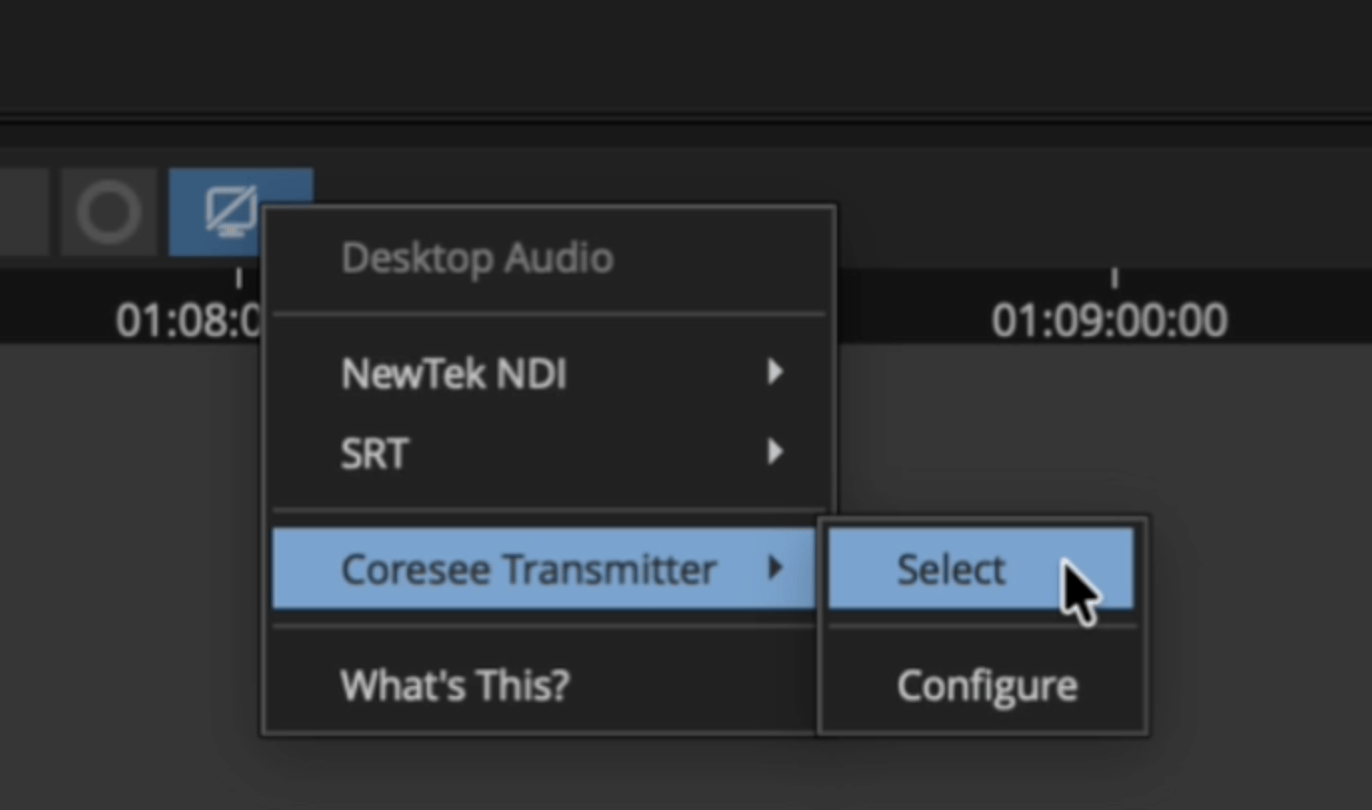
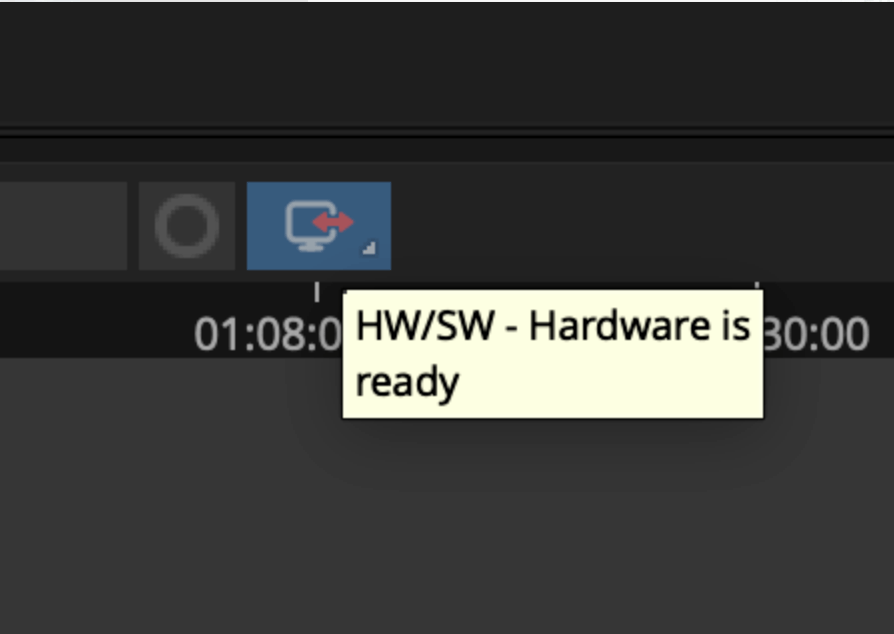
The plugin adds a **Coresee Transmitter** device to Avid's HW/SW (hardware/software) panel output. Once configured, it streams whichever monitor or panel you choose straight to a Coresee room as a live feed — participants see it update in real time as you work.
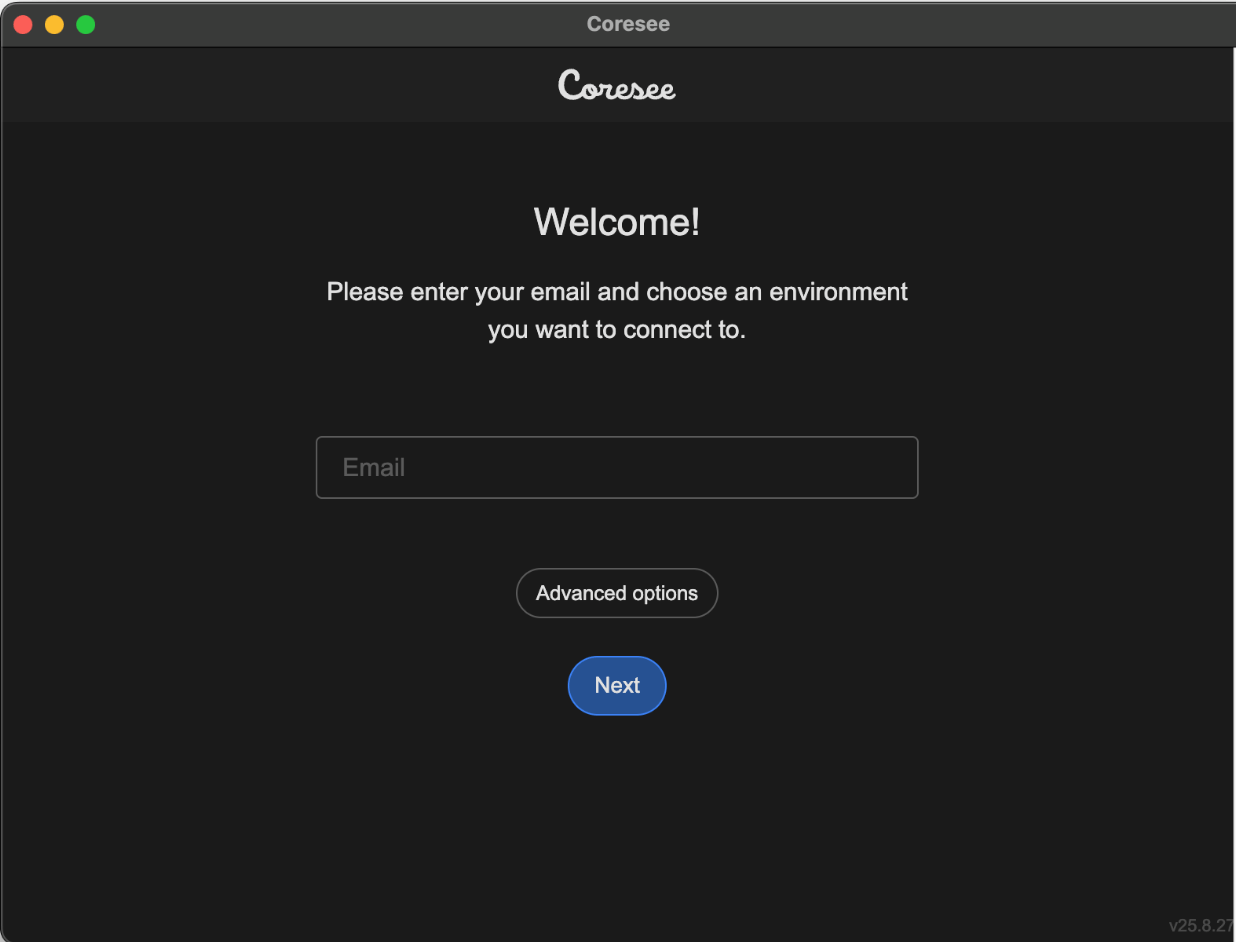
Avid integration requires a Gold license. The Coresee Transmitter plugin and panel will not connect to a room on a Basic or Silver license.
## System Requirements
### **Supported Operating Systems**
* Mac OS 13.2 Ventura and above
* Windows OS 10 and above
### **Supported Avid Products**
* Avid Version 2022.12.5 and above
## Install the Coresee Avid Media Composer Plugin
Click here to download and follow the installation instructions or access it from the Coresee website.
[**Mac OS**](https://lml-software.s3.us-west-2.amazonaws.com/avid/current/CoreseePlusMC-macos-installer.pkg)
[**Windows**](https://lml-software.s3.us-west-2.amazonaws.com/avid/current/CoreseePlusMC-windows-installer.zip)
**Close Avid Media Composer before installing.** If Avid is left open during installation, you'll need to restart the installation process from the beginning.
## **Add the Coresee Transmitter Panel to Your Avid Media Composer Project**
 ## **Share Your Stream to a Coresee Room**
With the panel configured, choose a room and select what to send before starting the feed.
## **Share Your Stream to a Coresee Room**
With the panel configured, choose a room and select what to send before starting the feed.
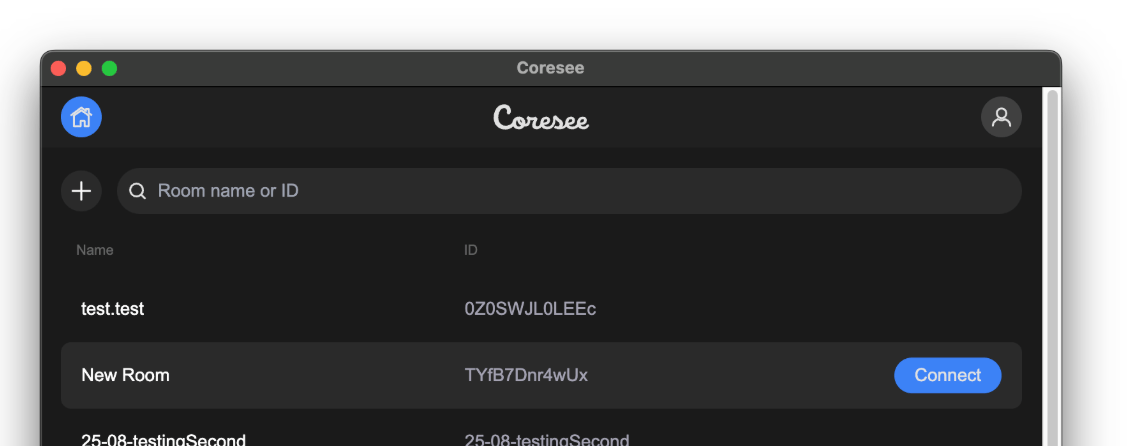 Only audio from one input source can be shared at a time, regardless of how many video sources are visible.
**Selecting Playback** streams whichever window you're actively editing in — the Record Monitor or the Source Monitor. Switching between them mid-stream updates the room's view in real time, with no need to restart the feed.
Once the stream is live, it appears in the room, and additional controls become available through the [Files tab of the room's Side panel](/help/control-panel/media-tab).
## **Adjusting Stream Settings**
Streaming quality settings are host-only, and can only be changed while the stream is stopped.
You must be a Host or Co-Host to modify streaming settings such as Video Resolution, Frame Rate, and Bitrate. Default settings already produce high-quality streaming — Advanced options are available if you need further customization.
Streaming settings cannot be changed while a session is active. Stop the stream first.
## **Sharing Specific Avid Panels**
Beyond the Record and Source Monitors, you can stream an individual floated Avid panel — useful for showing just a bin, a timeline, or a scopes panel without the rest of the interface.
**Now, you can easily view your Avid Media Composer project directly in your Coresee room and engage in edit-over-the-shoulder sessions!**