> ## Documentation Index
> Fetch the complete documentation index at: https://help.coresee.com/llms.txt
> Use this file to discover all available pages before exploring further.
# Adobe Premiere Pro Plugin
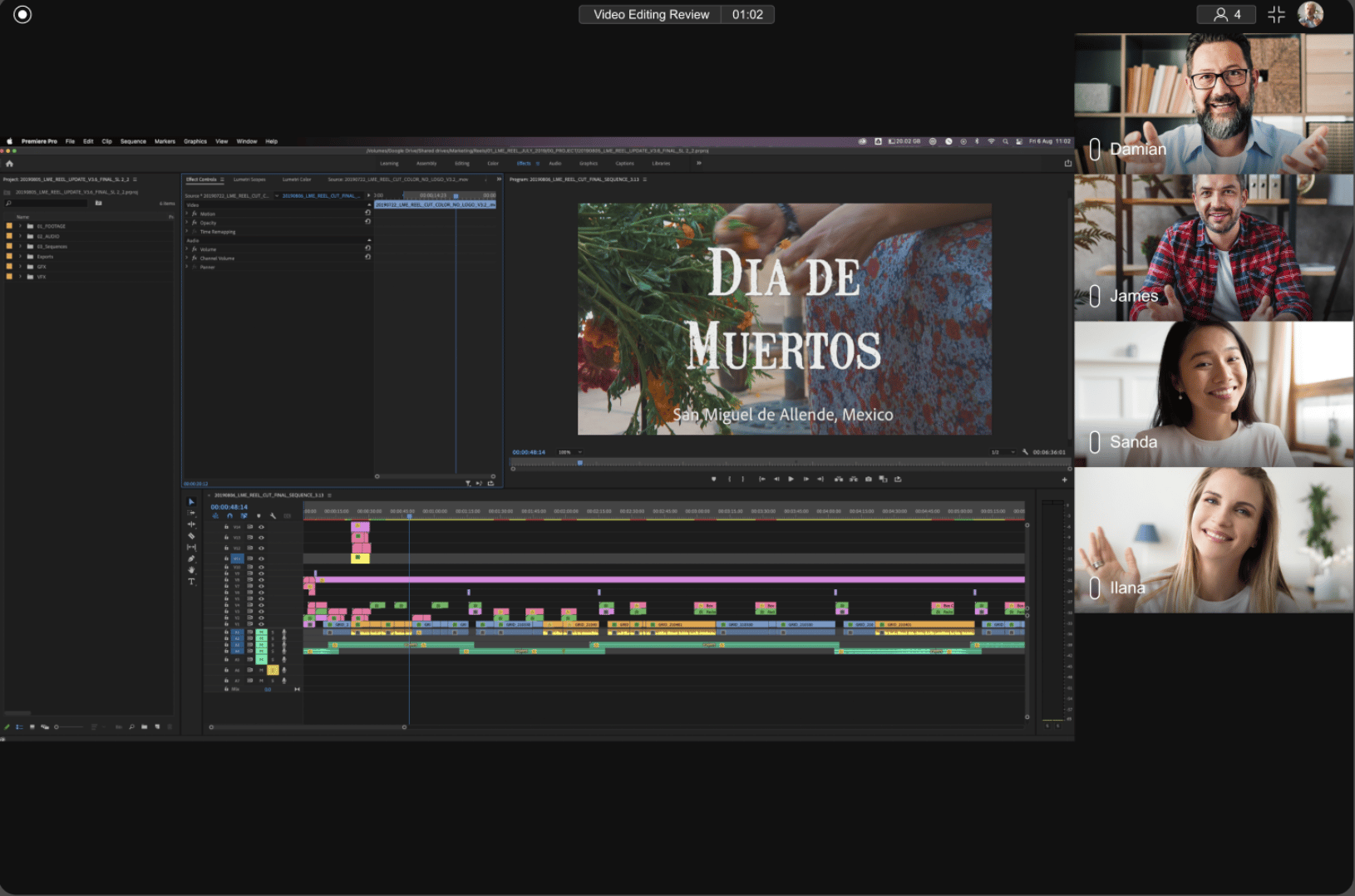
Enhance your remote editing workflow with the **Coresee Transmitter Plugin**. With this plugin, editors can seamlessly invite their team to view Adobe Premiere Pro and After Effects projects in a meeting room for real-time collaboration and feedback — while maintaining full creative control with features like live media playback and synchronized streaming.
**The Transmitter Plugin requires a Gold license.** Streaming from Adobe Premiere Pro or After Effects into a Coresee room is not available on Basic or Silver.
## Supported Operating Systems
* Mac OS 13.2 Ventura and above
* Windows OS 11 and above
## Supported Adobe Products
* Adobe Premiere Pro (Version 24 and above)
* Adobe After Effects (Version 24 and above)
# Installation
Click here to download and follow the installation instructions or access it from the Coresee website.
[**Mac OS**](https://lml-software.s3.us-west-2.amazonaws.com/adobe-plugin/current/CoreseePlus-macos-installer.pkg)
[**Windows**](https://lml-software.s3.us-west-2.amazonaws.com/adobe-plugin/current/CoreseePlus-windows-installer.zip)
## **Adding the Transmitter Panel to Your Premiere Pro Project**
You should now see the Transmitter Panel appear in your project.
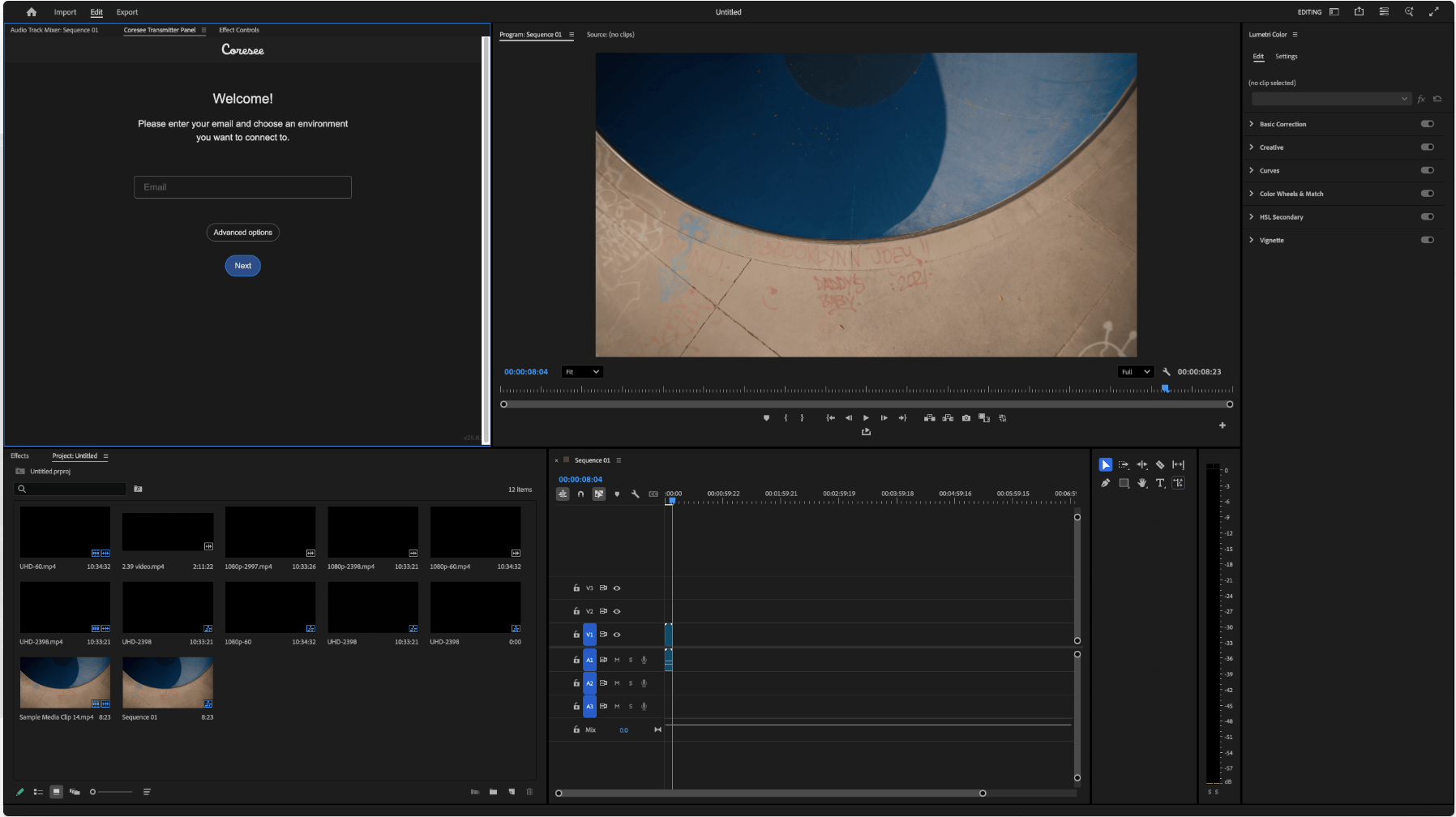 ## Sign In
To enter a custom Environment URL, click Advanced Options.
Environments are custom spaces with specific URLs, created for your business or team and can be crafted to suit your unique needs. Ex. [yourenvironment.coresee.com](http://yourenvironment.coresee.com)
## Sign In
To enter a custom Environment URL, click Advanced Options.
Environments are custom spaces with specific URLs, created for your business or team and can be crafted to suit your unique needs. Ex. [yourenvironment.coresee.com](http://yourenvironment.coresee.com)
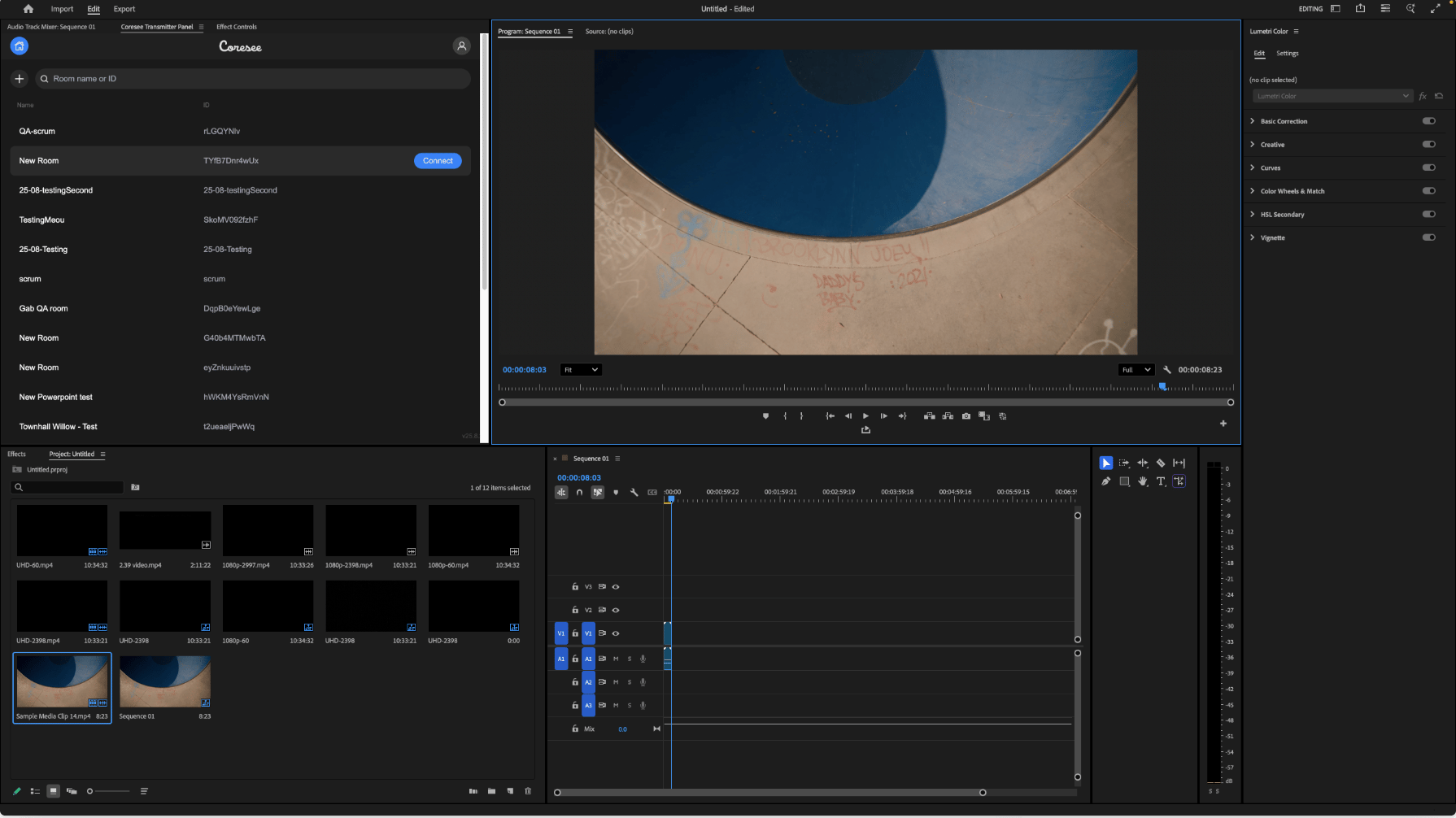 ## **Share a Stream to your Room**
Locate the room where you will be streaming to and click **Connect.**
## **Share a Stream to your Room**
Locate the room where you will be streaming to and click **Connect.**
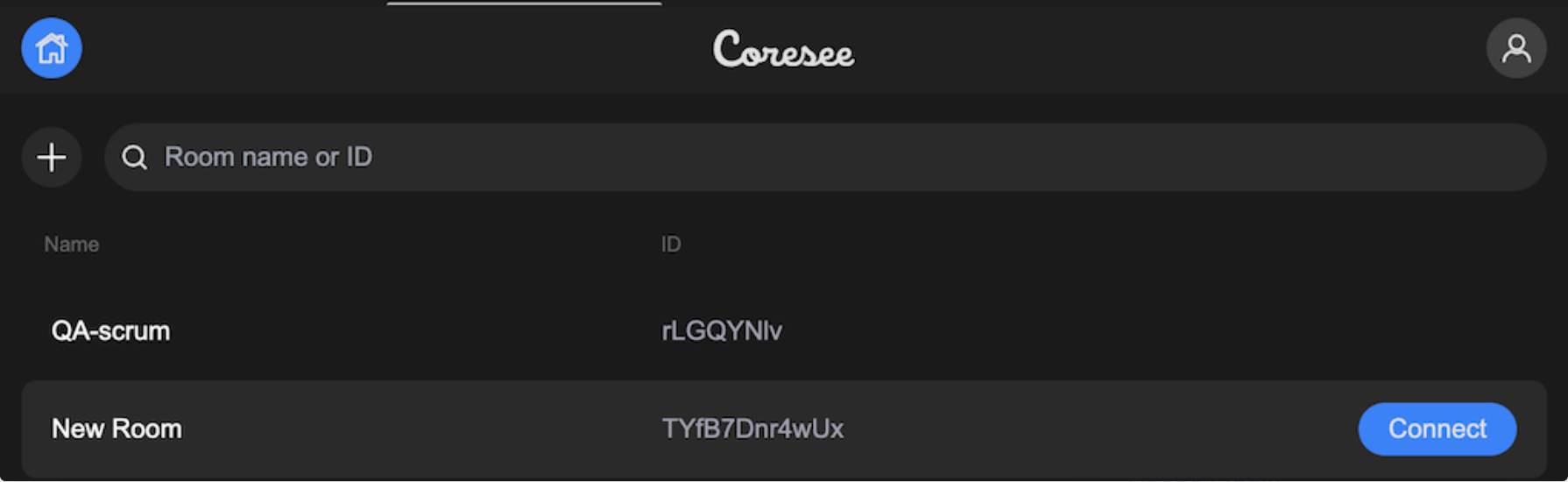 ### **Settings tab**
Adjust your feed through the **Settings** tab.
### **Settings tab**
Adjust your feed through the **Settings** tab.
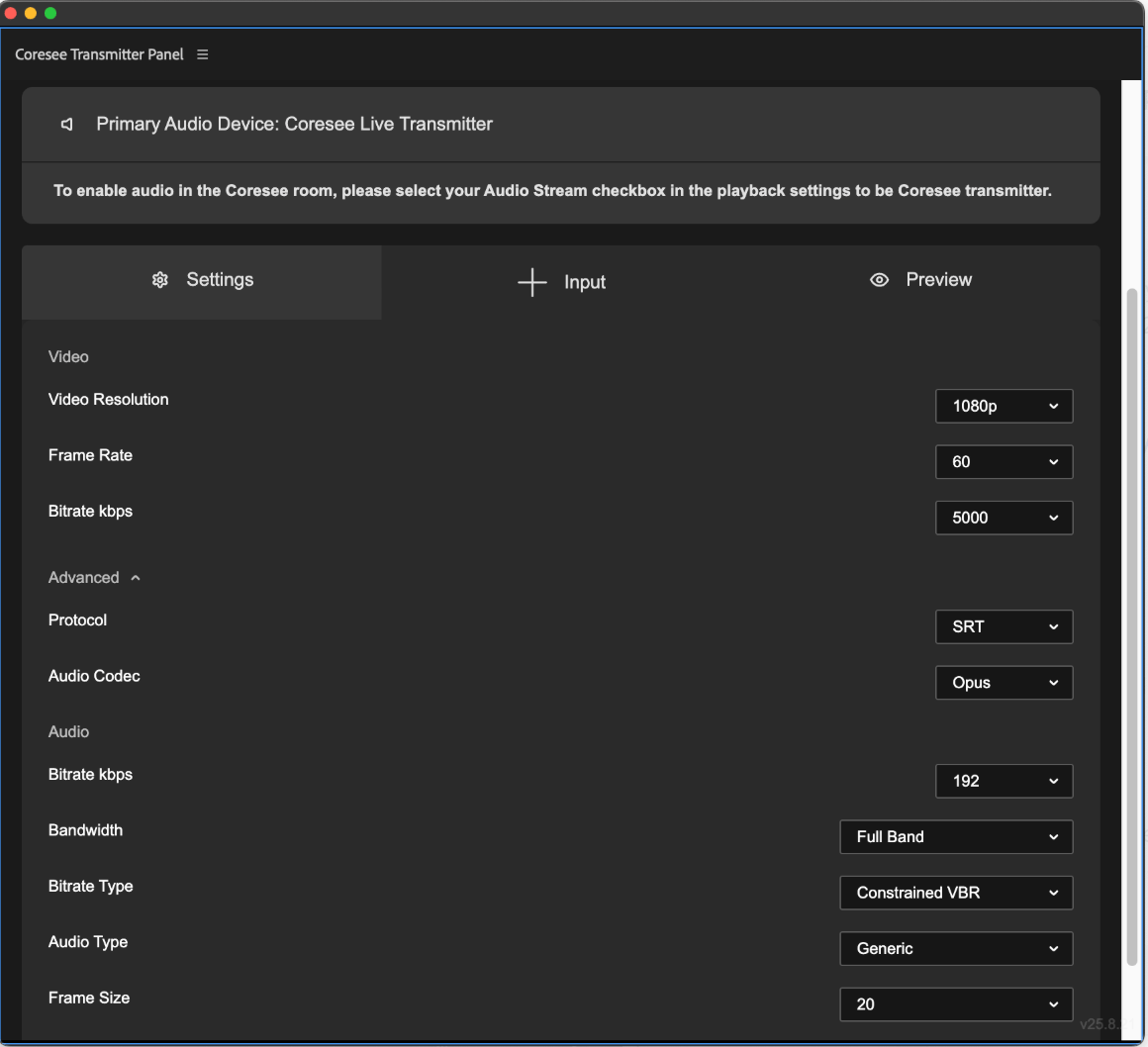 You need to be a **Host** or **Co-Host** to modify streaming settings, such as Video Resolution, Frame Rate, and Bitrate. Default settings achieve high-quality streaming, but Advanced options are available for further customization. Streaming settings cannot be changed during an active session.
### **Input tab**
Select the contents and audio you want to share. You may select multiple inputs, they will be shared as separate live streams in the room.
* Playback
* Fullscreen
These two options are available by default. When streaming, only audio from one stream can be shared at a time.
To share a specific Premiere Pro panel instead of your full screen or playback:
### **Starting the feed**
Once your inputs are selected, click **Start** to share the feed directly to your Coresee room. A live stream is presented in the room, and additional features become accessible through the **Files** tab of the Side Panel.
You're now streaming your Adobe Premiere Pro project directly in your Coresee room to run edit-over-the-shoulder sessions!
You need to be a **Host** or **Co-Host** to modify streaming settings, such as Video Resolution, Frame Rate, and Bitrate. Default settings achieve high-quality streaming, but Advanced options are available for further customization. Streaming settings cannot be changed during an active session.
### **Input tab**
Select the contents and audio you want to share. You may select multiple inputs, they will be shared as separate live streams in the room.
* Playback
* Fullscreen
These two options are available by default. When streaming, only audio from one stream can be shared at a time.
To share a specific Premiere Pro panel instead of your full screen or playback:
### **Starting the feed**
Once your inputs are selected, click **Start** to share the feed directly to your Coresee room. A live stream is presented in the room, and additional features become accessible through the **Files** tab of the Side Panel.
You're now streaming your Adobe Premiere Pro project directly in your Coresee room to run edit-over-the-shoulder sessions!
 ## **Known Limitations**
Audio behavior to be aware of when streaming through the plugin.
### **Audio**
* Switching to an audio track with a different sample rate while a stream is running may lead to audio disruptions.
* For a consistent, high-fidelity audio experience, use a wired headset or a high-quality USB microphone. Bluetooth headsets may affect audio quality — when the microphone is active, Bluetooth headsets often switch to mono (instead of stereo) and reduce the sample rate to around 16 or 24 kHz, below professional standards, which can introduce noticeable artifacts.
* For optimal performance, an audio output sample rate of 44.1 kHz or higher is recommended. Using a Bluetooth headset for audio output paired with a separate wired microphone is also a suitable option.
## **Known Limitations**
Audio behavior to be aware of when streaming through the plugin.
### **Audio**
* Switching to an audio track with a different sample rate while a stream is running may lead to audio disruptions.
* For a consistent, high-fidelity audio experience, use a wired headset or a high-quality USB microphone. Bluetooth headsets may affect audio quality — when the microphone is active, Bluetooth headsets often switch to mono (instead of stereo) and reduce the sample rate to around 16 or 24 kHz, below professional standards, which can introduce noticeable artifacts.
* For optimal performance, an audio output sample rate of 44.1 kHz or higher is recommended. Using a Bluetooth headset for audio output paired with a separate wired microphone is also a suitable option.