> ## Documentation Index
> Fetch the complete documentation index at: https://help.coresee.com/llms.txt
> Use this file to discover all available pages before exploring further.
# Rooms Menu and Search
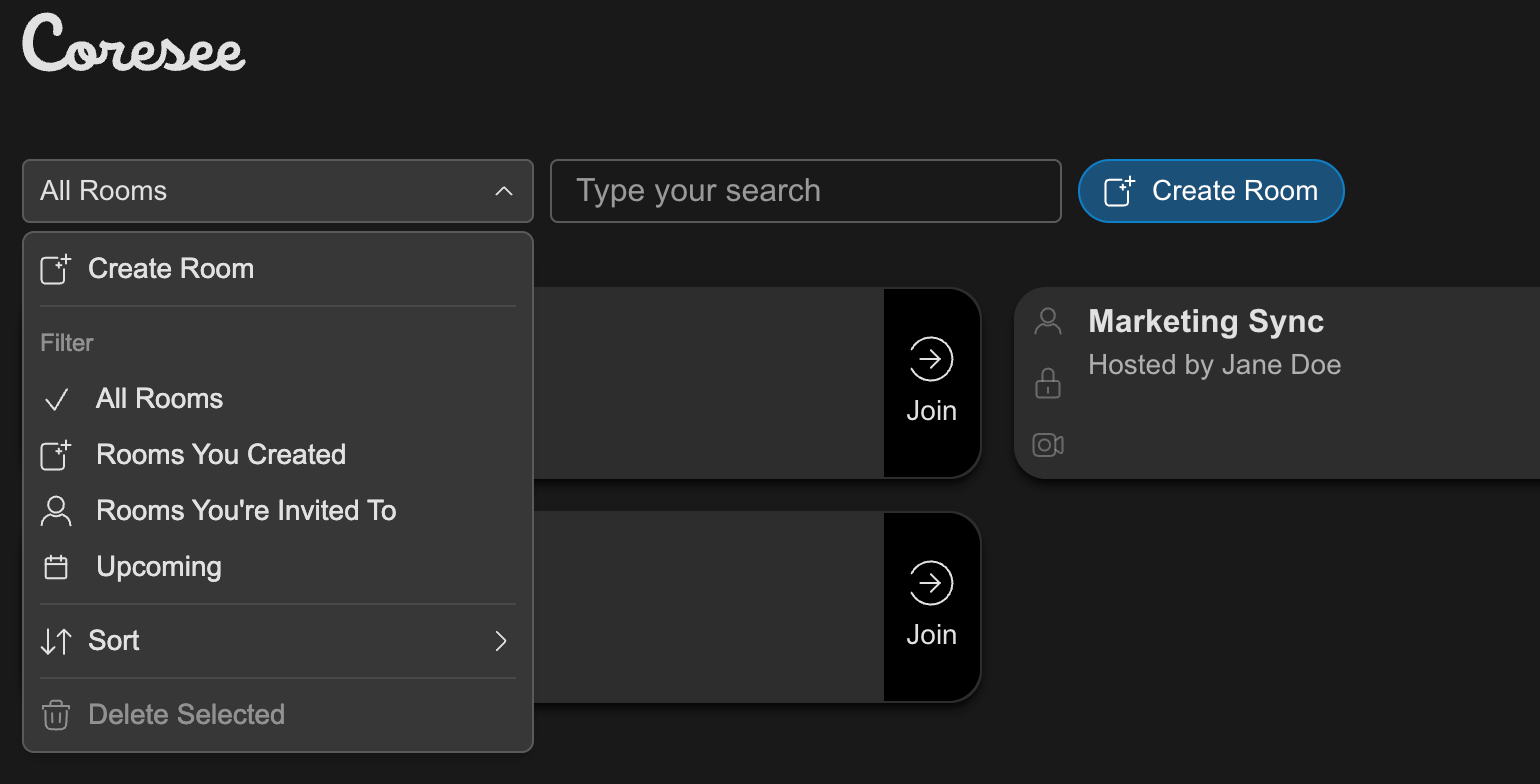
The Rooms menu and search bar sit above your room list on the homepage. Together they let you create new rooms, find a specific room or participant, or change which rooms are shown.
 ## **Search**
The search bar next to the filter dropdown searches across your current room list as you type.
### **What it searches**
* **Room names**
* **Room IDs**
* **Participant names** — matches rooms where a participant's name matches your search, even if the room name itself doesn't
**Search works with Filter.** Search results are limited to whatever filter is currently active — for example, searching while Rooms You Created is selected will only search within rooms you host. Clear the search box to return to the full filtered list.
## **Filter**
Filter controls which rooms show up in your list. Only one filter is active at a time, and the current selection is marked with a checkmark.
Every room you own plus every room you've been invited to or added as co-host of. This is the default view.
Rooms where someone else is the host and you've been added as a participant or co-host.
Only rooms where you're the host — rooms you were invited into are hidden.
Rooms with a scheduled time coming up soon.
**What makes a room "Upcoming"** A room only carries a schedule if it was created from the Calendar Plugin — rooms created directly in Coresee don't have a scheduled time and won't appear under this filter, even if you plan to use them soon.
## Sort
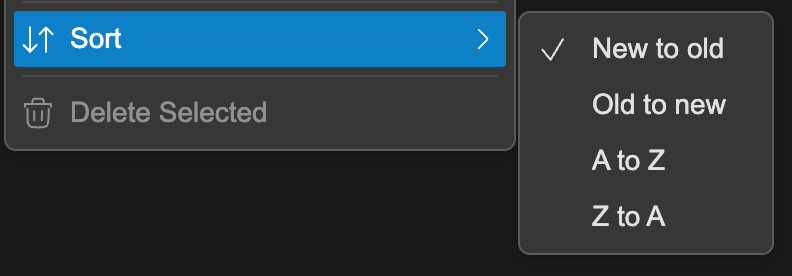
Sort opens a submenu (indicated by the arrow next to it) with options for ordering the current room list, independent of whichever filter is applied.
## **Search**
The search bar next to the filter dropdown searches across your current room list as you type.
### **What it searches**
* **Room names**
* **Room IDs**
* **Participant names** — matches rooms where a participant's name matches your search, even if the room name itself doesn't
**Search works with Filter.** Search results are limited to whatever filter is currently active — for example, searching while Rooms You Created is selected will only search within rooms you host. Clear the search box to return to the full filtered list.
## **Filter**
Filter controls which rooms show up in your list. Only one filter is active at a time, and the current selection is marked with a checkmark.
Every room you own plus every room you've been invited to or added as co-host of. This is the default view.
Rooms where someone else is the host and you've been added as a participant or co-host.
Only rooms where you're the host — rooms you were invited into are hidden.
Rooms with a scheduled time coming up soon.
**What makes a room "Upcoming"** A room only carries a schedule if it was created from the Calendar Plugin — rooms created directly in Coresee don't have a scheduled time and won't appear under this filter, even if you plan to use them soon.
## Sort
Sort opens a submenu (indicated by the arrow next to it) with options for ordering the current room list, independent of whichever filter is applied.
 ## **Selecting & Deleting Rooms**
Delete Selected is grayed out until you've selected at least one room from the list. It's the fastest way to remove more than one room at once, instead of deleting them one by one.
### **How to select multiple rooms**
* **Ctrl/Cmd + click** — add or remove individual rooms from your selection one at a time.
* **Shift + click** — select every room between your first click and your second click.
### **What gets deleted**
* Only rooms where you're the host and no one is currently in the room can be deleted this way. Rooms with active participants are left out of the batch automatically.
* You'll see a confirmation showing how many rooms are about to be removed before anything is deleted.
## **Selecting & Deleting Rooms**
Delete Selected is grayed out until you've selected at least one room from the list. It's the fastest way to remove more than one room at once, instead of deleting them one by one.
### **How to select multiple rooms**
* **Ctrl/Cmd + click** — add or remove individual rooms from your selection one at a time.
* **Shift + click** — select every room between your first click and your second click.
### **What gets deleted**
* Only rooms where you're the host and no one is currently in the room can be deleted this way. Rooms with active participants are left out of the batch automatically.
* You'll see a confirmation showing how many rooms are about to be removed before anything is deleted.