> ## Documentation Index
> Fetch the complete documentation index at: https://help.coresee.com/llms.txt
> Use this file to discover all available pages before exploring further.
# Overview
The homepage is your starting point in Coresee. It shows all the rooms on your account and gives you access to manage them — without needing to be in an active session. From the homepage you can enter a room, view your files and recordings, configure room settings, and manage streaming — all before or between meetings.
**Homepage vs. room:** The homepage is the out-of-session view of a room. Most management actions are available here, but live controls — like participant audio/video management and layout — are only active when you're inside a running session.
## **Your Rooms**
The homepage lists all rooms associated with your account — rooms you own as well as rooms you've been invited to or assigned as co-host of.
 ### **Room cards**
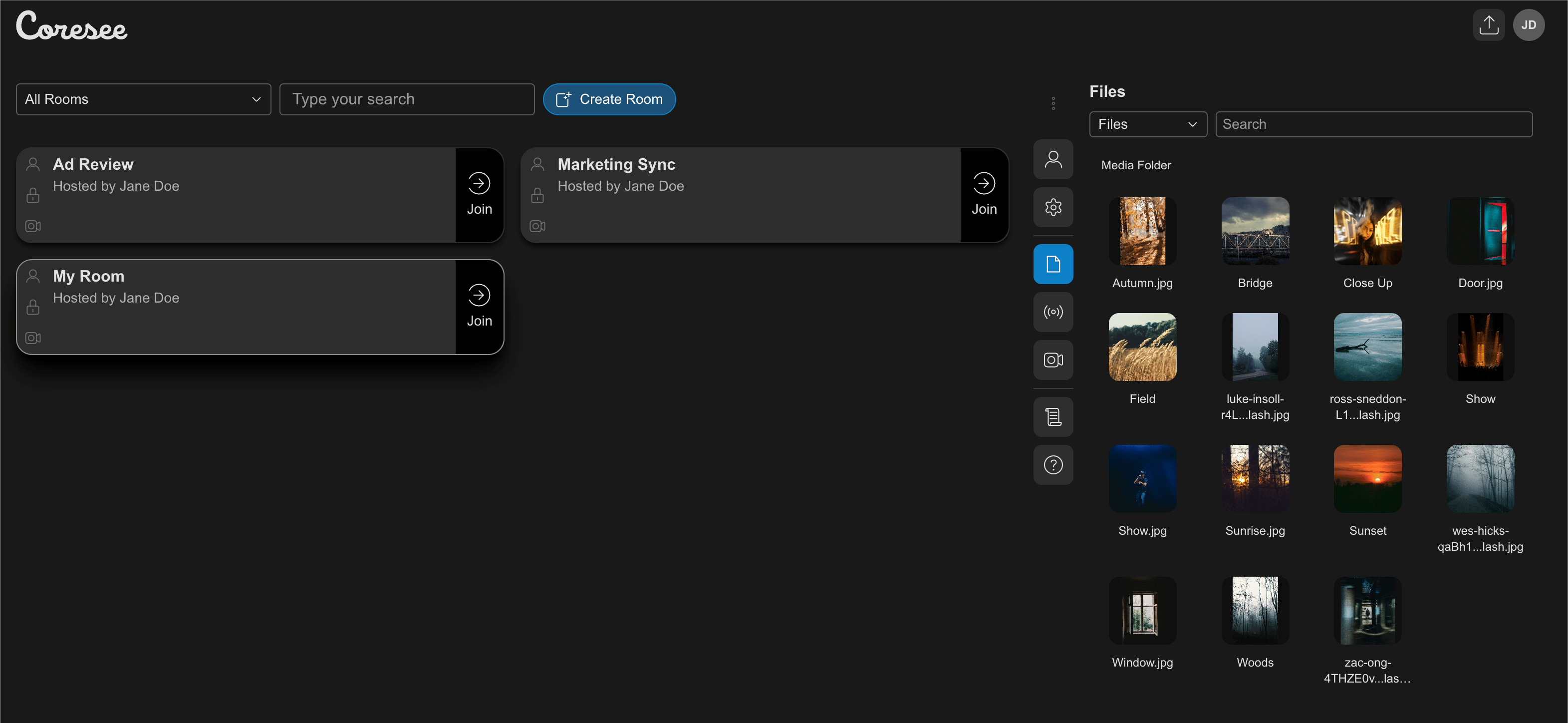
Each room is represented by a card showing the room name and the host's name. Clicking a card opens that room's Side Panel, where you can manage it without entering the session.
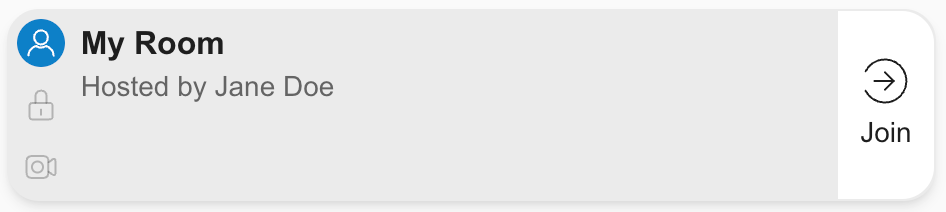
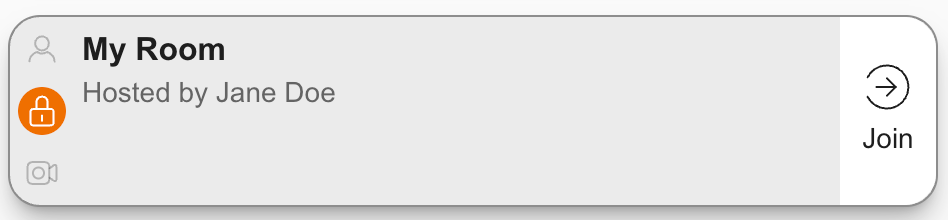
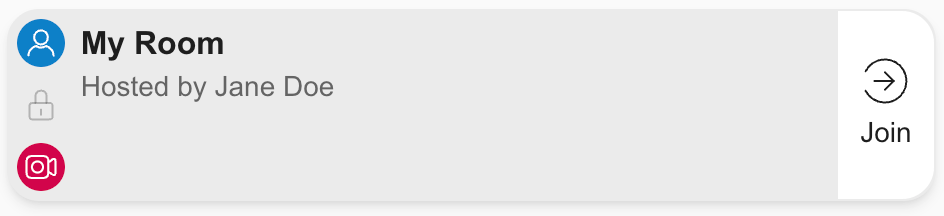
Each room card includes a set of three status icons that reflect the room's current state.
* The participant icon highlights blue whenever someone is present in the room.
* The private icon highlights orange when the room has been set to private.
* The recording icon highlights red whenever the room is actively being recorded.
### **Room cards**
Each room is represented by a card showing the room name and the host's name. Clicking a card opens that room's Side Panel, where you can manage it without entering the session.
Each room card includes a set of three status icons that reflect the room's current state.
* The participant icon highlights blue whenever someone is present in the room.
* The private icon highlights orange when the room has been set to private.
* The recording icon highlights red whenever the room is actively being recorded.
 ### **Entering a room**
To join a session, select the room from your list and click the Join button.
### **Rooms you're invited to**
Rooms you've been added to as a participant or co-host appear alongside your own rooms. Your access to the Side Panel tabs for those rooms follows the same permission rules — hosts can manage settings, recordings, and streaming; participants have read-only access to most areas.
***
## **Side Panel on the Homepage**
When you select a room from the homepage, the Side Panel opens in the same collapsible side panel used inside live sessions. Not all tabs are available outside of a session — the homepage supports a focused subset.
### **Entering a room**
To join a session, select the room from your list and click the Join button.
### **Rooms you're invited to**
Rooms you've been added to as a participant or co-host appear alongside your own rooms. Your access to the Side Panel tabs for those rooms follows the same permission rules — hosts can manage settings, recordings, and streaming; participants have read-only access to most areas.
***
## **Side Panel on the Homepage**
When you select a room from the homepage, the Side Panel opens in the same collapsible side panel used inside live sessions. Not all tabs are available outside of a session — the homepage supports a focused subset.
Available (Limited)
View participant list, search, filter, copy emails, and access contextual menu. Live controls (mute, camera, hide, admit) are room-only.
Available (Limited)
Upload, organise, preview, and manage media files. Presenting files is room-only.
Available (Limited)
Configure recording settings and access your recording list. Starting a recording requires to join the room
Active Session Only
Control how the room looks during a session.
Active Session Only
Queue and present an ordered list of media.
Active Session Only
Message the room, or a specific participant, without leaving the session.
Available
View room info and manage all room controls — access toggles, expiry, and more.
Available (Limited)
Configure live stream settings, and connect inbound feeds. Outbound feeds are room-only.
Available
A record of past sessions in this room, available from the Settings tab. Host and co-host only.
**Platform availability:** The Side Panel is available on desktop and tablet. It is not available on mobile phones.