> ## Documentation Index
> Fetch the complete documentation index at: https://help.coresee.com/llms.txt
> Use this file to discover all available pages before exploring further.

# Set up your profile

Once signed in, its easy to update your Account Settings. Simply navigate to your profile, accessible from the Homepage or a room.

<div
  style={{
position: 'relative',
paddingBottom: 'calc(55.28511821974965% + 41px)',
height: '0',
width: '100%'
}}
>
  <iframe
    src="https://demo.arcade.software/HoguEqK7eB0X5gOaukVk?embed&embed_mobile=tab&embed_desktop=inline&show_copy_link=true"
    title="Delete a Room from the Homepage"
    frameBorder="0"
    loading="lazy"
    allowFullScreen
    allow="clipboard-write; autoplay"
    style={{
position: 'absolute',
top: 0,
left: 0,
width: '100%',
height: '100%'
}}
  />
</div>

## Upload a profile picture

<Steps>
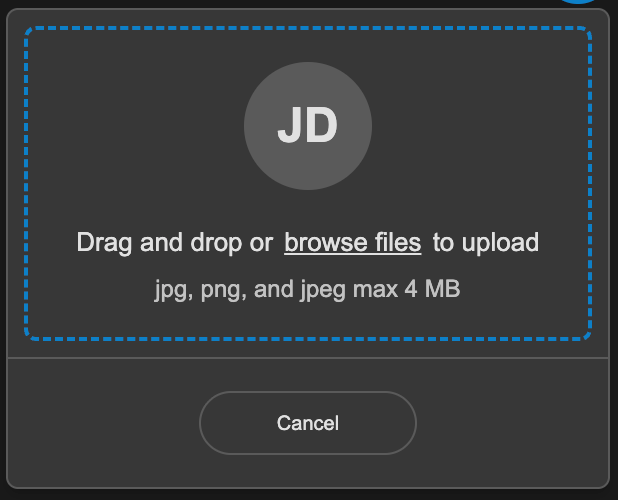
  <Step title="Click the Edit button, located on the lower right of your current profile photo. " />

  <Step title="A window will appear prompting you to upload your image. ">
    <Frame>
      <img src="https://mintcdn.com/likemindedlabs/pVEisE1nES9YQq5H/images/profile-pic-upload.png?fit=max&auto=format&n=pVEisE1nES9YQq5H&q=85&s=8360aa4aa5d4154c3f4bf8ced2dc8a00" alt="Profile Pic Upload" title="Profile Pic Upload" className="mx-auto" style={{ width:"41%" }} width="618" height="500" data-path="images/profile-pic-upload.png" />
    </Frame>
  </Step>

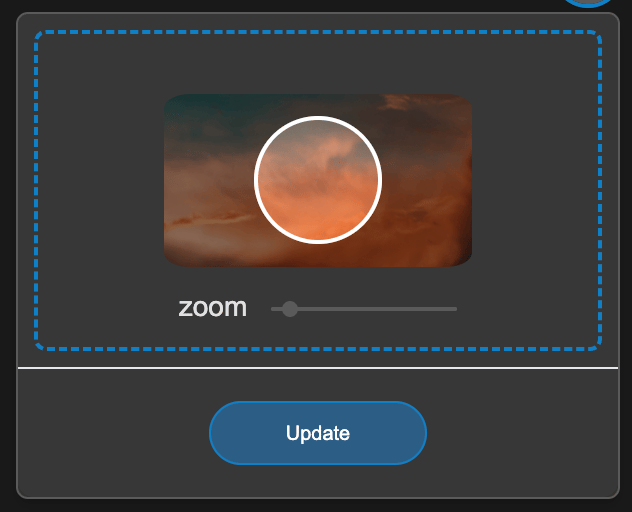
  <Step title="Once you’ve uploaded your photo, you will be asked to adjust the view of the selected image.">
    <Frame>
      <img src="https://mintcdn.com/likemindedlabs/pVEisE1nES9YQq5H/images/upload-profile-resize.png?fit=max&auto=format&n=pVEisE1nES9YQq5H&q=85&s=1de16dbc6f1b860171376bfbb8f71990" alt="Upload Profile Resize" title="Upload Profile Resize" className="mx-auto" style={{ width:"30%" }} width="632" height="512" data-path="images/upload-profile-resize.png" />
    </Frame>
  </Step>

  <Step title=" Place your image in the designated area">
    Click and drag your photo to the designated area to properly center it. Zoom in and out with the slider.
  </Step>

  <Step title="Click the Update button" />
</Steps>

## Update Name and Title

<Steps>
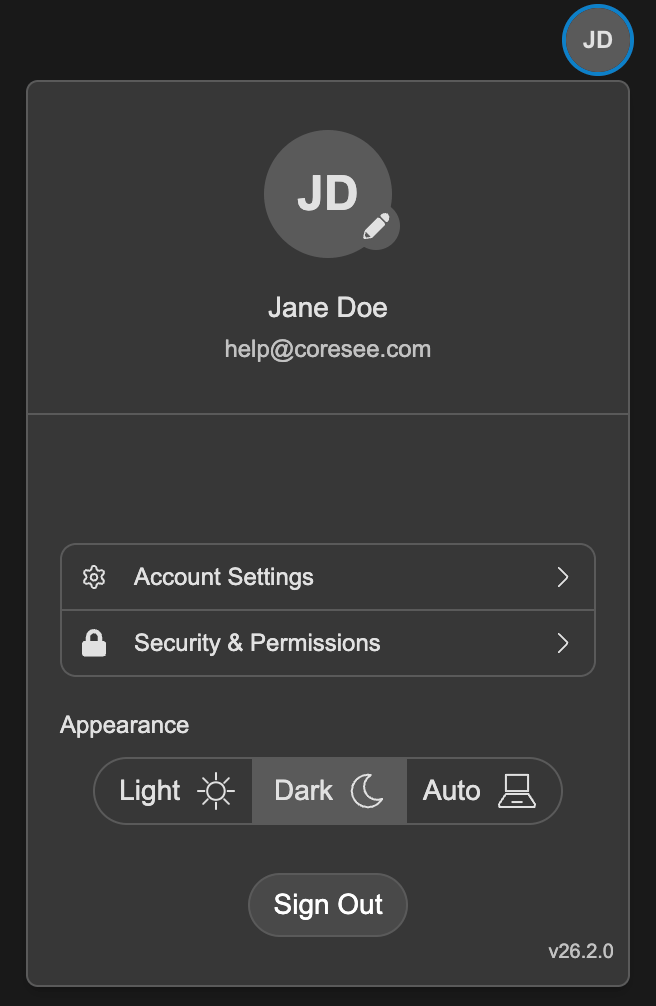
  <Step title="Click on Account Settings">
    <Frame>
      <img src="https://mintcdn.com/likemindedlabs/pVEisE1nES9YQq5H/images/account-modal.png?fit=max&auto=format&n=pVEisE1nES9YQq5H&q=85&s=0f1813468a8f990a617a5ee5adab2578" alt="Account Modal" title="Account Modal" className="mx-auto" style={{ width:"27%" }} width="656" height="1006" data-path="images/account-modal.png" />
    </Frame>
  </Step>

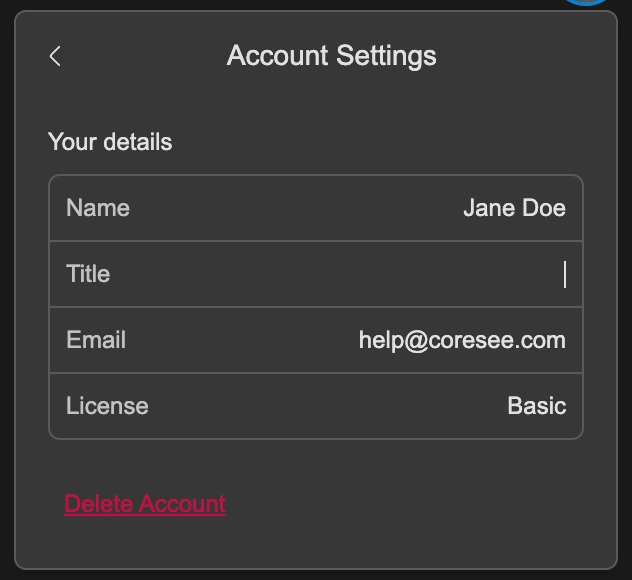
  <Step title="Under Account Settings, double-click your Name and Title to edit">
    <Frame>
      <img src="https://mintcdn.com/likemindedlabs/pVEisE1nES9YQq5H/images/account-settings.png?fit=max&auto=format&n=pVEisE1nES9YQq5H&q=85&s=1e72e2b93dceffce575700723e637b1e" alt="Account Settings" title="Account Settings" className="mx-auto" style={{ width:"34%" }} width="632" height="580" data-path="images/account-settings.png" />
    </Frame>
  </Step>

  <Step title="Press Enter to save your updates. ">
    Once you have updated your account settings with your preferred details, these changes will automatically be reflected in the Lobby and in the next room you join.
  </Step>
</Steps>