> ## Documentation Index
> Fetch the complete documentation index at: https://help.coresee.com/llms.txt
> Use this file to discover all available pages before exploring further.
# Join a Room
Once you've created your room, you're ready to start your first session. When you access the room's link, you'll land in the **Lobby**, a space to adjust your video and audio settings.
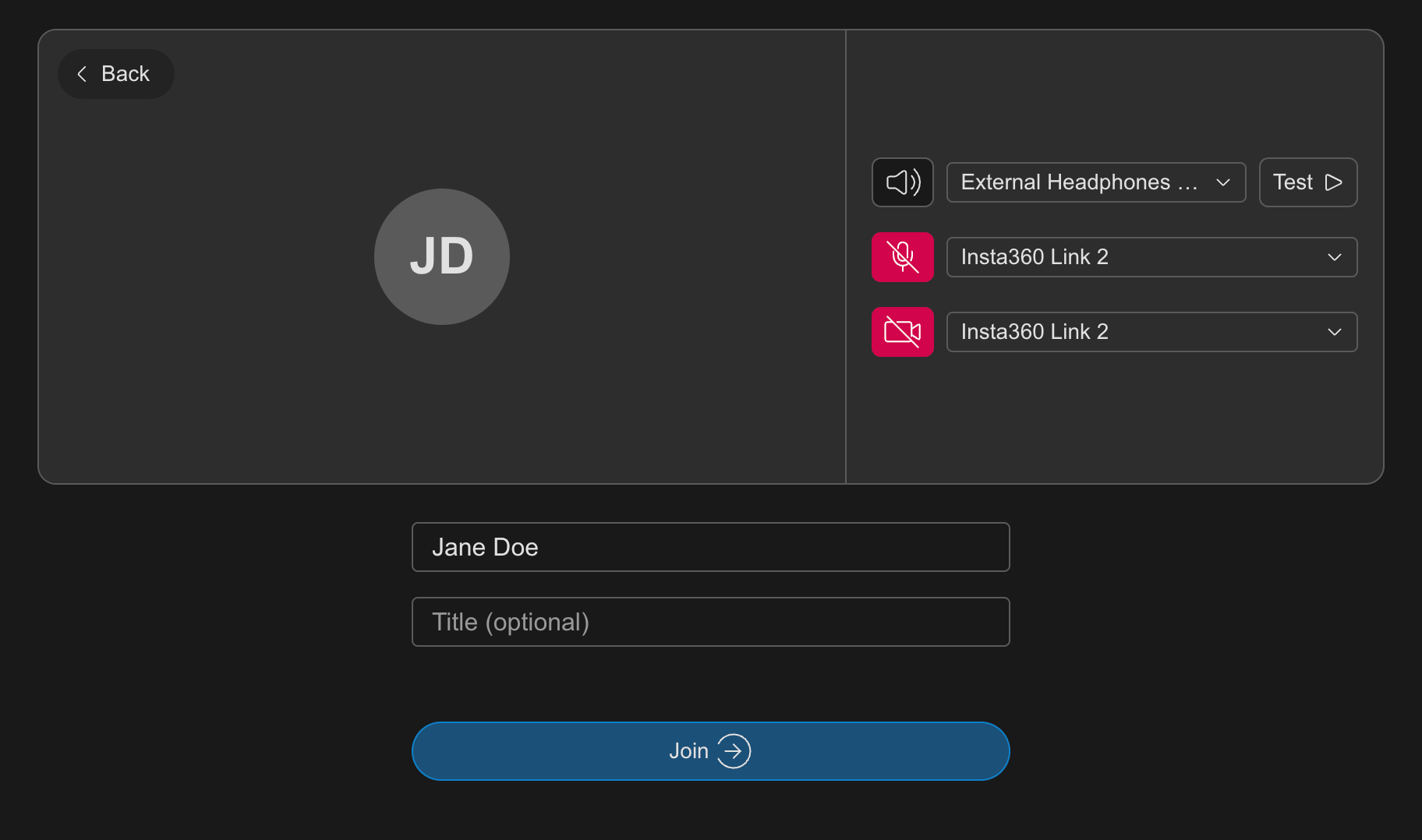 Here, you can:
* Enable or disable your camera, microphone, and speaker using the buttons provided
* Open the dropdown next to each control to select a specific device
* Enter your name and title
**Click Join when you’re ready!**
## Inside the Room
Here, you can:
* Enable or disable your camera, microphone, and speaker using the buttons provided
* Open the dropdown next to each control to select a specific device
* Enter your name and title
**Click Join when you’re ready!**
## Inside the Room
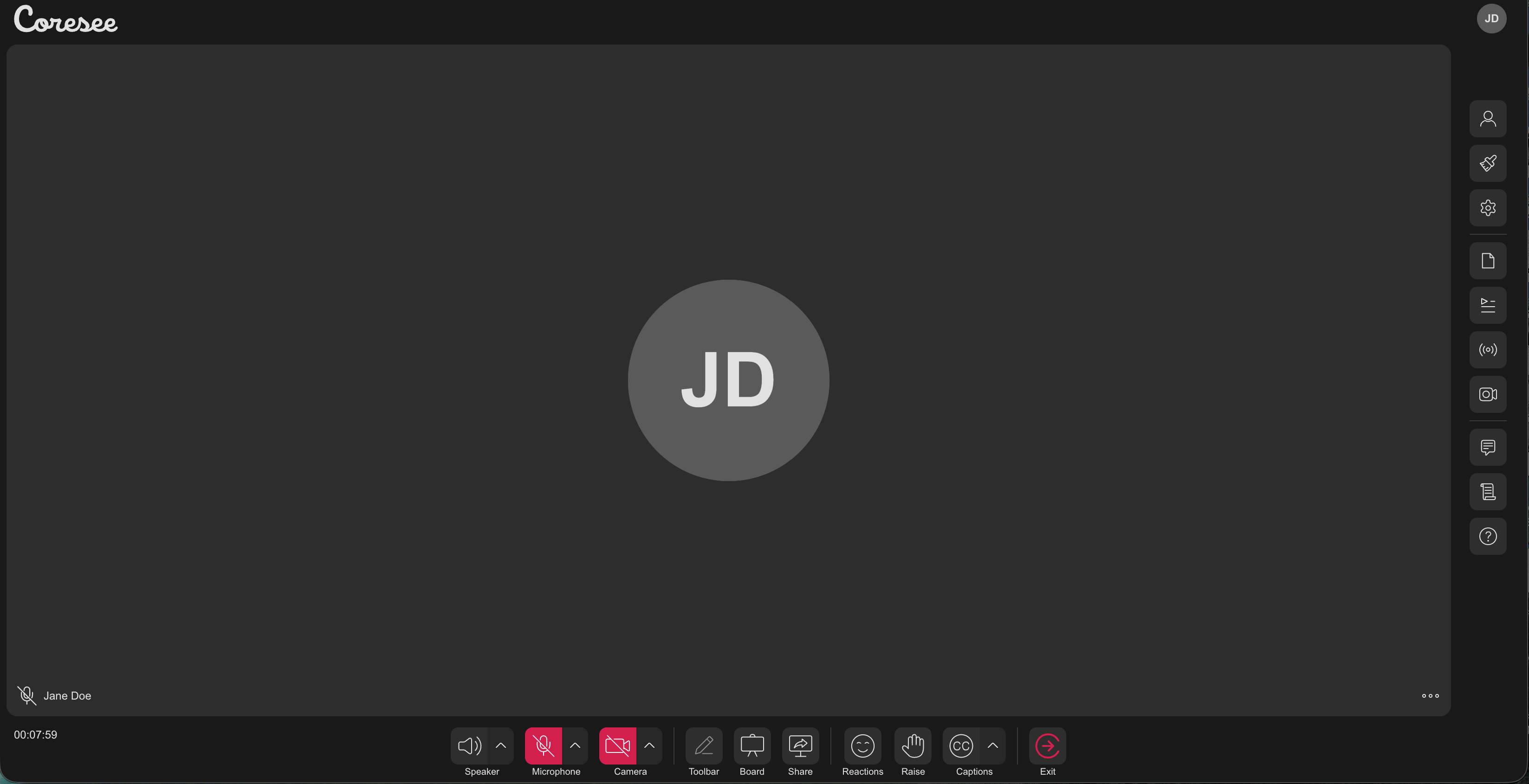 ### Top Bar
The Top Bar sits along the top of your screen and gives you access to your account modal.
### **Bottom Bar**
The Bottom Bar gives you quick access to audio, video, and in-session tools.
* **Indicators** — Session status at a glance — for example, time elapsed and the recording in progress.
* **Device** — Speaker, microphone, and camera — turn each on or off, and open the dropdown next to each to select a specific device.
* **Whiteboard** — open a collaborative whiteboard
* **Screen Share** — share your screen with the room
* **Reactions & Hand Raise** — send a reaction or raise your hand
* **Closed Captions** — toggle live captions
* **Exit** — Leave the session
### Side Panel
The Side Panel centralizes room management into tabs. It's opened by clicking an icon on the vertical icon rail next to it — clicking the currently active icon closes the panel again.
### Top Bar
The Top Bar sits along the top of your screen and gives you access to your account modal.
### **Bottom Bar**
The Bottom Bar gives you quick access to audio, video, and in-session tools.
* **Indicators** — Session status at a glance — for example, time elapsed and the recording in progress.
* **Device** — Speaker, microphone, and camera — turn each on or off, and open the dropdown next to each to select a specific device.
* **Whiteboard** — open a collaborative whiteboard
* **Screen Share** — share your screen with the room
* **Reactions & Hand Raise** — send a reaction or raise your hand
* **Closed Captions** — toggle live captions
* **Exit** — Leave the session
### Side Panel
The Side Panel centralizes room management into tabs. It's opened by clicking an icon on the vertical icon rail next to it — clicking the currently active icon closes the panel again.
With a wide range of options, you can add media and files, adjust the room layout, tailor participant settings, and much more to create the right experience for every session.
Manage everyone in the session — invite, admit, mute, control cameras, and set roles.
* Invite participants by email or dial-out by phone
* Mute or disable microphones and cameras, individually or room-wide
* Show or hide participants from the room layout
* Promote participants to co-host, reorder, or remove them
* Admit or deny participants from the lobby when Host Control Admission is enabled
View room info and manage access controls. Host and co-host only for all editable fields.
* View and copy the room's meeting link, Room ID, and dial-in details
* Control how participants enter — muted, hidden, or held in a lobby
* Require a Coresee account to join, or make the room private
* Set a room expiration date, or close the room for all
* Configure screen share quality settings
Queue and present an ordered list of media. Host and co-host only, and a licensed feature.
* Create, rename, and delete playlists
* Add items via URL, upload, or from the room's Files library
* Drag to reorder items in the queue
* Play, pause, and skip through items
* Activating a playlist item takes over any other active broadcast
Start recordings, configure what gets captured, and access all past recordings for the room. Only the host can start or stop a recording.
* Start and stop recordings during an active session
* Enable Main Room Recording to capture the full view
* Enable ISO Recording to capture each participant's feed separately
* Download, rename, delete, and share links to past recordings
Control how the room looks during a session.
* Choose a room layout
* Set a separate presentation layout for when content is being shared
* Adjust tile spacing, aspect ratio, and what's displayed on each participant's tile
* Apply a custom background, logo, and welcome screen (branding is a licensed feature)
Your room's media library. Upload, organise, and present assets directly to the room.
* Upload files or entire folders
* Organise assets into folders and playlists
* Present a file to share it to all participants' views in real time
* Open an asset's detail page to view metadata, comments, and annotations
Configure your room's broadcast output and manage inbound and outbound feeds.
* Set video resolution, frame rate, and bitrate for your broadcast output
* Configure inbound feeds — incoming streams brought into the room as a media source
* Configure outbound feeds — send the room's output to an external platform
Message the room, or a specific participant, without leaving the session.
* Send a public message visible to everyone in the room
* Start a private thread with an individual participant
* Messages persist in the room until the room is deleted
A record of past sessions in this room, available from the Settings tab. Host and co-host only.
* View a timestamped event log for each past session
* Expand a session to see its recordings, transcript, and details