> ## Documentation Index
> Fetch the complete documentation index at: https://help.coresee.com/llms.txt
> Use this file to discover all available pages before exploring further.
# Ending your Event
After your broadcast wraps up, be sure to end the event and download the attendance list and chat history.
## **Ending the broadcast**
Ending your event moves it into the Post-Event stage, which attendees see once the broadcast closes.
Open your event and find Activation Controls in the left-hand Settings sidebar.
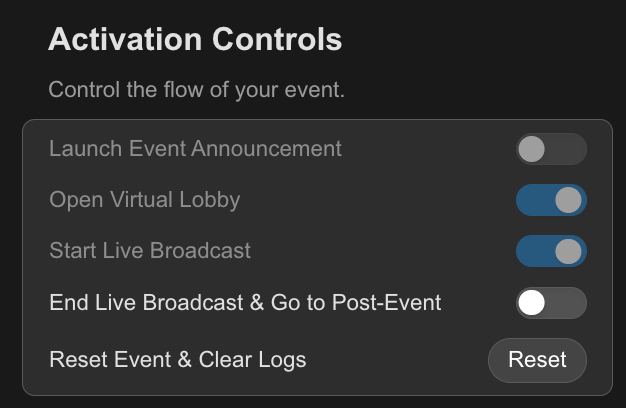 This closes the broadcast for all attendees and switches them over to the Post-Event screen.
**Your event is now closed.** Attendees see your Post-Event page — a thank-you message, and any follow-up content you've set up (see **[Customize Your Event](/help/events/customize-event)** for styling options).
## **Downloading the participant list**
Once your event has ended, the attendee list becomes available to download from the Post-Event section of the Configuration Page.
This closes the broadcast for all attendees and switches them over to the Post-Event screen.
**Your event is now closed.** Attendees see your Post-Event page — a thank-you message, and any follow-up content you've set up (see **[Customize Your Event](/help/events/customize-event)** for styling options).
## **Downloading the participant list**
Once your event has ended, the attendee list becomes available to download from the Post-Event section of the Configuration Page.
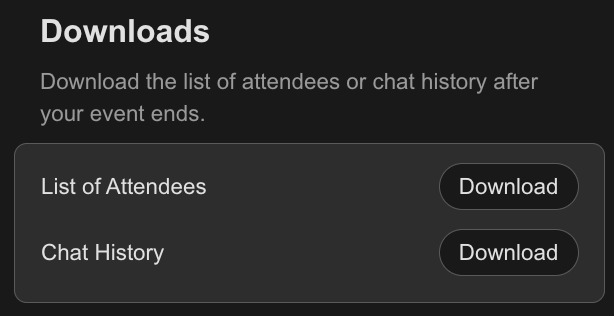 The attendee list includes everyone who joined the event, so you can follow up, log attendance, or feed the data into your own CRM or mailing list.
## **Downloading the chat history**
Right next to the attendee list, the Chat History download gives you a full record of everything said in chat during the broadcast.
* Useful for reviewing questions you didn't get to answer live.
* Helpful if you need a record of what was moderated, blocked, or banned during the event — see [Moderate Chat](/event-chat) for more on those actions.
## **Resetting for next time**
If you're planning to run this event again, Reset Event & Clear Logs in Activation Controls gets it ready for the next session.
**This clears your data.** Resetting removes the participant list and chat history — download them first if you need them.
Your branding, styling, and stage content are not affected by a reset — only participant and chat data is cleared.
The attendee list includes everyone who joined the event, so you can follow up, log attendance, or feed the data into your own CRM or mailing list.
## **Downloading the chat history**
Right next to the attendee list, the Chat History download gives you a full record of everything said in chat during the broadcast.
* Useful for reviewing questions you didn't get to answer live.
* Helpful if you need a record of what was moderated, blocked, or banned during the event — see [Moderate Chat](/event-chat) for more on those actions.
## **Resetting for next time**
If you're planning to run this event again, Reset Event & Clear Logs in Activation Controls gets it ready for the next session.
**This clears your data.** Resetting removes the participant list and chat history — download them first if you need them.
Your branding, styling, and stage content are not affected by a reset — only participant and chat data is cleared.