> ## Documentation Index
> Fetch the complete documentation index at: https://help.coresee.com/llms.txt
> Use this file to discover all available pages before exploring further.
# Room History
Room History is a section in your room's Side Panel that keeps a structured record of each session held in a persistent room — who attended, how long the session ran, and a timestamped log of everything that happened, from recordings and screen shares to media presentations and participant changes.
It's available in **both** places you use a room: inside an active meeting and from the homepage Side Panel.
**What counts as a session?** A session is one continuous open-to-close cycle for a room. It starts when the first person joins, and ends when the room is closed or the last remaining person leaves — whichever happens first. If someone rejoins after a session has ended, that starts a new session with its own start time. There's no limit to how many sessions a room can accumulate; they're kept until a host or co-host deletes them.
### Who can use it?
* **Hosts and co-hosts** have full access and share the exact same permissions.
* **Participants** do not see Room History — the section is hidden from their Side Panel entirely.
Room History requires a **Silver** or **Gold** license. It is not available on the Basic tier.
## **Viewing a Session**
Room History has two areas: a session list at the top, and an events area below it that updates to show whichever session you've selected.
### **Session row**
Each row in the session picker shows:
* **Date** and **duration** of the session
* **Participant count**
* **Files uploaded** — a count, shown only if files were uploaded during the session
* **Recordings** — a count, shown only if a recording was captured during the session
**Ongoing sessions.** If a session is still in progress, its row shows **CURRENT SESSION** in place of the timestamp and duration.
### Events
A chronological, timestamped feed of everything that happened in the session, with each event attributed to the person who triggered it.
* **Timestamps** are stored in UTC and always shown in your own local timezone.
## **Filtering the Event Log**
The event log can be narrowed by event type and by a search field.
## **Exporting a Session**
Session history can be exported as a CSV file.
The **Export** control sits below the event log and currently exports the events matching your active filters — if you've filtered the log down to Recording events only, for example, the export contains only those events.
## **Deleting a Session**
Hosts and co-hosts can delete an entire session record.
* Deletion applies to the **full session** — individual events within a session can't be deleted on their own.
* Deletion is **permanent** and requires a confirmation step — there's no undo.
* Deleted sessions no longer appear in the session list.
## **Turning Logging On or Off**
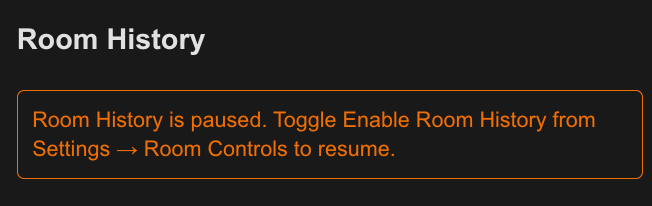
You can pause Room History logging from **Settings → Room Controls**, available in both the room and homepage contexts.
* Logging is **On** by default.
* When **Off**, no new session events are logged — but your existing session records stay viewable, filterable, and exportable.
* Turn it **On** again to resume logging starting with the next session.
While logging is off, you'll see the following notice: