> ## Documentation Index
> Fetch the complete documentation index at: https://help.coresee.com/llms.txt
> Use this file to discover all available pages before exploring further.
# Recording Tab
The Recording tab in the Side Panel lets hosts record sessions directly from the room. You can choose how to capture the session, start and stop recording with a single button, and access completed files from the same tab.
The Recording tab is available to all roles for viewing recordings. Starting and stopping a recording is host only, and requires an active session.
## **Recording types**
Coresee supports two recording modes. You can enable one or both before starting a session.
Captures the entire session as a single file. All visible participants and presented content are included in one recording.
Default
Creates a separate video file for each participant's individual camera feed. Useful when you need per-participant videos for post-production editing.
Silver or Gold License
## **How to start a recording**
Starting a recording only takes a few clicks. You must be the host and inside an active session.
Main Room Recording is enabled by default. Toggle on ISO Recording as well if you need individual participant files. You can enable both at the same time.
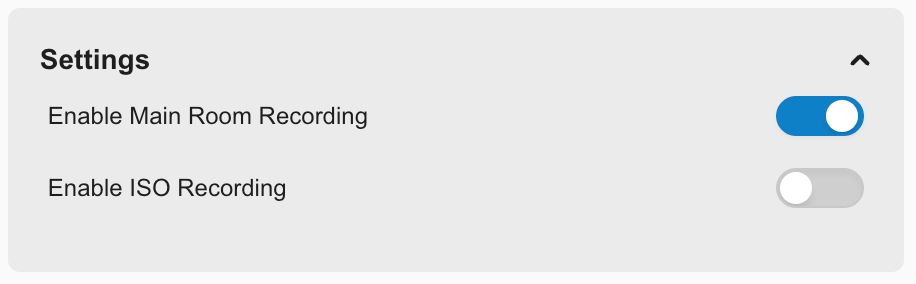 Recording begins. A consent modal is shown to all participants in the room to notify them the session is being recorded.
 The active recording file appears in the Recording in Progress section of the tab. You can see it listed while the session continues.
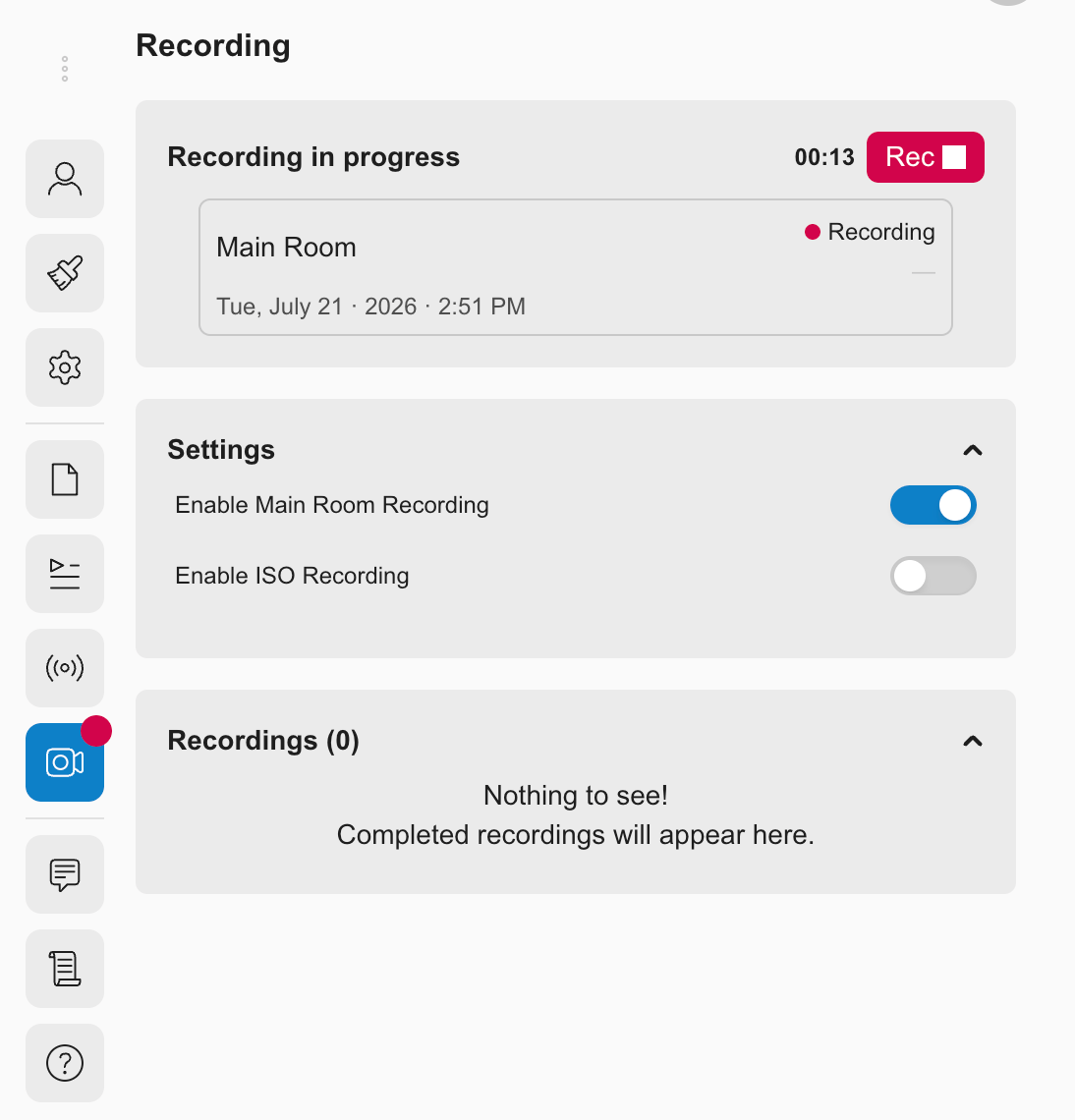 ## **How to stop and download a recording**
When you're ready to stop, click again on the **Rec** button. The file is then processed automatically and becomes available to download.
Coresee converts the recording into a downloadable format. Transcoding time depends on the length of the session — longer recordings take a little more time to process.
Once transcoding is done, the file is listed in the recording list below.
## **How to stop and download a recording**
When you're ready to stop, click again on the **Rec** button. The file is then processed automatically and becomes available to download.
Coresee converts the recording into a downloadable format. Transcoding time depends on the length of the session — longer recordings take a little more time to process.
Once transcoding is done, the file is listed in the recording list below.
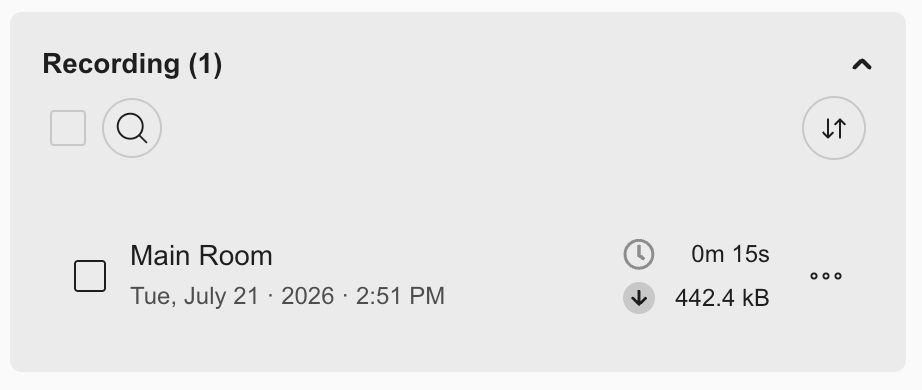 **You can start and stop recording multiple times in a session.** Each segment creates a separate file in the recording list.
## **What participants see**
When recording starts, all participants in the room — including those who join mid-recording — are notified.
As soon as the host clicks Rec, a **consent modal** appears for every participant in the room. This notifies them that the session is being recorded. Participants cannot dismiss or block the recording from the host's side — the modal is purely informational. If they deny, they will be automatically removed from the session.
## **Managing your recordings**
All recordings for the room are listed in the Recording tab and remain accessible between sessions. The recording list is available to all roles, though management actions are host only.
### **Available actions**
* **Download** — available to all roles. Access via the three-dots menu next to any file.
* **Rename** — Double-click the file name or use the three-dots menu.
* **Delete** — Permanent and cannot be undone.
* **Copy Recording Link** — available to all roles. Note that opening the link requires a Coresee account.
* **Sort and search** — available to all roles.
**Deleting a recording is permanent.** There is no way to recover a deleted recording. Make sure to download any files you want to keep before deleting them.
**You can start and stop recording multiple times in a session.** Each segment creates a separate file in the recording list.
## **What participants see**
When recording starts, all participants in the room — including those who join mid-recording — are notified.
As soon as the host clicks Rec, a **consent modal** appears for every participant in the room. This notifies them that the session is being recorded. Participants cannot dismiss or block the recording from the host's side — the modal is purely informational. If they deny, they will be automatically removed from the session.
## **Managing your recordings**
All recordings for the room are listed in the Recording tab and remain accessible between sessions. The recording list is available to all roles, though management actions are host only.
### **Available actions**
* **Download** — available to all roles. Access via the three-dots menu next to any file.
* **Rename** — Double-click the file name or use the three-dots menu.
* **Delete** — Permanent and cannot be undone.
* **Copy Recording Link** — available to all roles. Note that opening the link requires a Coresee account.
* **Sort and search** — available to all roles.
**Deleting a recording is permanent.** There is no way to recover a deleted recording. Make sure to download any files you want to keep before deleting them.