> ## Documentation Index
> Fetch the complete documentation index at: https://help.coresee.com/llms.txt
> Use this file to discover all available pages before exploring further.

# Stream Out your Room

Outbound feeds allow you to broadcast your room to any custom RTMP destination.

Outbound feeds are configured per room from the Streaming tab in the Side Panel. Configuration is saved to the room, so your destinations persist between sessions without needing to be re-entered. 

<Warning>
  Only available on **Gold** plan.
</Warning>

<Steps>
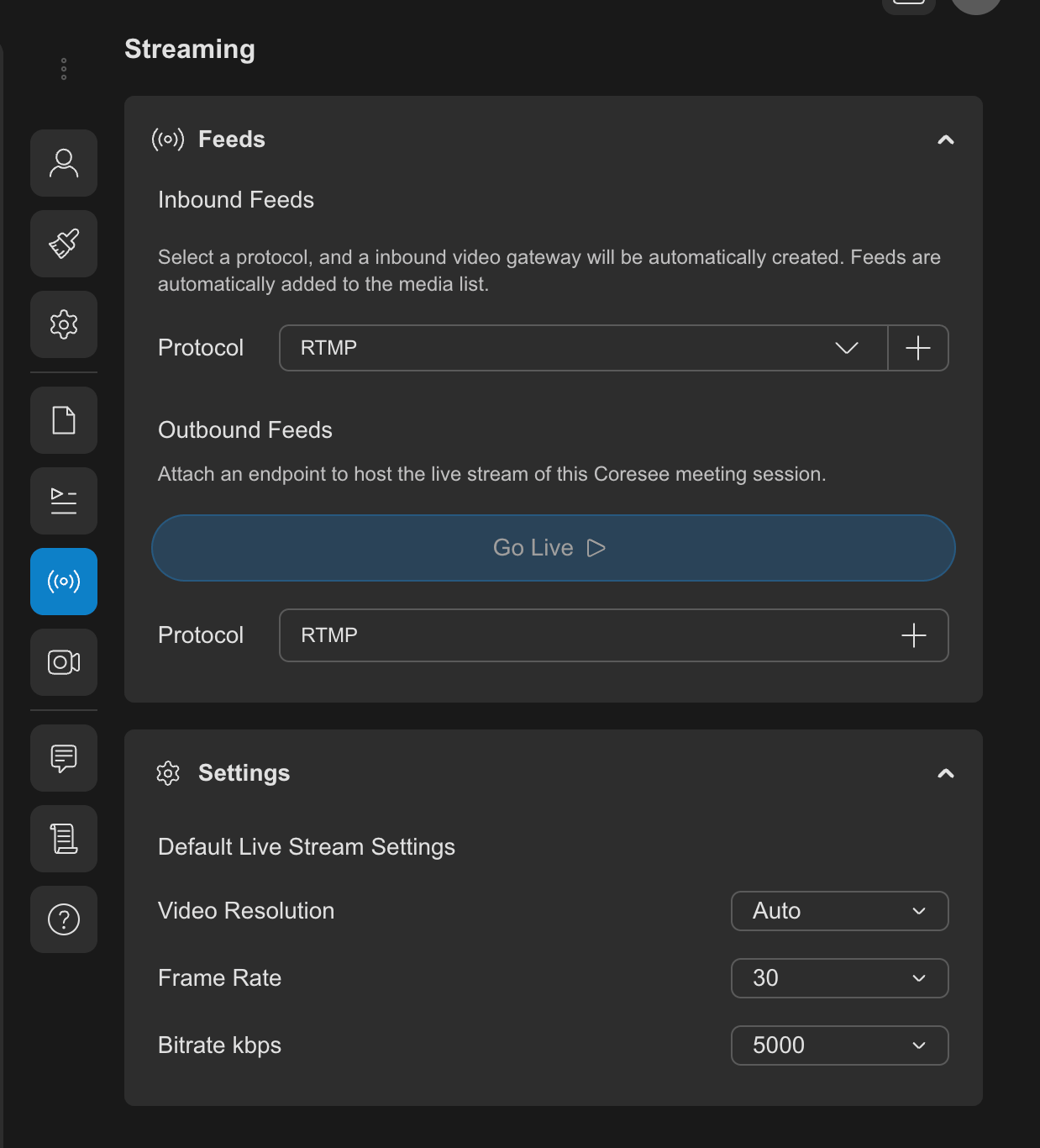
  <Step title="Open the Streaming tab from the Side Panel">
    <Frame>
      <img src="https://mintcdn.com/likemindedlabs/pVEisE1nES9YQq5H/images/streaming_tab.png?fit=max&auto=format&n=pVEisE1nES9YQq5H&q=85&s=30b346e638d486771717f3fdd9e7a3db" alt="Streaming Tab" width="1238" height="1366" data-path="images/streaming_tab.png" />
    </Frame>
  </Step>

  <Step title="Under the Outbound Feed section, click the plus (+) button next to the RTMP label to create a new outbound feed." />

  <Step title="Enter the RTMP Server URL and and Channel Key/Stream Key provided by your streaming platform." />

  <Step title="Finally, click Go Live to start streaming." />

  <Step title="Stop an active stream anytime by clicking the Stop button." />
</Steps>