> ## Documentation Index
> Fetch the complete documentation index at: https://help.coresee.com/llms.txt
> Use this file to discover all available pages before exploring further.
# Branding
Apply a custom visual identity to your room — a background, a logo overlay, and a curtain. Branding persists between sessions. Any asset you apply is saved against the room. It will be active the next time you start a session.
Branding assets are pulled from your room's Media tab (Files), so you'll need to upload them there before selecting them here. This section is host and co-host only.
**Upload assets to the Media tab first.** Branding images and videos are sourced from the [Files tab](/help/control-panel/media-tab) of your room's Side Panel. Add your assets there before coming to the Appearance tab to apply them.
## Logo
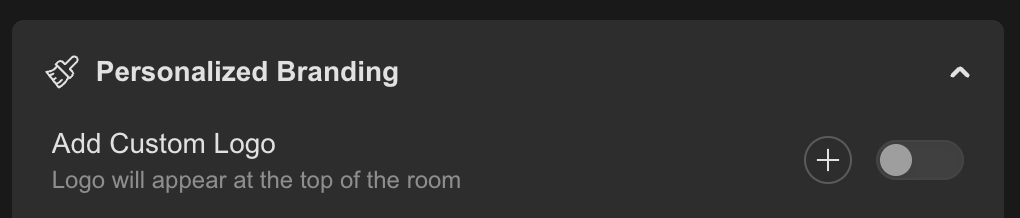
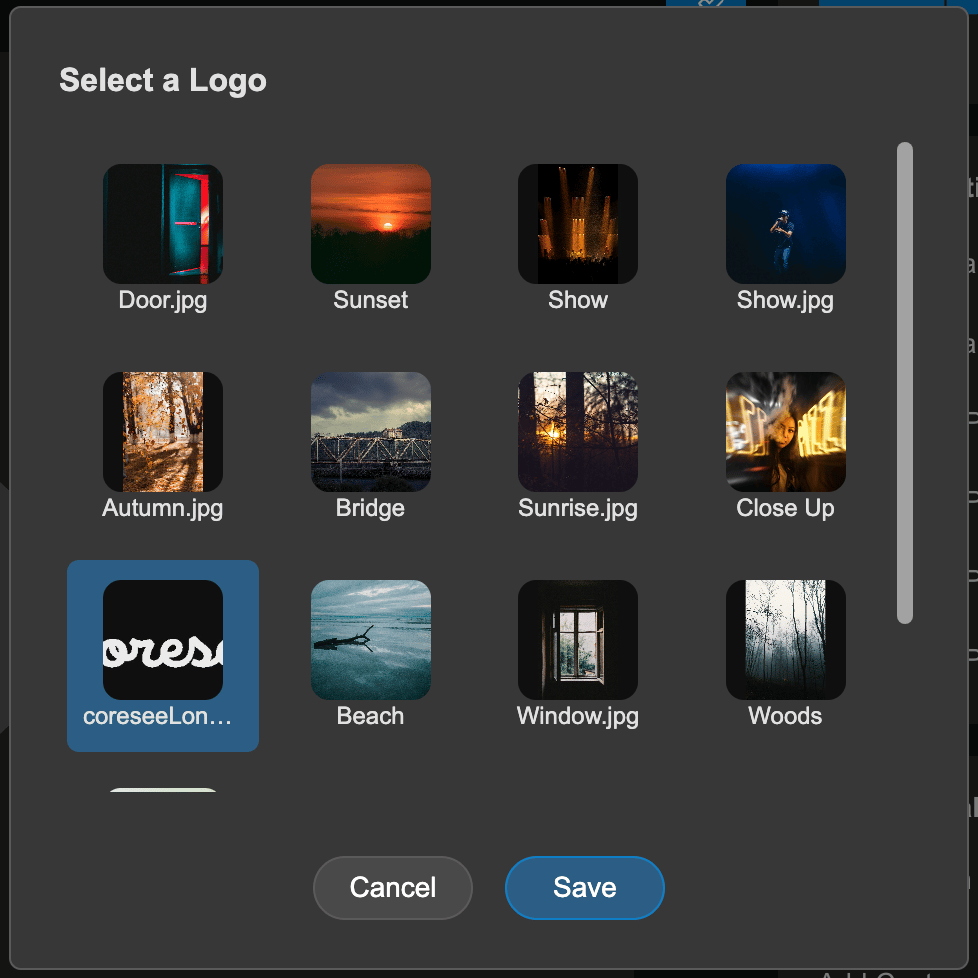
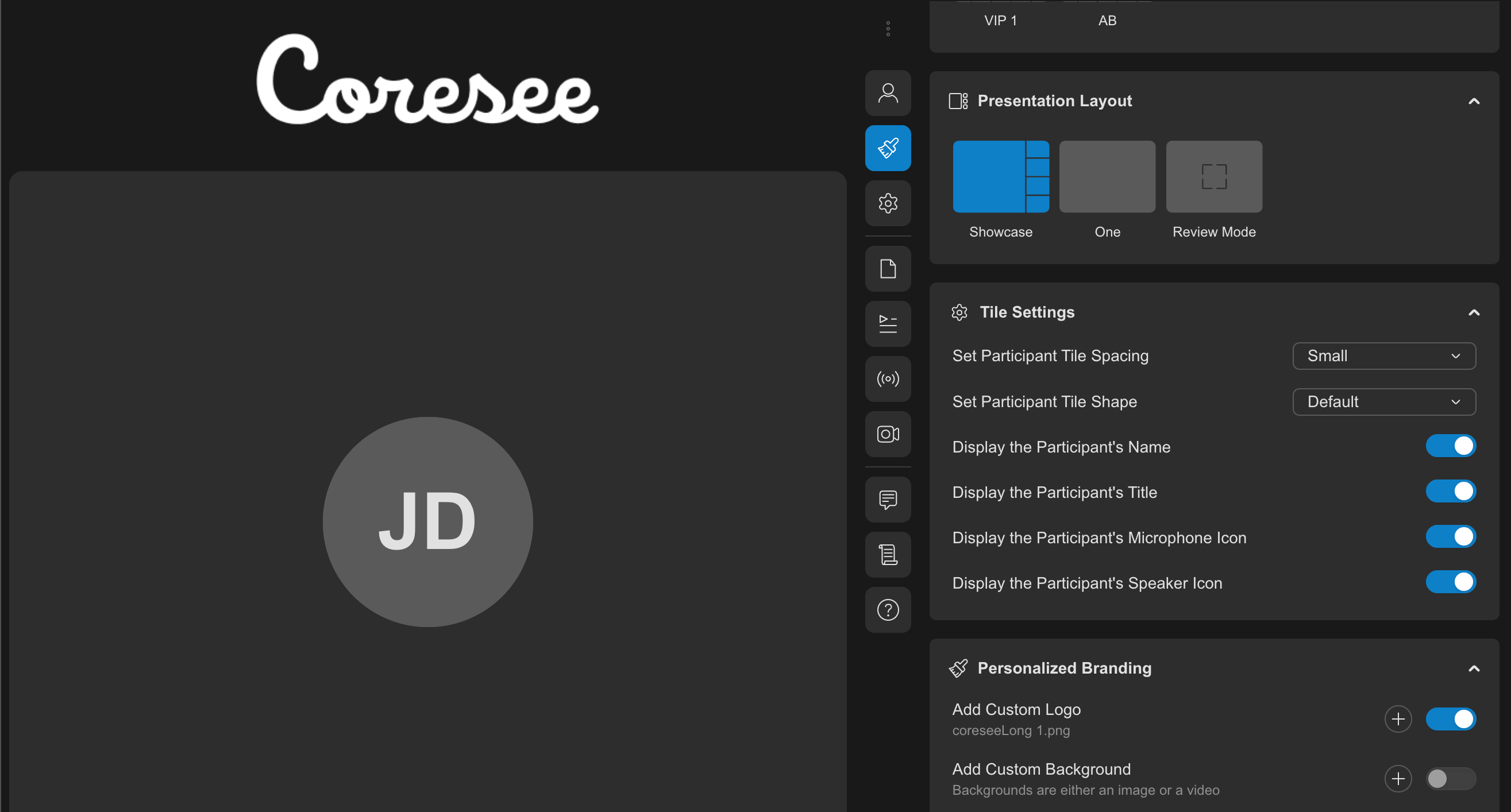 ## Background
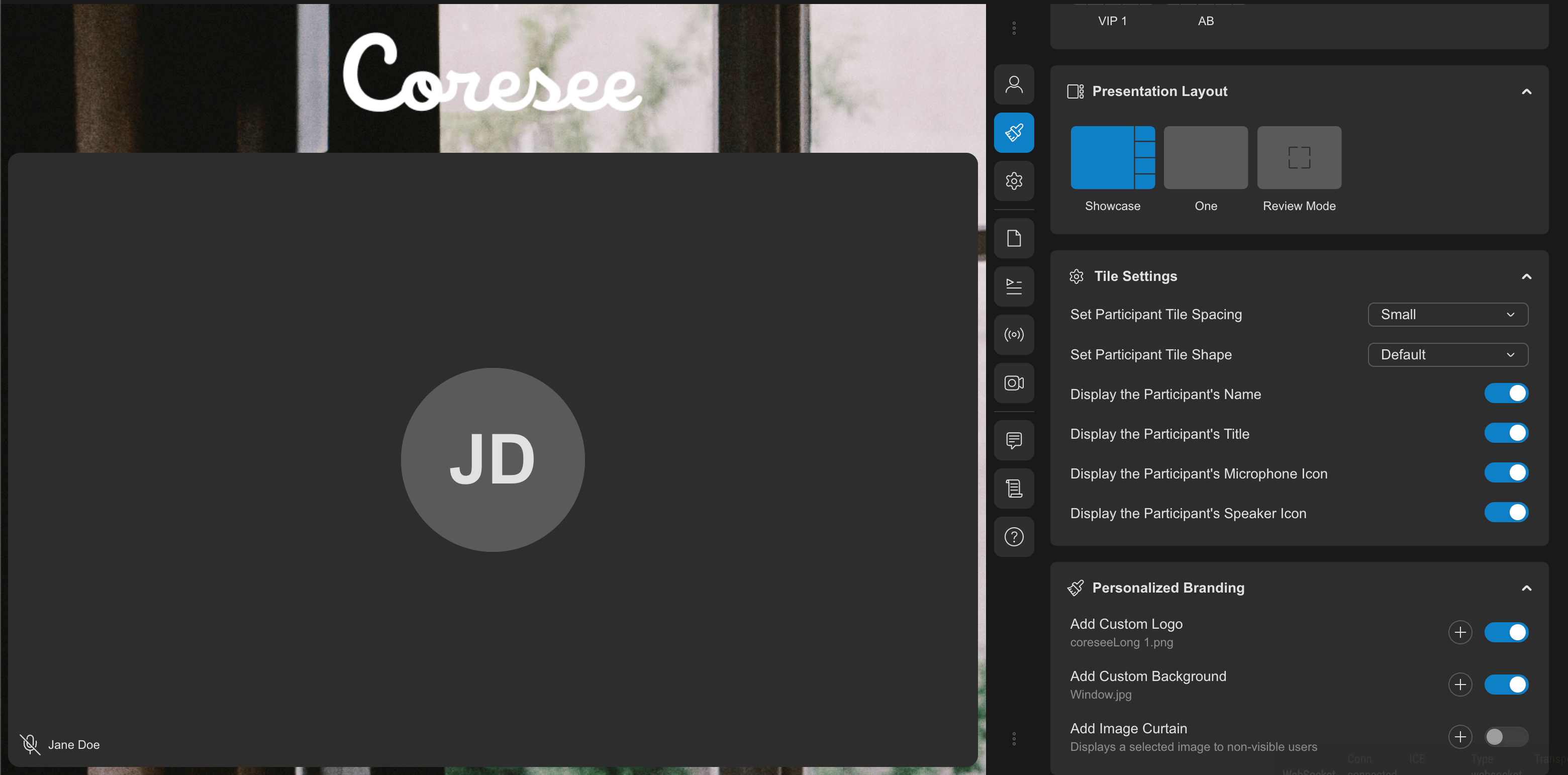
Replace the default room background with a custom image or video, visible behind all participant tiles.
## Background
Replace the default room background with a custom image or video, visible behind all participant tiles.
 For best results:
* **Aspect ratio:** 16:9 (landscape), since that matches the room view
* **Resolution:** 1920×1080 (Full HD) — this scales well without looking soft on larger displays, and isn't so large that it slows down upload/rendering
For best results:
* **Aspect ratio:** 16:9 (landscape), since that matches the room view
* **Resolution:** 1920×1080 (Full HD) — this scales well without looking soft on larger displays, and isn't so large that it slows down upload/rendering
Backgrounds display full-bleed and scale to fill the room view, so keep important design elements away from the edges of the frame.
## Curtain
An image shown to [hidden participants](/help/control-panel/hidden-participants) and the grid recording — similar to a stage curtain before a show begins. Use it to keep the room visually polished while you prepare, then lift the curtain when you're ready to go.
While the curtain is active, hidden participants and the recording see the curtain image instead of the participants.
The host and co-host see a **Curtain is down** message on the bottom bar.
 Images only — video is not currently supported for the curtain